How to Review SMS Consent Records in WooCommerce
Texty Pro stores SMS consent details with each eligible WooCommerce order. Open the order to see the buyer’s choice, the time it was made, and the exact consent text shown at checkout.
Where can you find an SMS consent record?
Section titled “Where can you find an SMS consent record?”- Sign in to your WordPress dashboard.
- Go to WooCommerce > Orders.
- Open the order you want to review.
- Find the Texty consent details on the order screen.
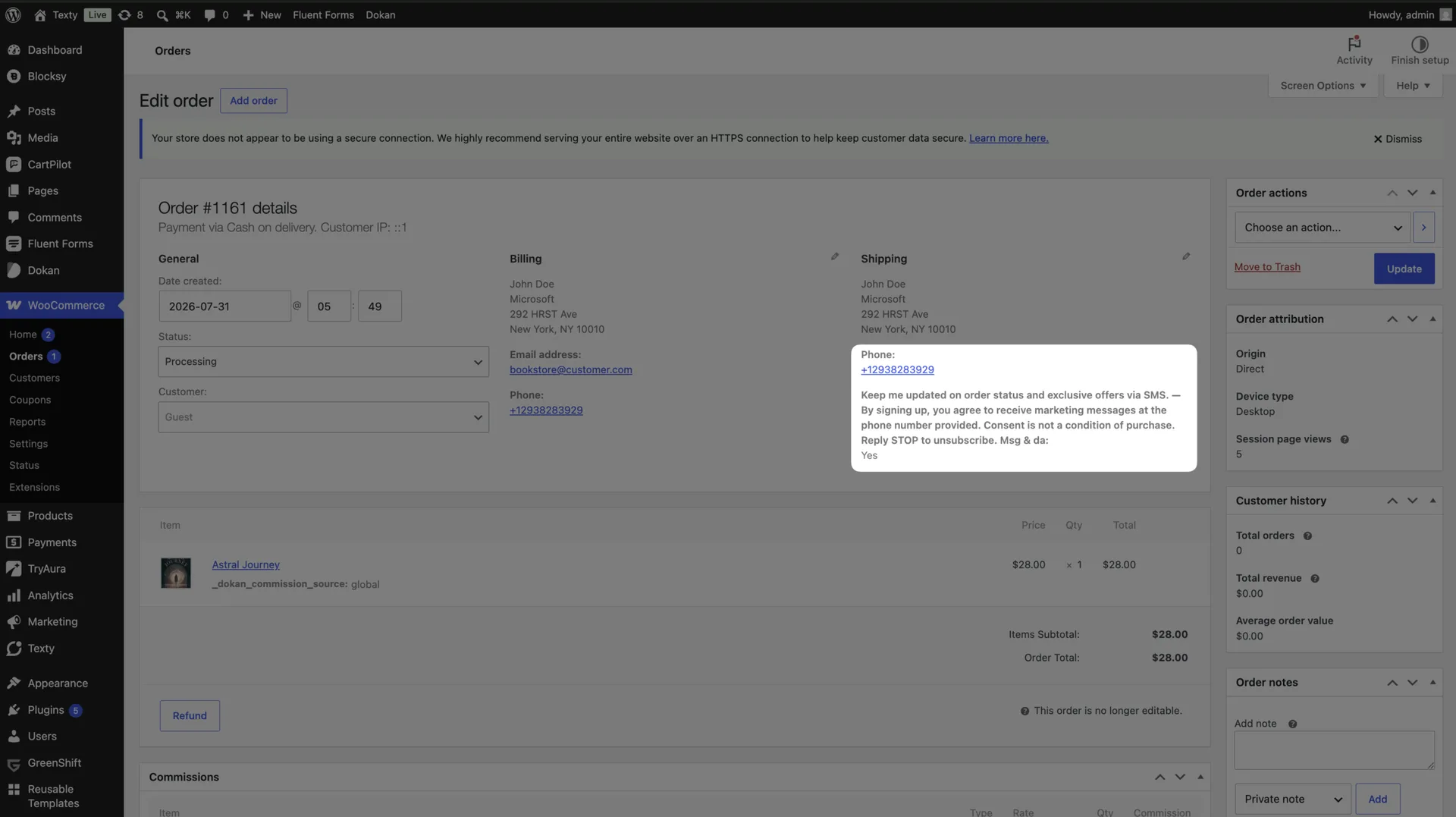
You do not need a separate Texty report. The record stays with the order it came from.
What information does Texty store?
Section titled “What information does Texty store?”Each eligible record can include six items.
| Saved item | What it tells you |
|---|---|
| Choice | Whether the buyer selected the consent box |
| Time | When checkout was completed |
| Label | The exact checkbox label shown |
| Note | The exact note shown with the field |
| IP address | The network address seen at checkout |
| User agent | Basic details about the buyer’s browser |
Texty saves this data at checkout. It does not pull the label and note from your current settings each time you view the order.
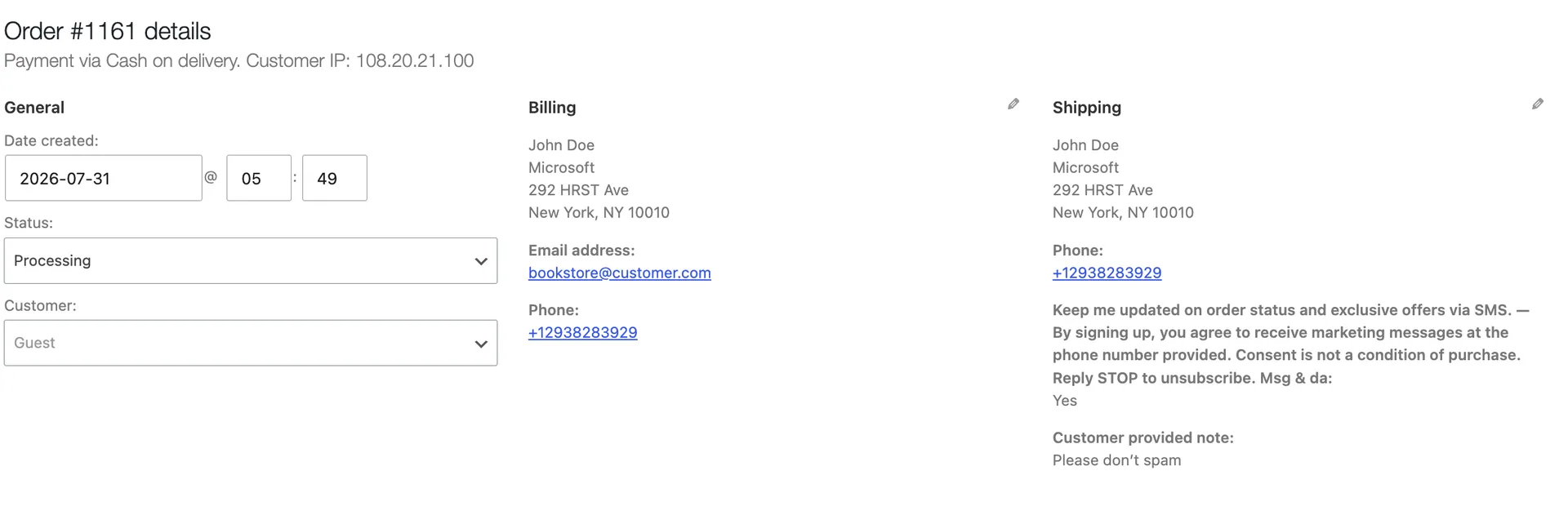
Why does Texty save the exact wording?
Section titled “Why does Texty save the exact wording?”Your consent text may change as your store grows. The saved snapshot shows what appeared when that order was placed.
For example, changing the label today does not rewrite an older order. The old order keeps the earlier label and note. This gives you a clearer record of that checkout.
The record can support your own review process. It does not prove legal compliance on its own.
Why does an order have no consent record?
Section titled “Why does an order have no consent record?”Texty saves consent only for a signed-in buyer. A guest order will not have a record, even if the checkout page showed a consent field.
This is expected behavior. If your store needs a saved record for each buyer, review whether guest checkout fits that process.
An order may also lack a record if consent was off when checkout took place. Check your current setting, but remember that it does not show what was active for an old order.
Does the saved choice stop an SMS?
Section titled “Does the saved choice stop an SMS?”No. The record is an audit trail. It does not block an enabled SMS alert by itself.
Review the purpose of each message before you send it. If a custom SMS should run only after an opt-in, use the saved choice in your sending logic.
What should you check during a consent review?
Section titled “What should you check during a consent review?”Use this short list when you review an order:
- The order belongs to a signed-in buyer.
- The choice matches the test made at checkout.
- The time fits the order date.
- The saved label and note match the checkout wording.
- Your team knows that the record does not stop SMS on its own.
Do not edit an old order to make the record match new wording. Keep the saved snapshot as it was captured.
Why does the record look wrong or incomplete?
Section titled “Why does the record look wrong or incomplete?”| What happened | What to check |
|---|---|
| No consent details appear | Check whether the buyer used guest checkout. |
| The order shows older wording | This is expected. Texty keeps the checkout snapshot. |
| The saved choice is not what you expected | Repeat the checkout with a signed-in test account. |
| Recent orders have no record | Make sure consent is on under Texty > Consent. |
| The details are hard to read | Update Texty and Texty Pro, then reload the order. |
Can I search all consent records from one page?
Section titled “Can I search all consent records from one page?”The current record is stored with each WooCommerce order. Open the order you need to review.
Can I change an old wording snapshot?
Section titled “Can I change an old wording snapshot?”You should keep the saved snapshot unchanged. It shows the text used for that checkout.
Why is there no record for a guest order?
Section titled “Why is there no record for a guest order?”Texty stores consent only for signed-in buyers. Guest orders do not get a saved record.
Does a saved yes choice allow every type of SMS?
Section titled “Does a saved yes choice allow every type of SMS?”No. The record captures a choice made at checkout. Decide which messages fit that choice and the rules for your store.
What should you do next?
Section titled “What should you do next?”If the field or wording needs work, follow how to collect SMS consent at checkout. Save the change, then place a new signed-in test order and review its record.