How to Set Up SMS Automations
Open Texty > Notifications > Automations to set up an automation. Choose a trigger, turn it on, then review its message and rules. Save your changes and create a matching test event.
Finally, check the result in Texty > SMS Logs.
What is a Texty SMS automation?
Section titled “What is a Texty SMS automation?”An automation sends an SMS after a store or customer event. It can also use a delay, limit, threshold, or cooldown.
This differs from a normal order alert. A normal alert sends when an order status changes. An automation can follow up later or wait until a set rule is met.
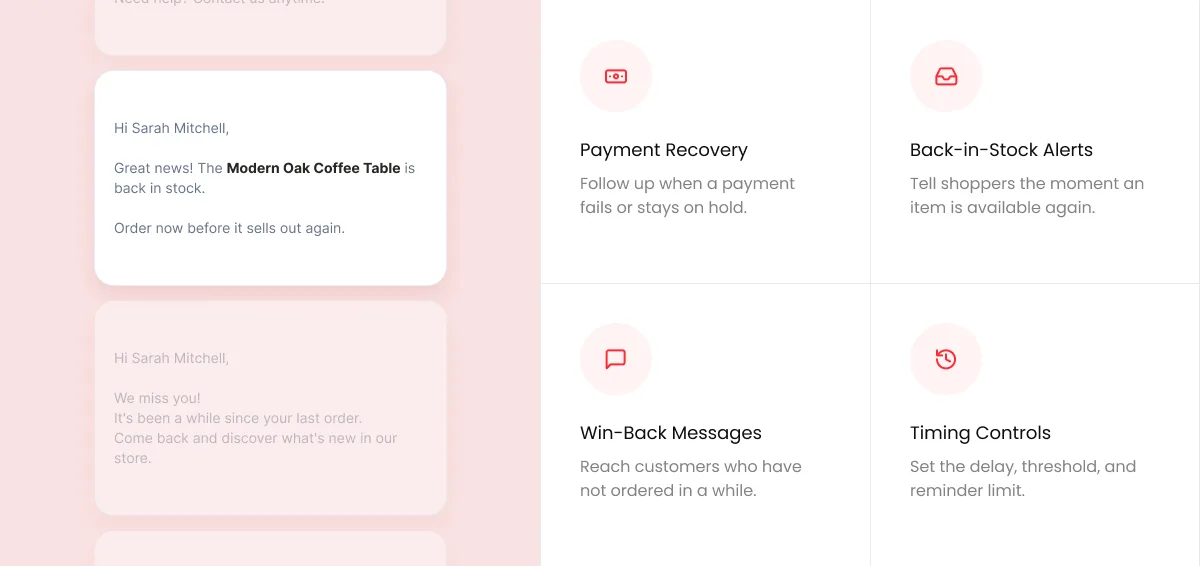
For example, Texty can remind a buyer about a failed payment. It can also ask for a review five days after an order is complete.
What do you need before you start?
Section titled “What do you need before you start?”Make sure Texty and Texty Pro are active. Your Pro license must show an active status. If needed, follow how to activate your Texty Pro license.
You also need a working SMS gateway. Follow how to connect your first SMS gateway if you have not set one up.
Use a phone number you control for the first test. Some triggers may send marketing messages, so follow your gateway rules and collect valid consent where needed.
Which automations can you use?
Section titled “Which automations can you use?”Texty includes 12 triggers in six groups.
| Group | Available triggers |
|---|---|
| Order recovery | Failed or pending payment recovery, on-hold payment reminder |
| Stock and price alerts | Back in stock, price drop |
| Post-purchase | Review request, customer note added, license or download expiry |
| Customer lifecycle | First-order welcome, win-back, replenishment or reorder |
| Account and security | Security alert |
| Store alerts | Low or out-of-stock alert |
Use the Texty automation triggers reference to compare their messages, rules, and variable tags.
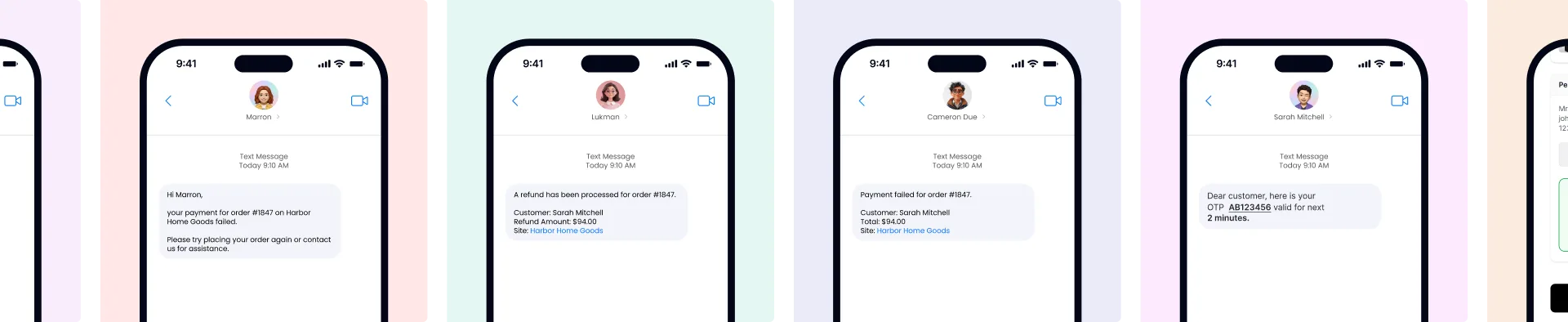
How do you turn on an automation?
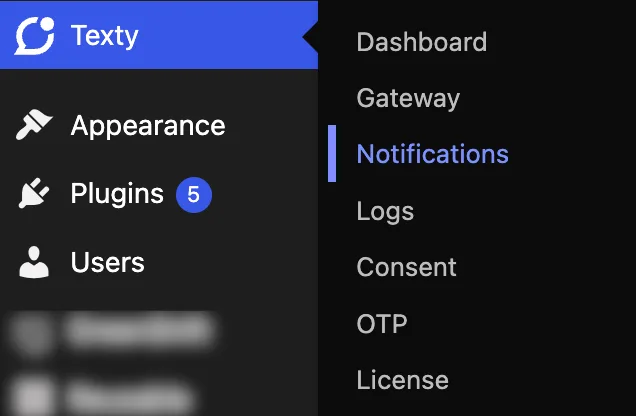
Section titled “How do you turn on an automation?”Sign in to your WordPress dashboard. Go to Texty > Notifications.
Open the Automations tab. Find the group that contains your trigger.
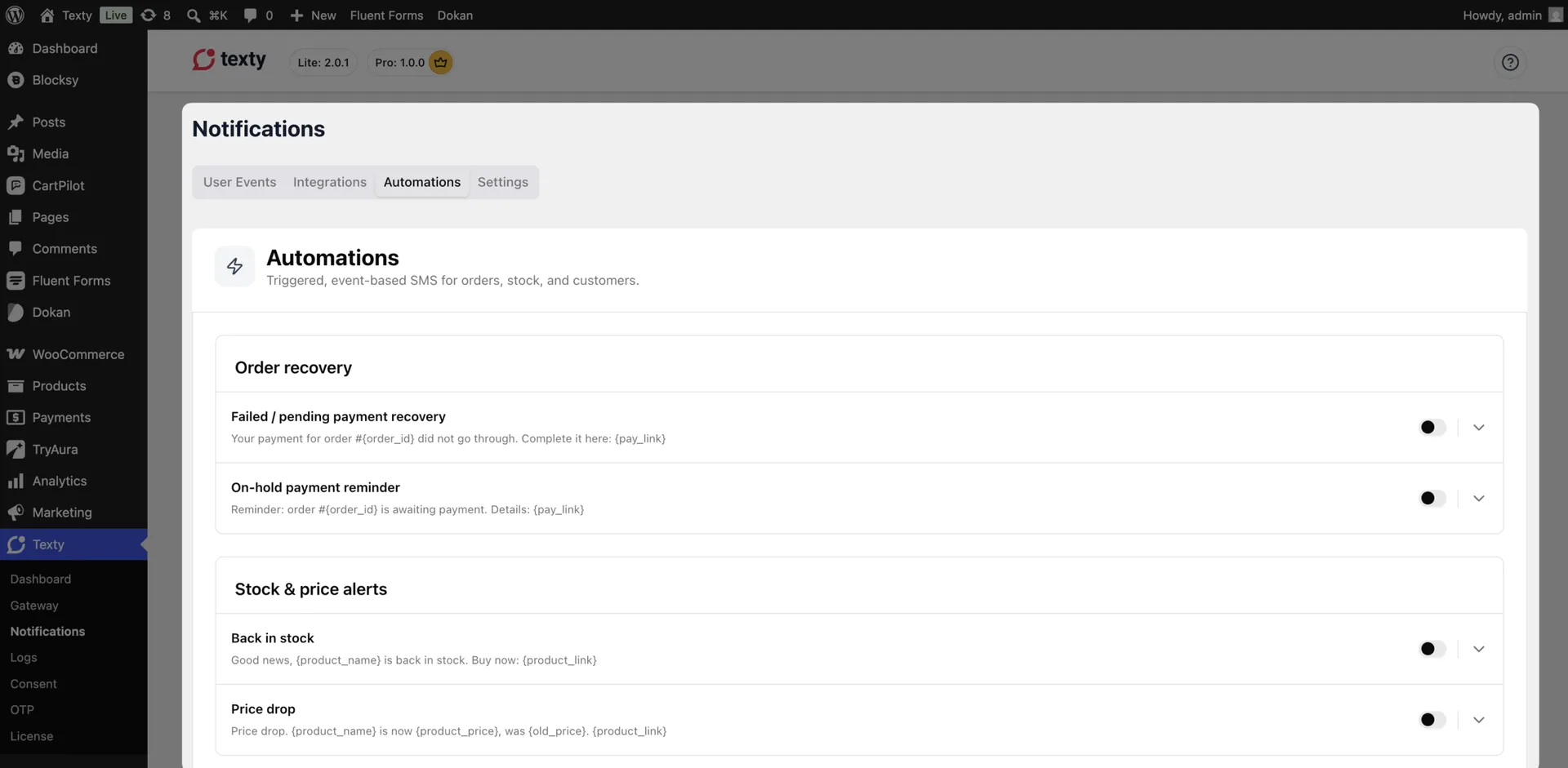
Turn on the toggle beside that trigger. Select the trigger row to open its settings.
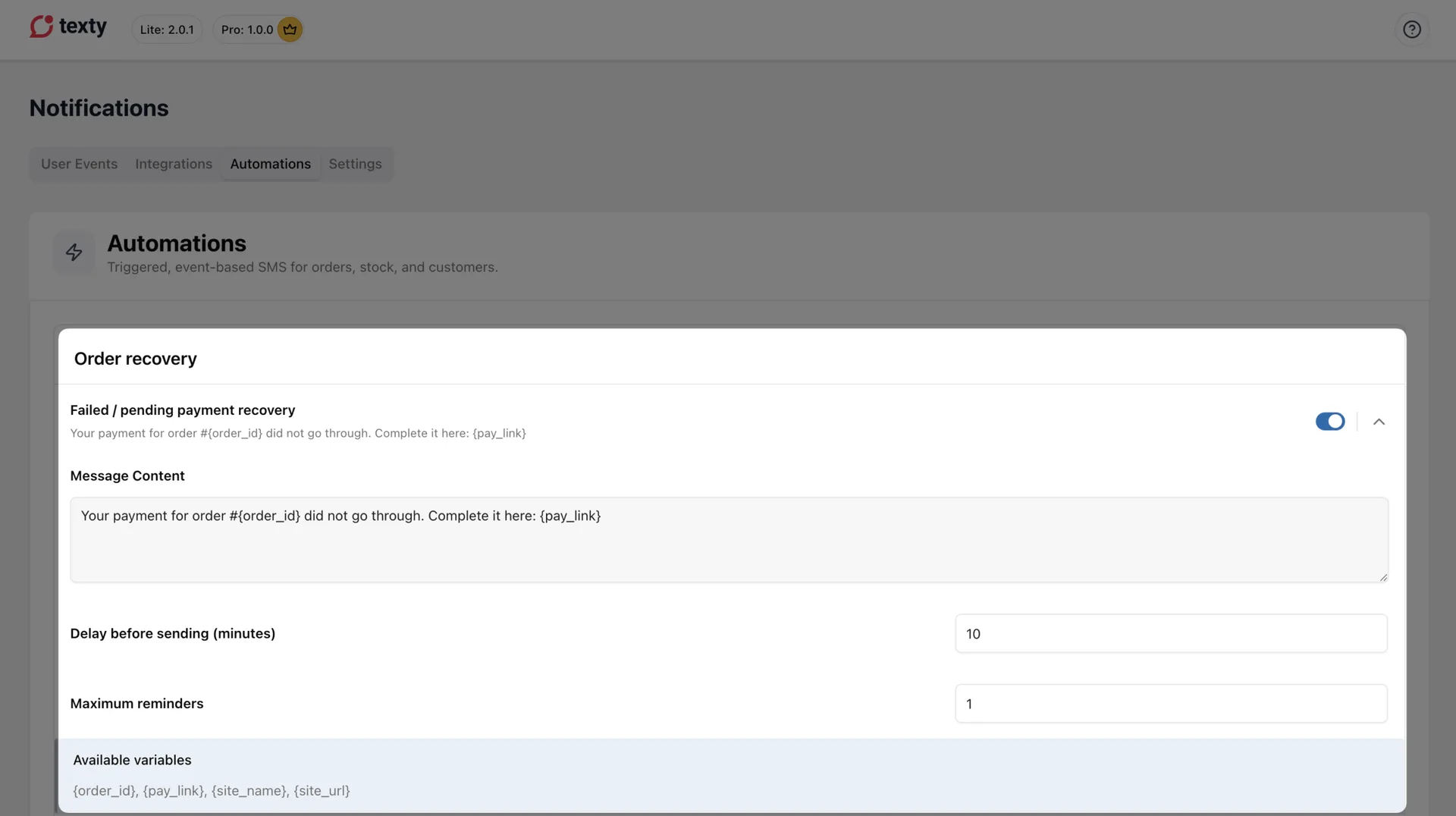
Review the message and any timing fields. Edit the message content and write the message content accordingly. Save your changes.
Each trigger has its own toggle. Turning on one trigger does not enable the rest of its group.
How do you edit the automation message?
Section titled “How do you edit the automation message?”Open the trigger row and find its message field. You can keep the default text or write your own.
Use only the merge tags shown for that trigger. A tag from another automation may stay as plain text. The global \{site_name} and \{site_url} tags work across all built-in triggers.
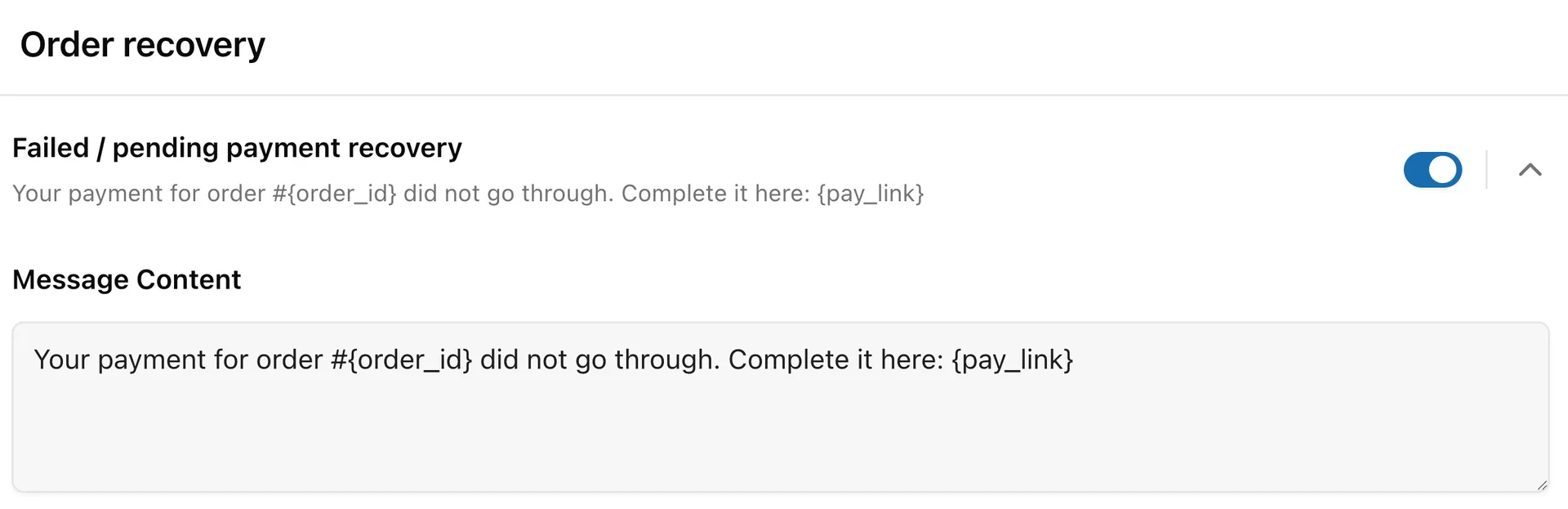
Put the main update first. Keep links and long product names in mind because they can make the final SMS longer.
How do you test an automation?
Section titled “How do you test an automation?”Test one trigger at a time with data you control.
- Confirm that the trigger is on.
- Create the event that should start it.
- Wait for any saved delay to pass.
- Open Texty > SMS Logs.
- Find the new record and open its details.
- Check the phone number, message, gateway, and status.
- Confirm that the SMS reached your test phone.
A Sent log means the gateway accepted the SMS. It does not prove carrier delivery. Check your gateway report if the phone does not receive it.
Success check: The trigger runs once, the final text has no raw merge tags, and the SMS reaches the correct phone at the expected time.
Why did the automation not send?
Section titled “Why did the automation not send?”| What happened | What to check |
|---|---|
| No new log appears | Make sure the trigger is on and your test met its event or rule. |
| The message sends too early or late | Review the delay, time unit, and saved value. |
| A raw tag appears in the SMS | Use only the tags listed for that trigger. |
| The SMS fails | Check the phone format, active gateway, funds, and gateway response. |
| A second message does not send | Check the reminder limit or cooldown. |
| Too many messages send | Lower the reminder limit or increase the cooldown. |
For message-level details, see how to view SMS Logs and delivery status.
Are automations available in Texty Lite?
Section titled “Are automations available in Texty Lite?”No. Automations require Texty Pro, an active Pro license, and the free Texty plugin.
Do all Texty automations use a delay?
Section titled “Do all Texty automations use a delay?”No. Some run when an event happens. Others use a delay, threshold, limit, or cooldown.
Can you turn on a full automation group at once?
Section titled “Can you turn on a full automation group at once?”No. Each trigger has its own toggle and settings. Turn on only the triggers you plan to use.
Can you use any variable tag in any trigger?
Section titled “Can you use any variable tag in any trigger?”No. Each trigger has its own toggle and settings. Turn on only the triggers you plan to use.
What should you do next?
Section titled “What should you do next?”Please follow the remaining guides to make the most out of Texty.