How to Activate Your Texty Pro License
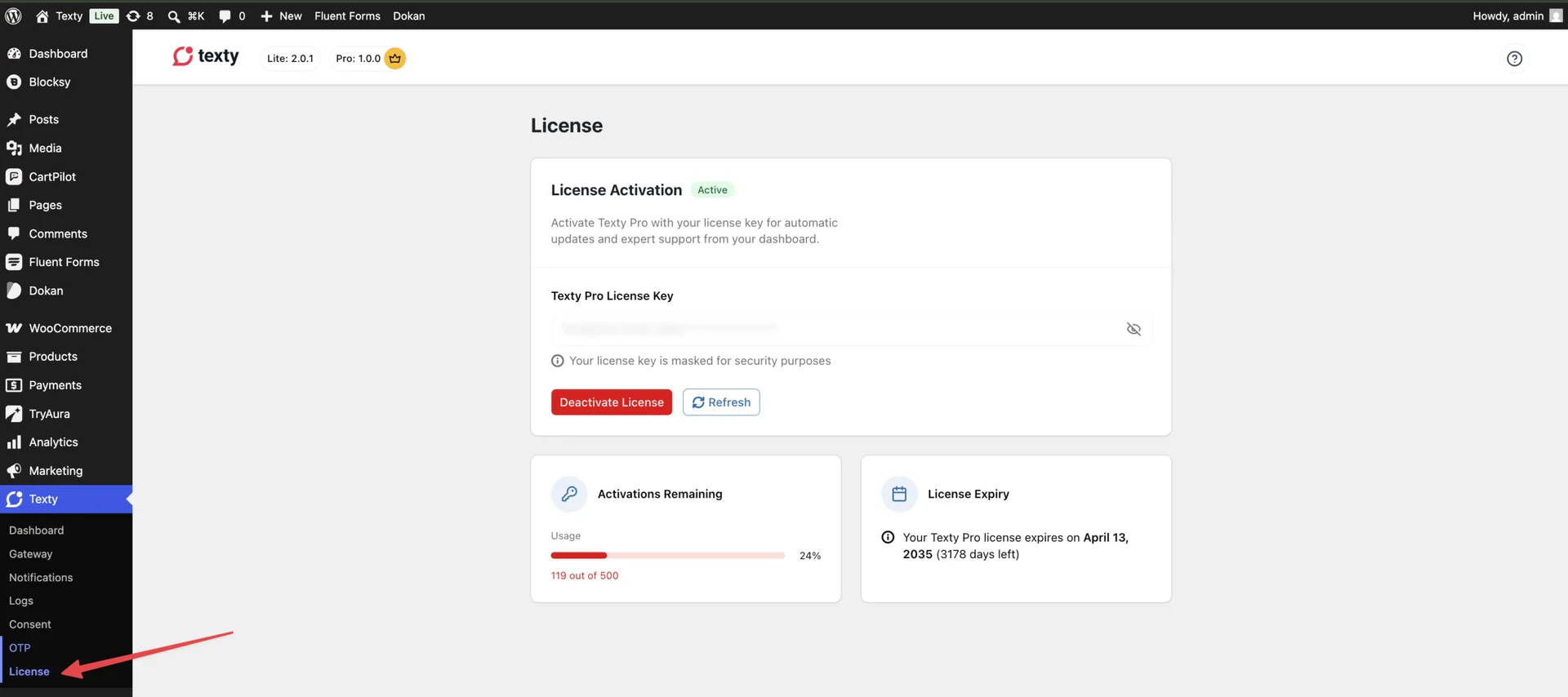
You can activate Texty Pro from Texty > License in your WordPress dashboard. Enter your license key and select Activate. When the status changes to Active, you can use Pro features such as Automations, Consent, and OTP.
What do you need before you start?
Section titled “What do you need before you start?”Make sure Texty and Texty Pro are installed and active on your site. If you still need to install them, follow how to install Texty on WordPress.
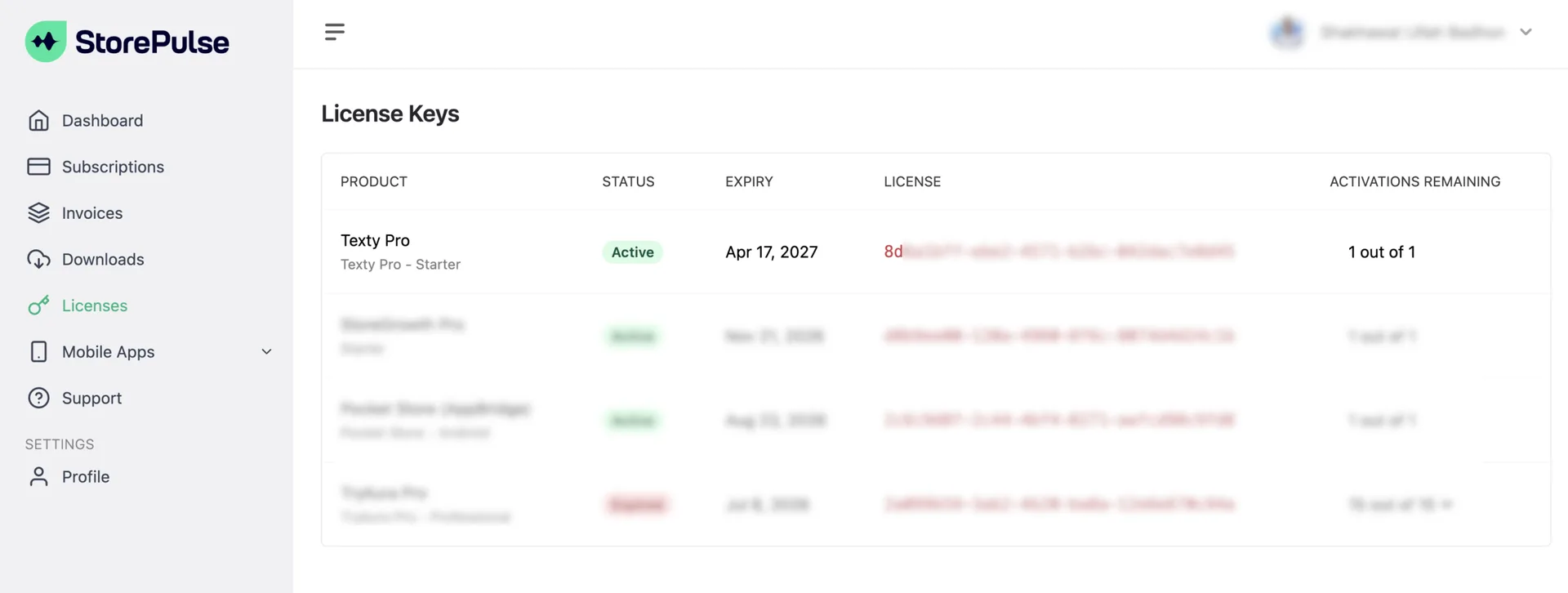
You can find your license key in your StorePulse account under the licenses tab.
How do you activate your Texty Pro license?
Section titled “How do you activate your Texty Pro license?”Sign in to your WordPress dashboard. Go to Texty > License.
Paste your key into the License key field.
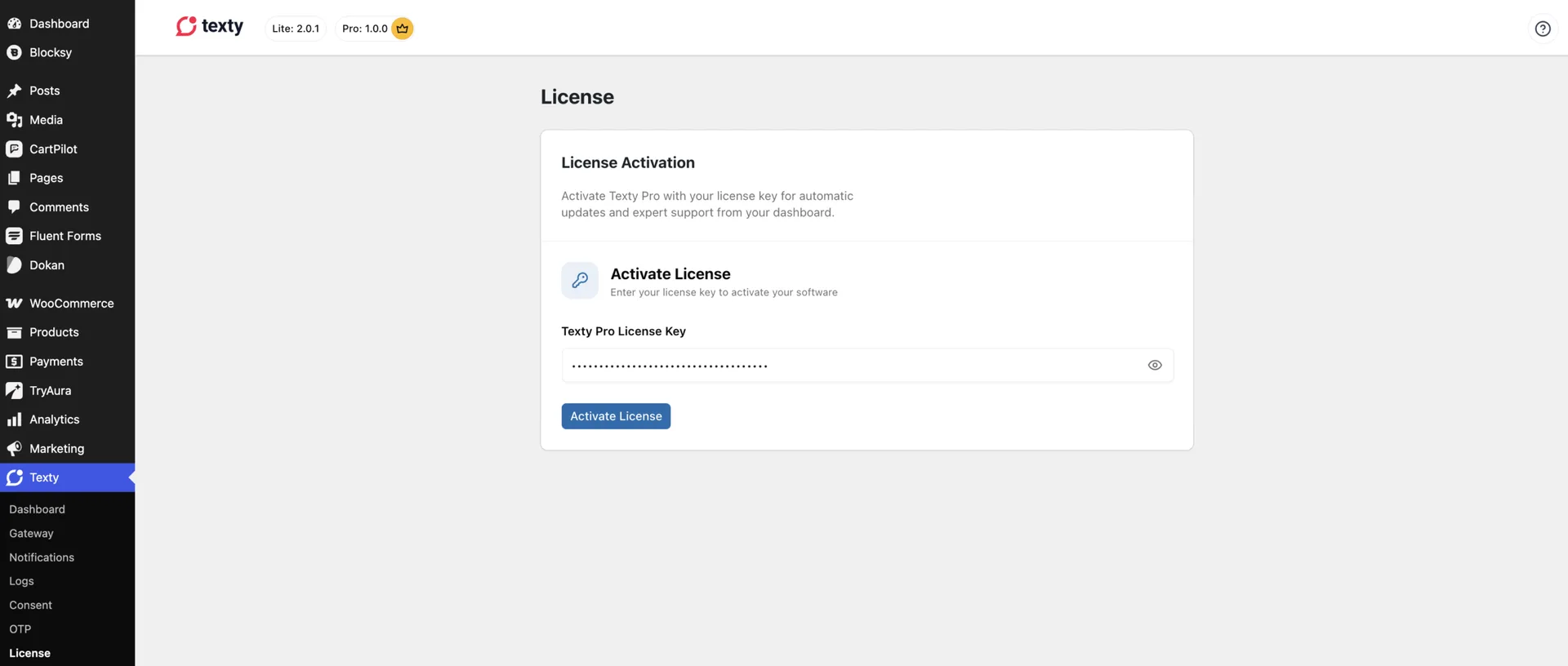
Select Activate. Wait for the license status to show Active.
How do you know the license is active?
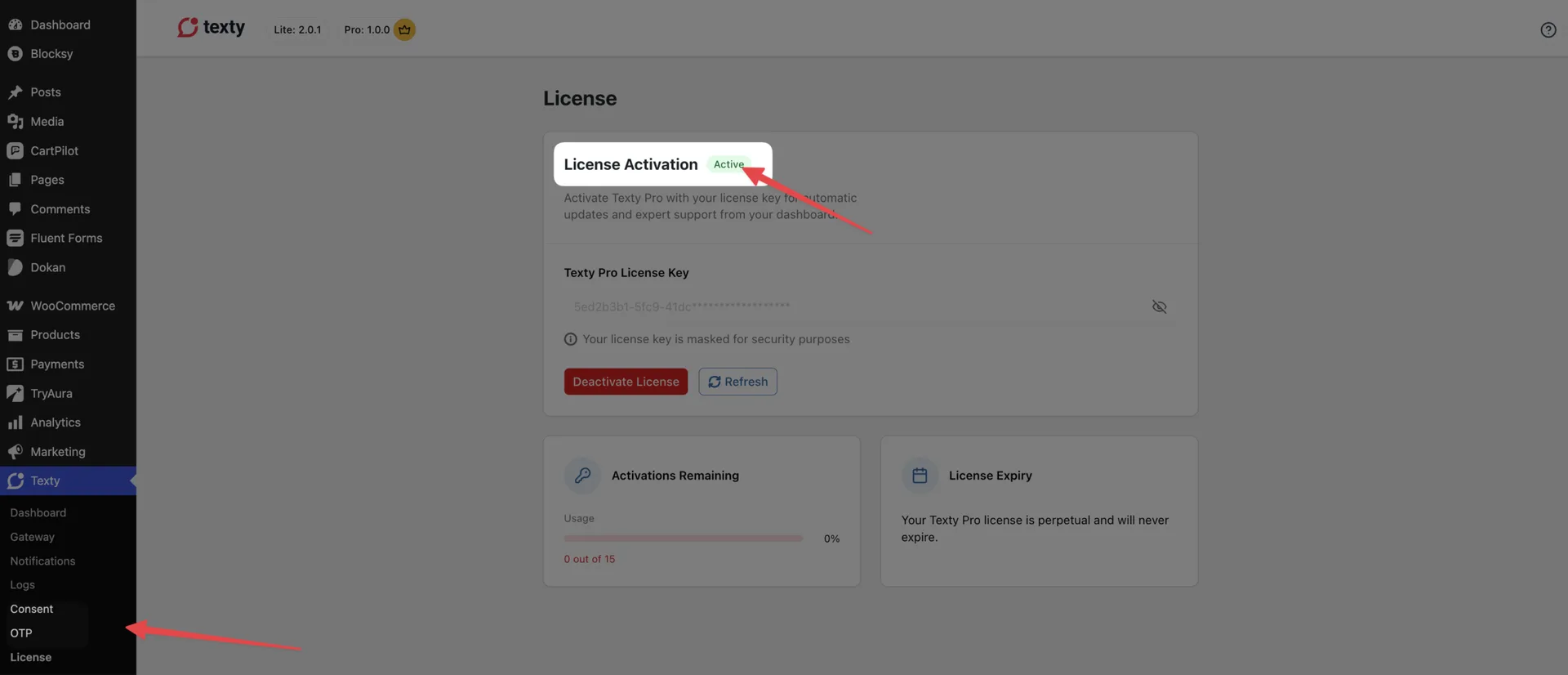
Section titled “How do you know the license is active?”The License page should show an Active status. You should also see Consent and OTP in Texty.
If a Pro menu does not appear at once, reload the WordPress dashboard. You do not need to reinstall the plugin.
What should you do if activation fails?
Section titled “What should you do if activation fails?”Most license problems can be fixed with these checks.
| Problem | What to check |
|---|---|
| The key is not accepted | Copy the key again and remove any spaces before or after it. |
| The key has expired | Check your Texty account to confirm that the license is still valid. |
| The key is already in use | Deactivate it on the old site, then try again. |
| The status stays inactive | Reload the page, then make sure both Texty plugins are active and up to date. |
| Pro tools are missing | Confirm that the status reads Active, then reload the WordPress dashboard. |
If the old site is no longer online, open your Texty account. Remove the old site there, or ask Texty support for help. Never send your full license key in a public message.
How do you move the license to another site?
Section titled “How do you move the license to another site?”Deactivate the key on the old site before you use it on the new one.
- On the old site, go to Texty > License.
- Select Deactivate.
- Open Texty > License on the new site.
- Enter the same key and select Activate.
- Confirm that the new site shows an Active status.
After deactivation, Pro tools that need an active license will stop running on the old site. Check your settings and test the new site before using it with customers.
Does license activation finish the Texty setup?
Section titled “Does license activation finish the Texty setup?”No. Activation unlocks the Pro tools. It does not connect an SMS service or turn on each feature.
Before sending messages, connect your first SMS gateway. You can then set up SMS consent at checkout or OTP verification at checkout.
What else should you know?
Section titled “What else should you know?”Do I need a license for Texty Lite?
Section titled “Do I need a license for Texty Lite?”No. Texty Lite works without a Pro license. A valid license is required to unlock and use Texty Pro features.
Can I use one license on more than one site?
Section titled “Can I use one license on more than one site?”That depends on the site limit included with your plan. Check your Texty account before activating the same key on another site.
Will activating the license send an SMS?
Section titled “Will activating the license send an SMS?”No. The license only unlocks Texty Pro. You still need to connect an SMS gateway and enable the feature you want to use.
What should you do next?
Section titled “What should you do next?”Connect and test an SMS gateway if you have not done so. Next, choose the Pro feature that fits your store. Set it up and test it before customers use it.