How to Verify WooCommerce Phone Number Changes With OTP
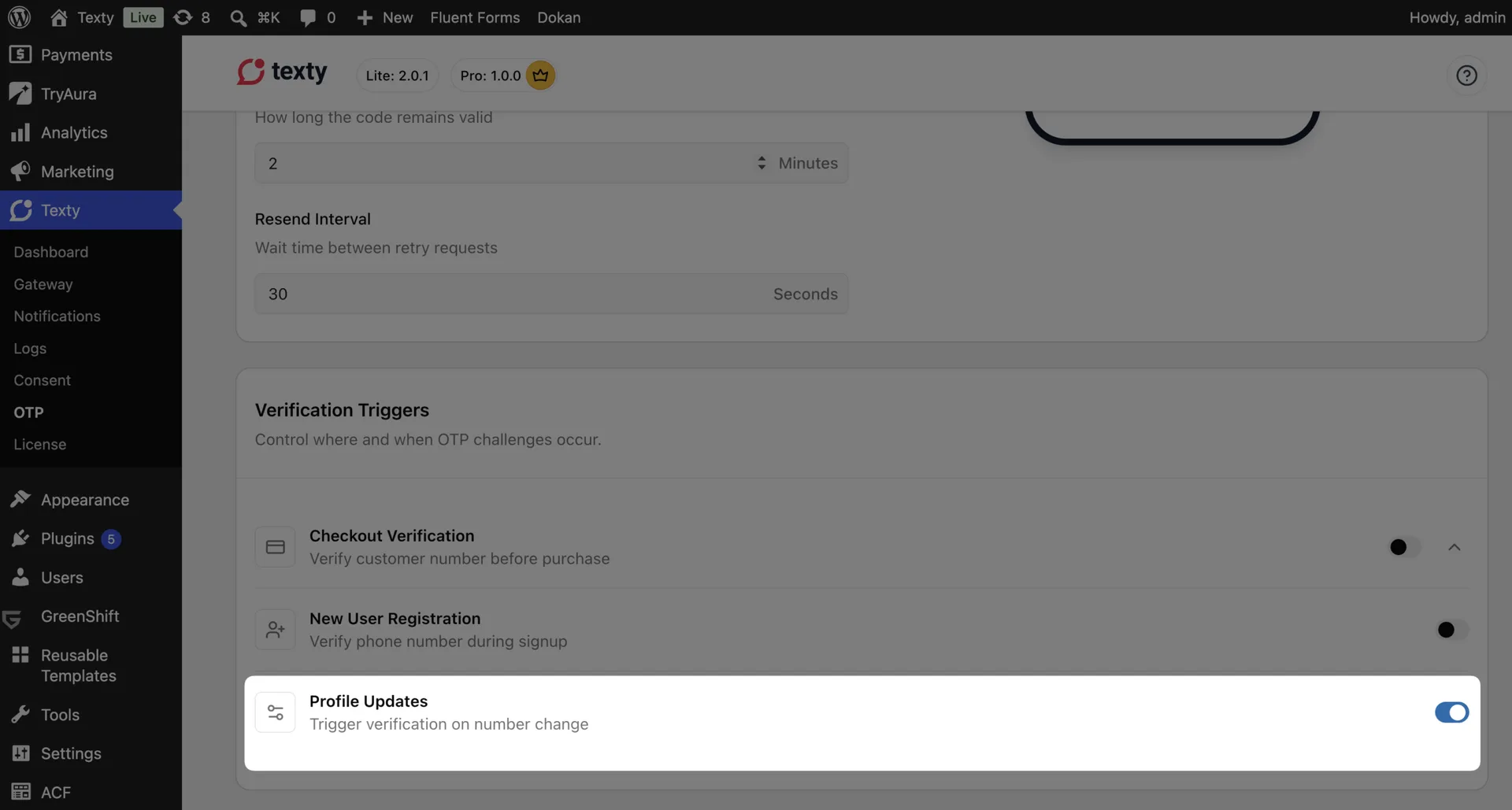
Turn on Profile Update in Texty > OTP. When a user changes the WooCommerce billing phone, Texty sends a code to the new number. The new phone is saved only after the code passes.

What do you need before you start?
Section titled “What do you need before you start?”Texty Pro needs an active license. You also need a working SMS gateway and a test user account.
Review the shared code, SMS text, expiry, and resend rules first. See how to customize OTP settings in Texty.
How do you turn on OTP for phone changes?
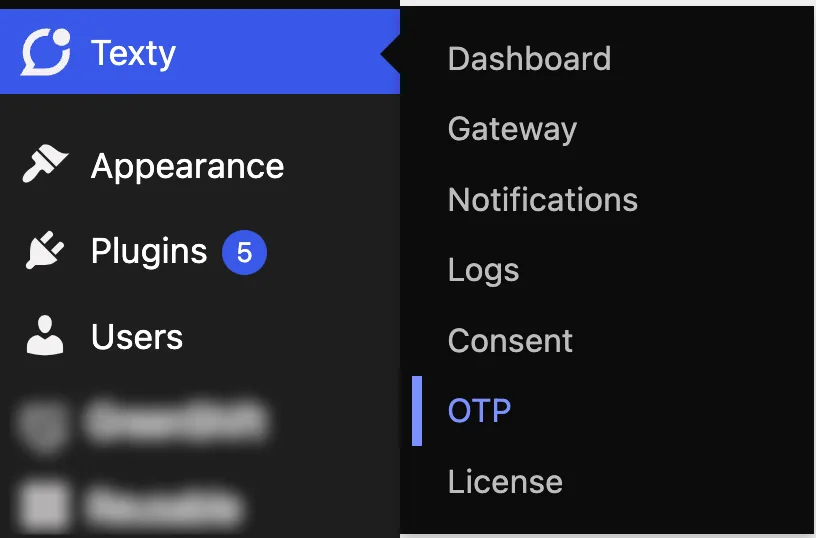
Section titled “How do you turn on OTP for phone changes?”Sign in to your WordPress dashboard. Go to Texty > OTP.
Find the Profile Update trigger. Turn on Profile Update. Save your changes.
Which account pages does Texty check?
Section titled “Which account pages does Texty check?”Texty checks phone changes made in these WooCommerce My Account areas:
- The account details form
- The billing address form
The prompt appears only when the billing phone changes. A new name, email, street, or other field does not start the phone check.
A profile plugin may use a different field or save flow. Test any custom account page before you rely on this tool.
What does the customer see?
Section titled “What does the customer see?”The user enters a new billing phone and tries to save the form. Texty sends a one-time code to that number. The user enters the code, and Texty saves the phone after it passes.
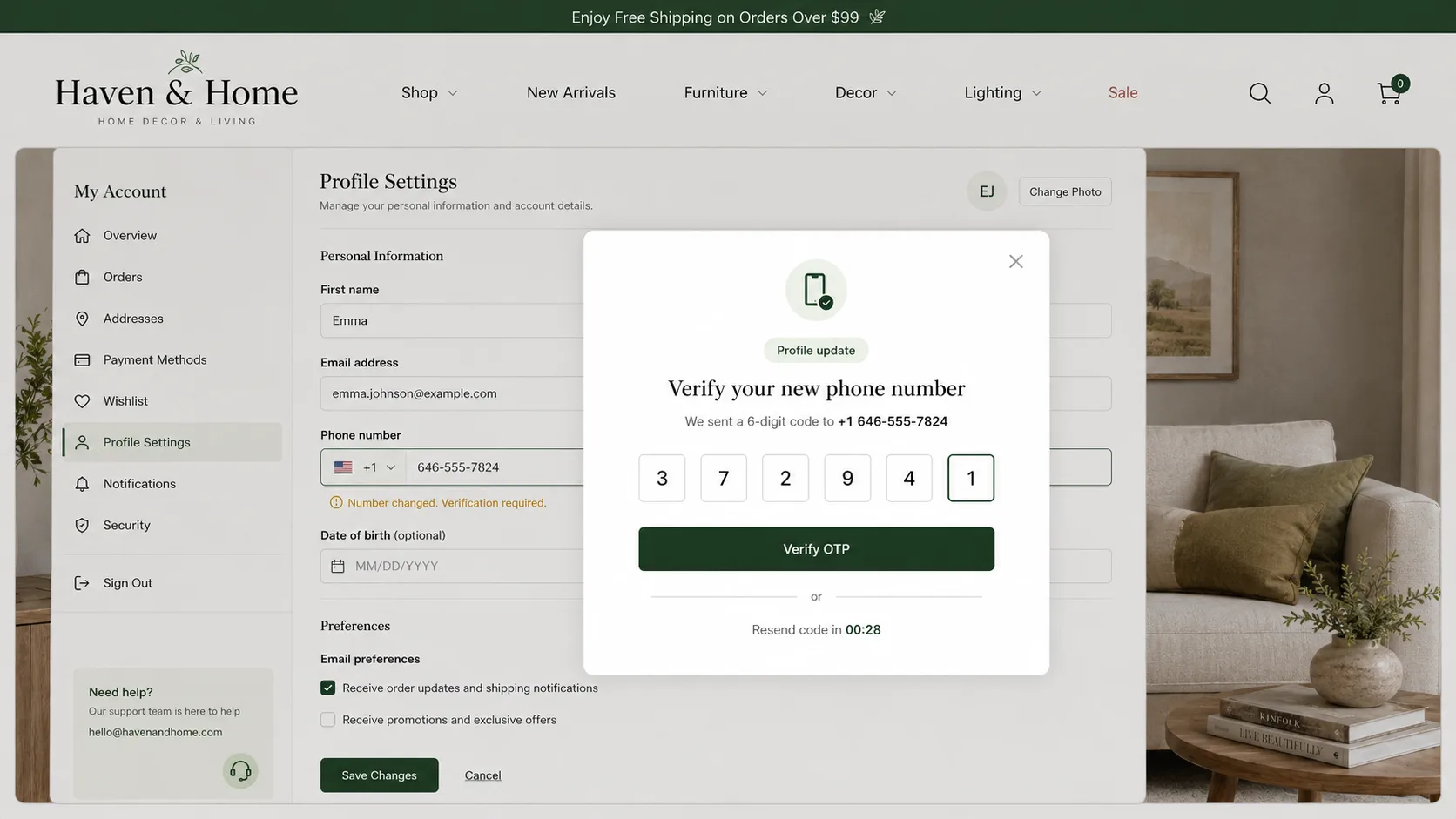
This helps stop a wrong or unowned number from replacing the old phone.
How do you test profile update OTP?
Section titled “How do you test profile update OTP?”Use a test account and two phone numbers you own.
- Sign in as the test customer.
- Open My Account > Addresses.
- Edit the billing address.
- Replace the billing phone with your second number.
- Save the form.
- Request and enter the code sent to the new number.
- Reload the billing address.
- Check that the new phone was saved.
Now repeat the test with one wrong code. The new phone should not be saved.
Also edit a field that is not the billing phone. It should save with no OTP prompt.
Success check: A valid code saves the new billing phone. A wrong code does not. Other account edits do not ask for OTP.
How long does the verified state last?
Section titled “How long does the verified state last?”Texty remembers a passed phone check for 30 minutes. During that time, the user may not need another code for the same phone check.
After that time ends, the next phone change needs a new code.
Why is profile update OTP not working?
Section titled “Why is profile update OTP not working?”| What happened | What to check |
|---|---|
| No OTP prompt appears | Make sure Profile Update is on and the billing phone changed. |
| A custom phone field skips OTP | Test the main WooCommerce billing phone field. |
| The code goes to the old phone | Confirm that the new number was entered before requesting the code. |
| The code does not arrive | Test the gateway and check the new phone format. |
| The new phone saves without OTP | Check for a theme or plugin that replaces the main save flow. |
| The new phone is not saved | Use the newest valid code and check for an expiry error. |
| Another field asks for OTP | Check whether the form maps that field to the billing phone. |
Five wrong codes make the current code fail. Ask for a new code to go on.
Does Texty check every account edit?
Section titled “Does Texty check every account edit?”No. It runs when the WooCommerce billing phone changes.
Where is the code sent?
Section titled “Where is the code sent?”Texty sends it to the new billing phone. The user must own that number to save it.
Does the trigger cover a shipping phone field?
Section titled “Does the trigger cover a shipping phone field?”This flow checks the WooCommerce billing phone. Test custom phone fields on their own.
Does it work with custom account pages?
Section titled “Does it work with custom account pages?”It works with the main WooCommerce forms. A custom form may need extra work if it uses a different field or save step.
What should you do next?
Section titled “What should you do next?”Test both WooCommerce account forms. Then make sure checkout and sign-up use the OTP rules your store needs.