How to Collect SMS Consent at WooCommerce Checkout
Texty Pro can add an SMS consent checkbox to WooCommerce checkout. You can change its label, add a short note, and choose its default state. Texty then saves the choice for eligible orders.
What do you need before you start?
Section titled “What do you need before you start?”Make sure Texty Pro has an active license. You also need a working WooCommerce checkout page.
If Pro is not active yet, follow how to activate your Texty Pro license.
You do not need an SMS gateway to display the checkbox. You will need one before Texty can send any SMS.
How do you add the SMS consent checkbox?
Section titled “How do you add the SMS consent checkbox?”Sign in to your WordPress dashboard. Go to Texty > Consent.
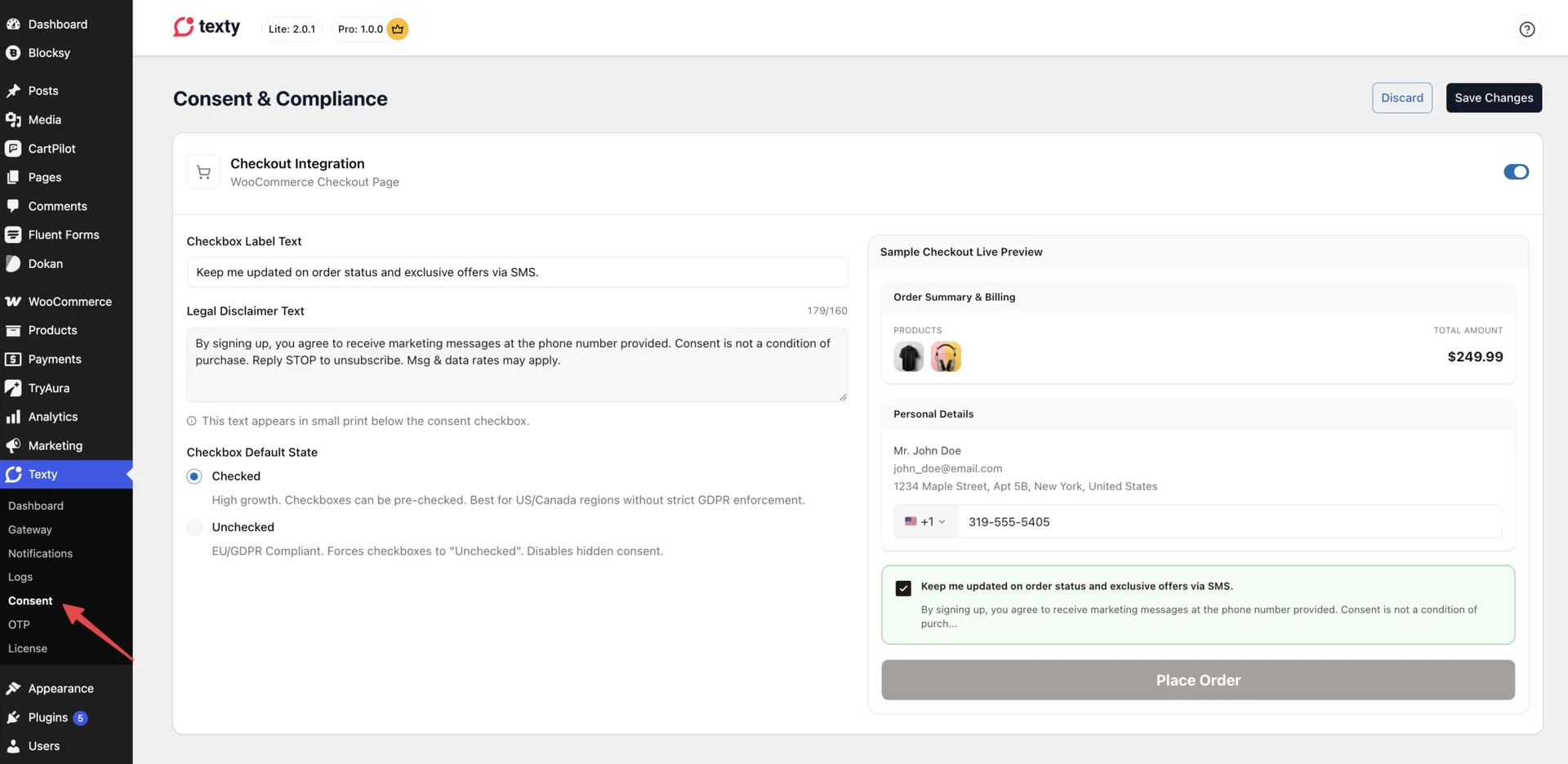
Turn on the checkout consent option. Enter the text shown beside the checkbox. Add a short note below the label.
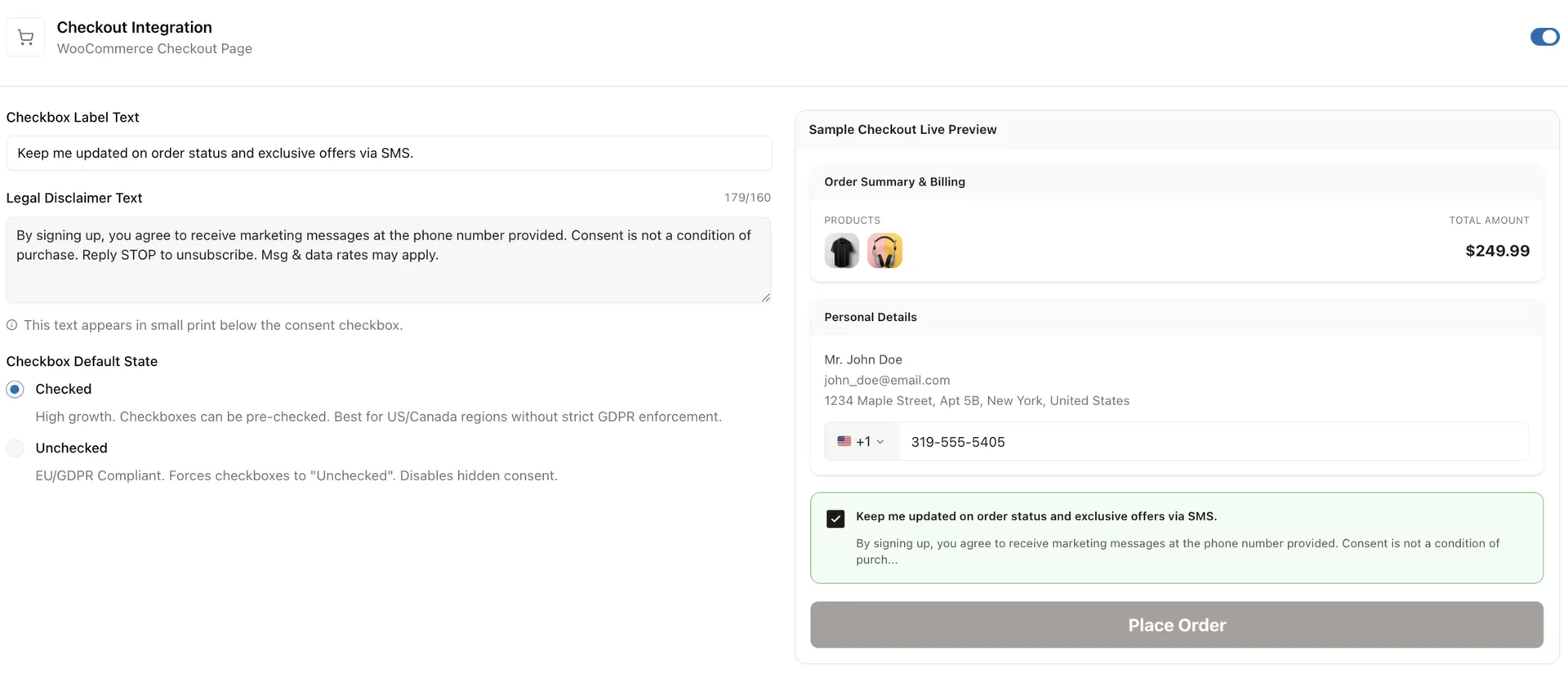
Choose whether the box starts checked or unchecked. Review the checkout preview. Save your changes.
What should the checkbox say?
Section titled “What should the checkbox say?”Use clear text that tells buyers what type of SMS they may receive. Keep the label short and place any extra detail in the note.
The note accepts plain text and has a 160-character limit. Texty removes any HTML. Check the preview after you save to make sure the full message still reads well.
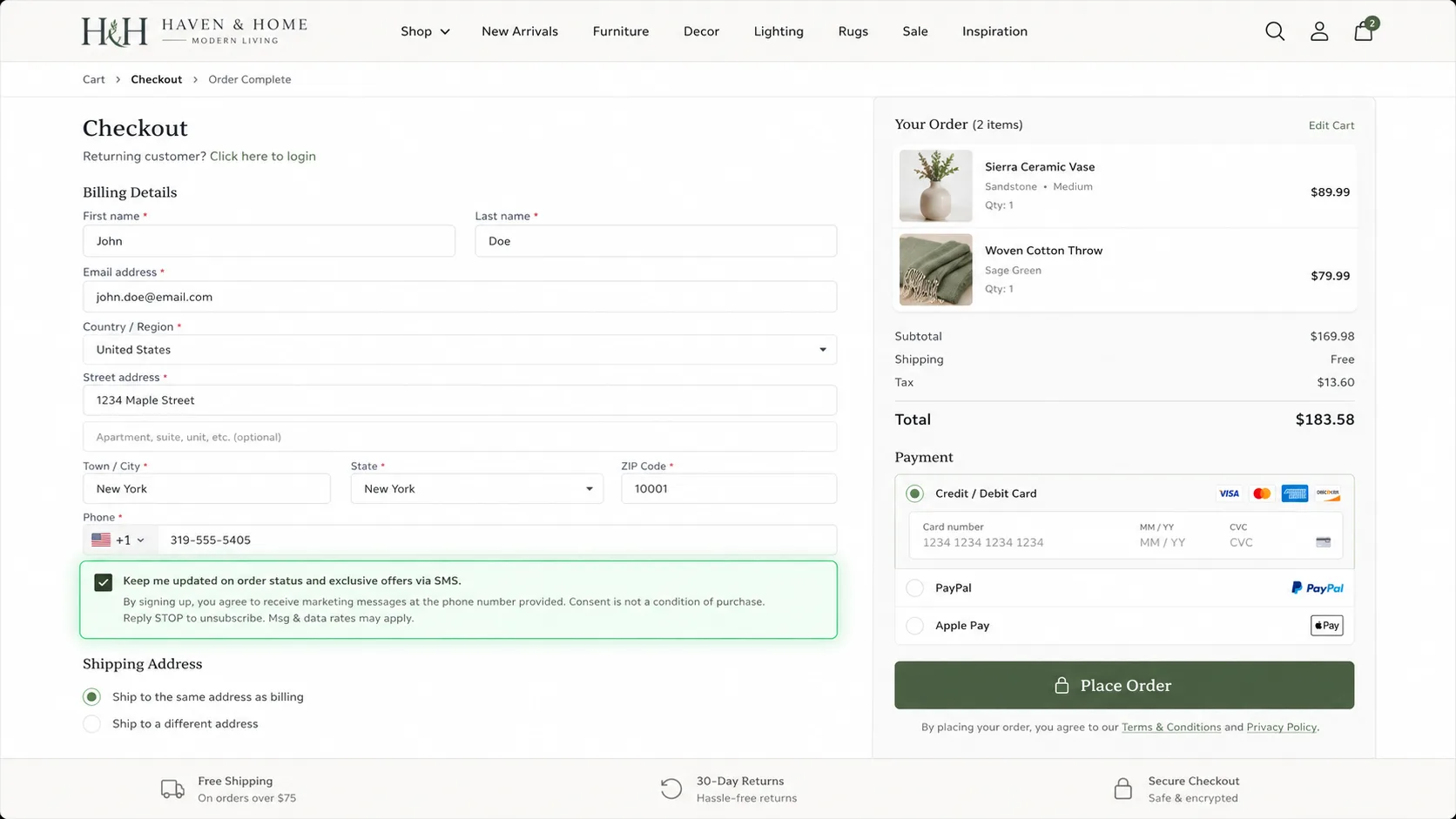
Texty does not handle incoming SMS replies. If your note tells buyers to reply STOP, set up opt-out handling with your SMS gateway. Test that flow before you publish the wording.
Important: Texty helps you collect and store a choice. It does not confirm that your wording or SMS process meets every rule that applies to your store.
Should the box start checked or unchecked?
Section titled “Should the box start checked or unchecked?”Texty lets you choose either state.
| Default state | What the buyer sees |
|---|---|
| Unchecked | The buyer must select the box to opt in. |
| Checked | The box is already selected when checkout loads. |
If you are unsure, start with an unchecked box. It gives the buyer a clear choice. Check the rules that apply to your store before you use a checked box.
Where does the field appear at checkout?
Section titled “Where does the field appear at checkout?”Texty supports both main WooCommerce checkout types.
- Classic checkout: The field appears near the order button.
- Block checkout: The field appears with the other checkout fields.
Block checkout support needs WooCommerce 8.6 or later. Update WooCommerce if the field does not appear in a block checkout.
What does Texty save with each order?
Section titled “What does Texty save with each order?”For an eligible order, Texty saves:
- The buyer’s choice
- The time of checkout
- The exact label shown
- The exact note shown
- The buyer’s IP address
- The buyer’s browser user agent
The label and note are saved as a snapshot. If you change the text later, older orders still show the version used at that checkout.
Texty saves these details only for a signed-in buyer. It does not save a consent record for a guest order.
Does consent control which SMS Texty sends?
Section titled “Does consent control which SMS Texty sends?”No. The consent tool records the choice. It does not turn order alerts or other SMS features on and off.
If an order alert is enabled, it may still run when the box is not selected. Apply the right sending rules to each type of message. You can also use the saved consent choice in custom code when needed.
How do you test SMS consent?
Section titled “How do you test SMS consent?”Test the full checkout before customers use it.
- Sign in with a test customer account.
- Add a test product to the cart.
- Open checkout and find the consent field.
- Select the box and place the order.
- Open the order in WooCommerce > Orders.
- Check the saved choice, time, label, and note.
- Repeat the test with the box clear.
- Test both checkout types if your site uses both.
Use a staging site or test payment method when possible.
Why is the consent field missing?
Section titled “Why is the consent field missing?”| What happened | What to check |
|---|---|
| The field is missing on all checkout pages | Make sure Texty Pro is active and consent is turned on. |
| The field is missing from block checkout | Update WooCommerce to version 8.6 or later. |
| Changes do not appear | Save again, clear the site cache, and reload checkout. |
| The text is cut short | Keep the note within 160 characters. |
| The order has no saved record | Run the test while signed in, not as a guest. |
Can I change the consent text later?
Section titled “Can I change the consent text later?”Yes. New orders use the new text. Older orders keep the wording shown at the time of checkout.
Does Texty save consent for guest orders?
Section titled “Does Texty save consent for guest orders?”No. Texty saves the consent record only for a signed-in buyer.
Will an unchecked box stop all SMS?
Section titled “Will an unchecked box stop all SMS?”No. The consent field records a choice. It does not block enabled SMS alerts by itself.
Does Texty process STOP replies?
Section titled “Does Texty process STOP replies?”No. Set up and test reply handling with your SMS gateway if your message asks buyers to reply STOP.
What should you do next?
Section titled “What should you do next?”Place a signed-in test order, then review the saved SMS consent record. Confirm that the choice and wording match what appeared at checkout.