How to Add OTP Verification to WordPress Registration
Turn on Registration in Texty > OTP to check a new user’s phone before an account is made. The check works on the main WordPress sign-up page and the WooCommerce My Account form.

What do you need before you start?
Section titled “What do you need before you start?”Make sure your site lets new users sign up. Texty Pro must have an active license. You also need a working SMS gateway.
Set the code, SMS text, expiry, and resend wait first. See how to customize OTP settings in Texty.
How do you turn on OTP at registration?
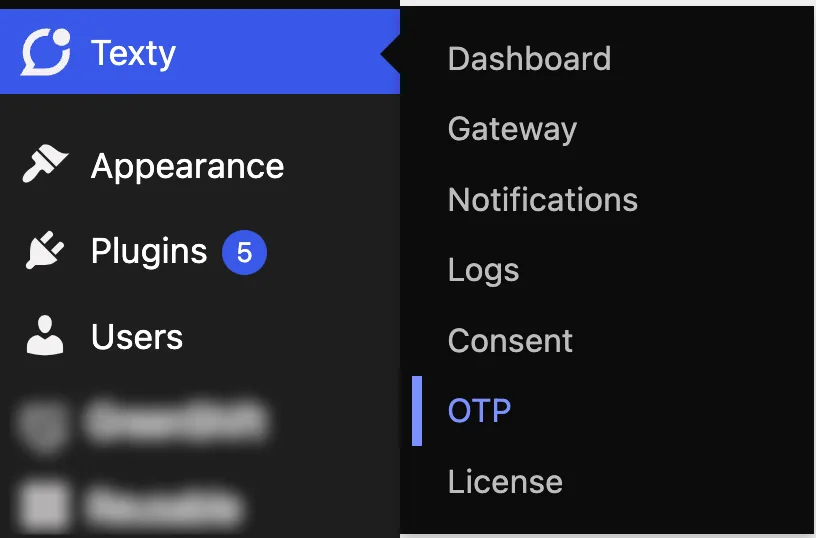
Section titled “How do you turn on OTP at registration?”Sign in to your WordPress dashboard. Go to Texty > OTP.
Find the New User Registration trigger. Turn on Registration. Save your changes.
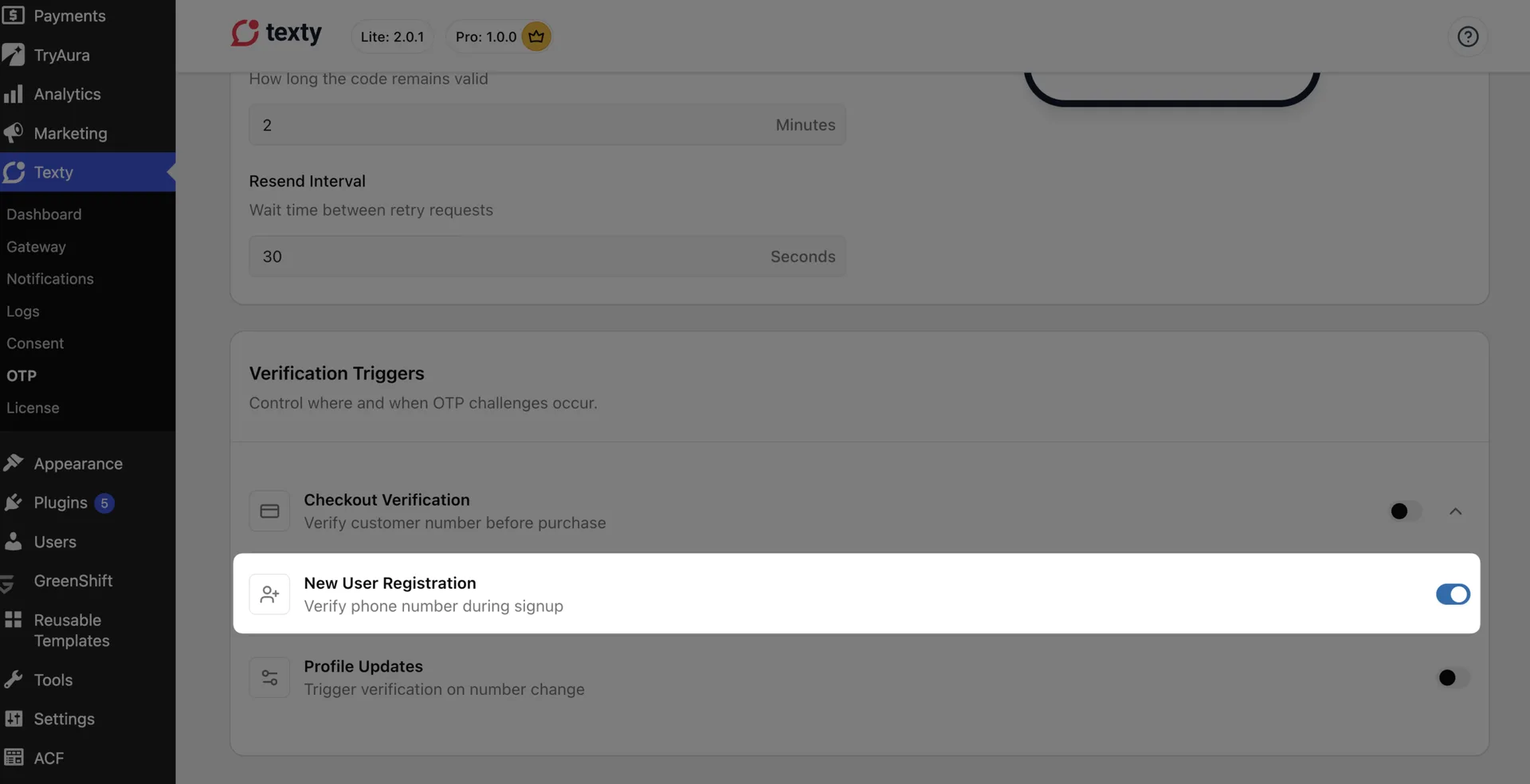
This phone check is off by default. New users will not see it until you turn it on.
Which sign-up forms work with Texty?
Section titled “Which sign-up forms work with Texty?”The phone check works with:
- The main WordPress sign-up page at
wp-login.php?action=register - The WooCommerce My Account sign-up form
It does not cover the Dokan vendor sign-up form. Test any custom form before you rely on it. Another plugin may skip the WordPress or WooCommerce flow that Texty checks.
What does a new user see?
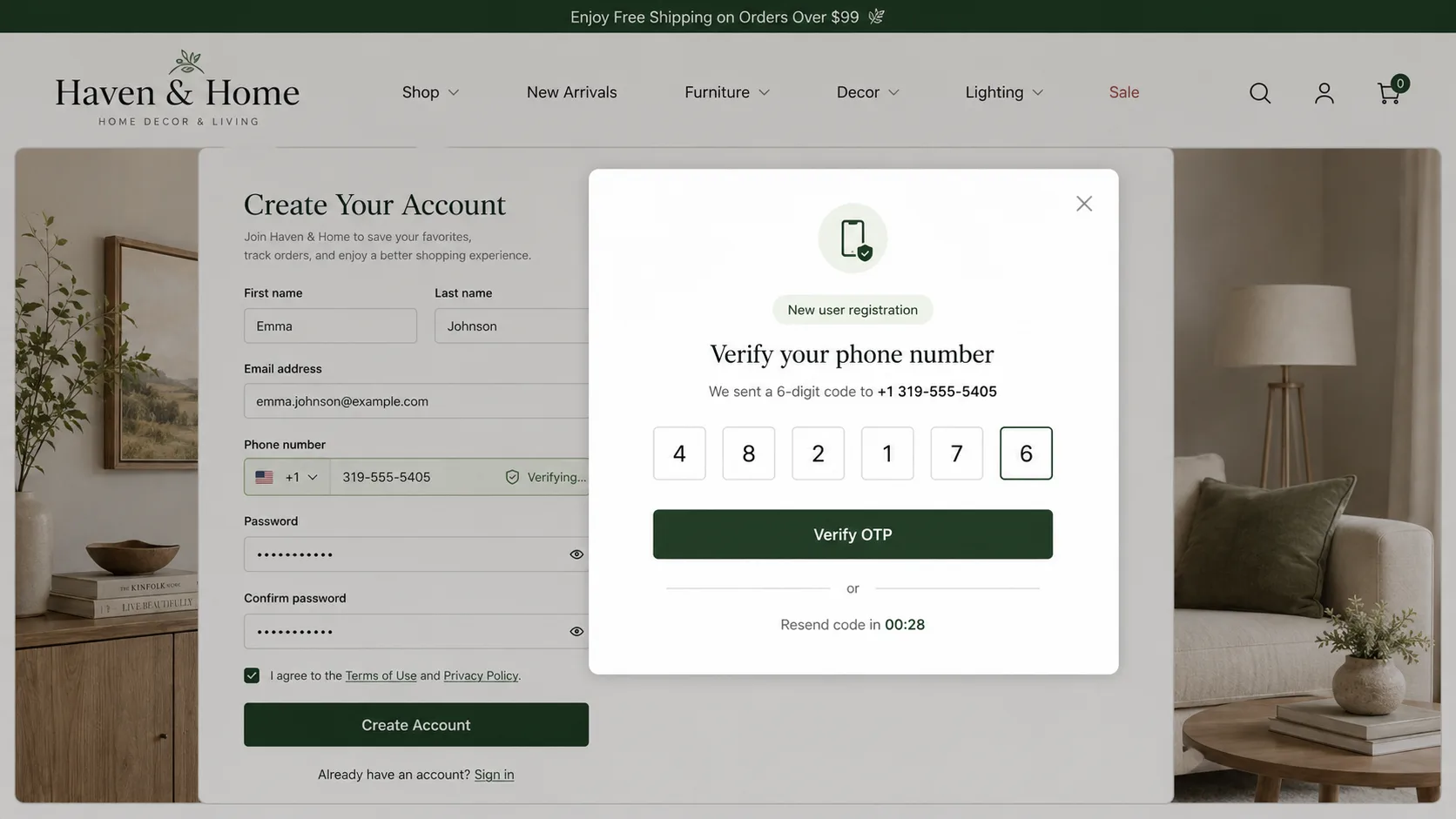
Section titled “What does a new user see?”The user enters a phone number with the normal sign-up details. Texty sends a one-time code by SMS. Texty creates the account after the right code is entered.
Texty then saves the verified phone to the user account. It can also fill the WooCommerce billing phone.
How do you test registration OTP?
Section titled “How do you test registration OTP?”Use a new email and a phone you own.
- Sign out of WordPress.
- Open the sign-up form in a private window.
- Enter the account details.
- Request the OTP.
- Enter one wrong code and confirm that sign-up stays blocked.
- Enter the newest valid code.
- Finish the sign-up.
- Open the new user in WordPress.
- Confirm that the phone was saved.
If you use WooCommerce, open the new user or billing details. Check the saved phone there too.
Test both forms if your site uses both. Delete the test account when you are done.
Why is registration OTP not working?
Section titled “Why is registration OTP not working?”| What happened | What to check |
|---|---|
| The OTP field is missing | Make sure Registration is on and the form uses a supported flow. |
| No one can sign up | Allow new users in WordPress or WooCommerce. |
| The code does not arrive | Test the gateway and use an international phone format. |
| The account appears before OTP | Check whether a custom form or social login skips the normal flow. |
| A valid code fails | Use the latest code and make sure it has not expired. |
| The phone is not saved | Test the main form and check for a profile plugin conflict. |
| Too many attempts are blocked | Wait for the hourly limit to reset, then run one clean test. |
Five wrong tries make the current code fail. Ask for a new code before you try again.
Does Texty OTP work on the WordPress sign-up page?
Section titled “Does Texty OTP work on the WordPress sign-up page?”Yes. It works on the main WordPress sign-up page and WooCommerce My Account form.
Does it work with Dokan vendor sign-up?
Section titled “Does it work with Dokan vendor sign-up?”No. The Registration switch does not cover the Dokan vendor sign-up form.
Will it work with a custom sign-up plugin?
Section titled “Will it work with a custom sign-up plugin?”Not by default. Test the form first. It may need custom work if it replaces the normal sign-up flow.
Where does Texty save the verified phone?
Section titled “Where does Texty save the verified phone?”Texty saves it with the user. It can also fill the WooCommerce billing phone.
What should you do next?
Section titled “What should you do next?”Create one test account through each sign-up form on your site. If users can later change their phone, turn on OTP for profile updates.