How to Set Up WooCommerce Order SMS Notifications
Texty can send an SMS to store staff or buyers when an order status changes. Open the alert you need, turn it on, and check the text. Then choose who gets it, save, and run a test.
What do you need before you start?
Section titled “What do you need before you start?”Make sure:
- Texty and WooCommerce are active.
- One SMS gateway is live.
- Your SMS plan works in the test country.
- Store staff have phones on their WordPress profiles.
- Your test order uses a phone you own.
If your gateway is not ready, follow how to connect your first SMS gateway.
Which order events can send a text?
Section titled “Which order events can send a text?”Texty has 11 order alerts. Five can go to store staff, while six can go to the buyer.
| Order status | Admin alert | Customer alert |
|---|---|---|
| Processing | Yes | Yes |
| Complete | Yes | Yes |
| On Hold | No | Yes |
| Cancelled | Yes | Yes |
| Failed | Yes | Yes |
| Refunded | Yes | Yes |
Staff and buyer alerts are separate. You can use one without the other.
How do you alert store staff?
Section titled “How do you alert store staff?”Staff alerts go to users in the WordPress roles you choose. Each user also needs a phone in the Phone Number (Texty) field.
Go to Texty > Notifications. Open the Integrations tab.
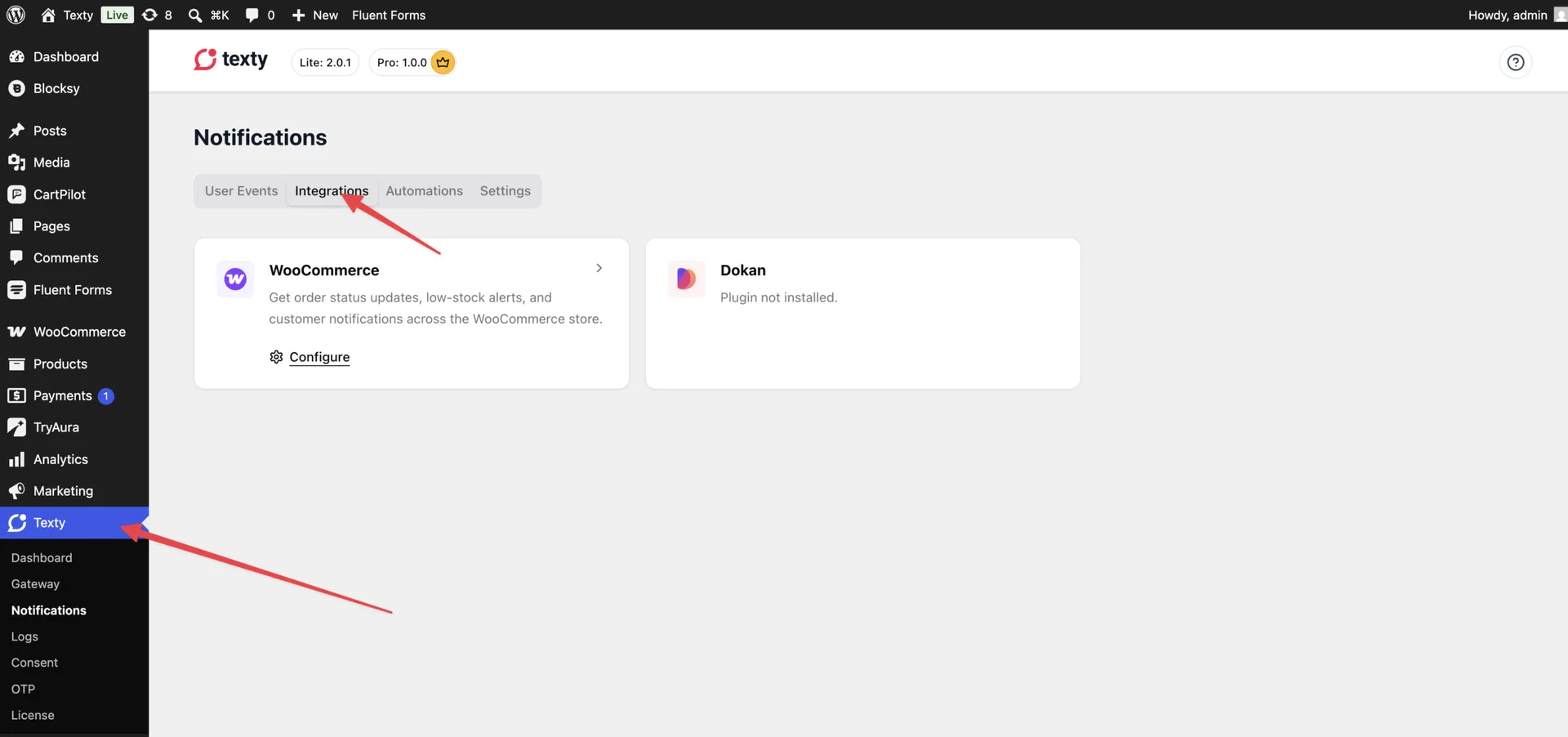
Click on Configure. You will find all the SMS alerts available to your disposal.
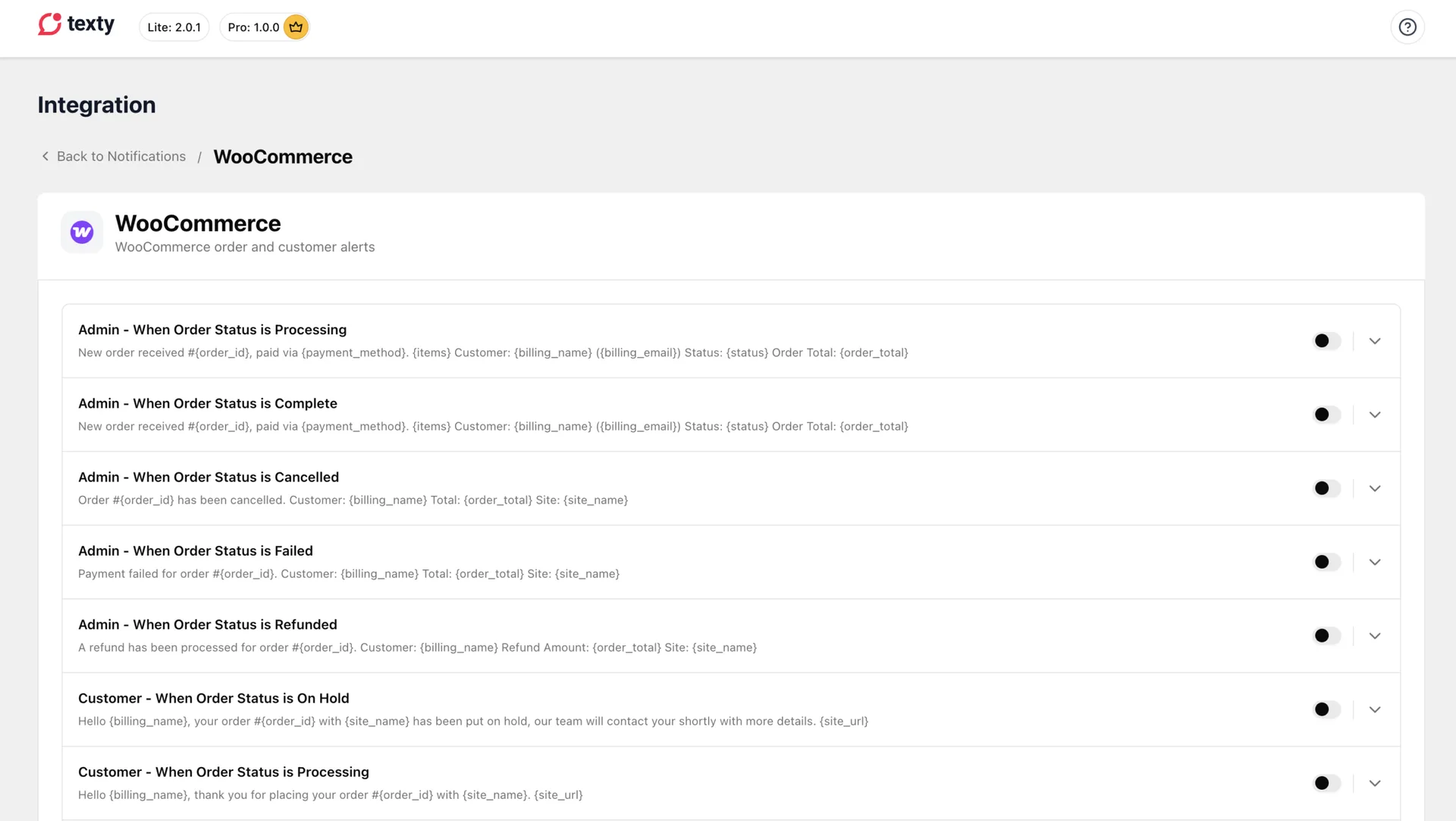
Find the WooCommerce admin event you need, such as Admin – When Order Status is Processing. Click on the toggle to turn it on.
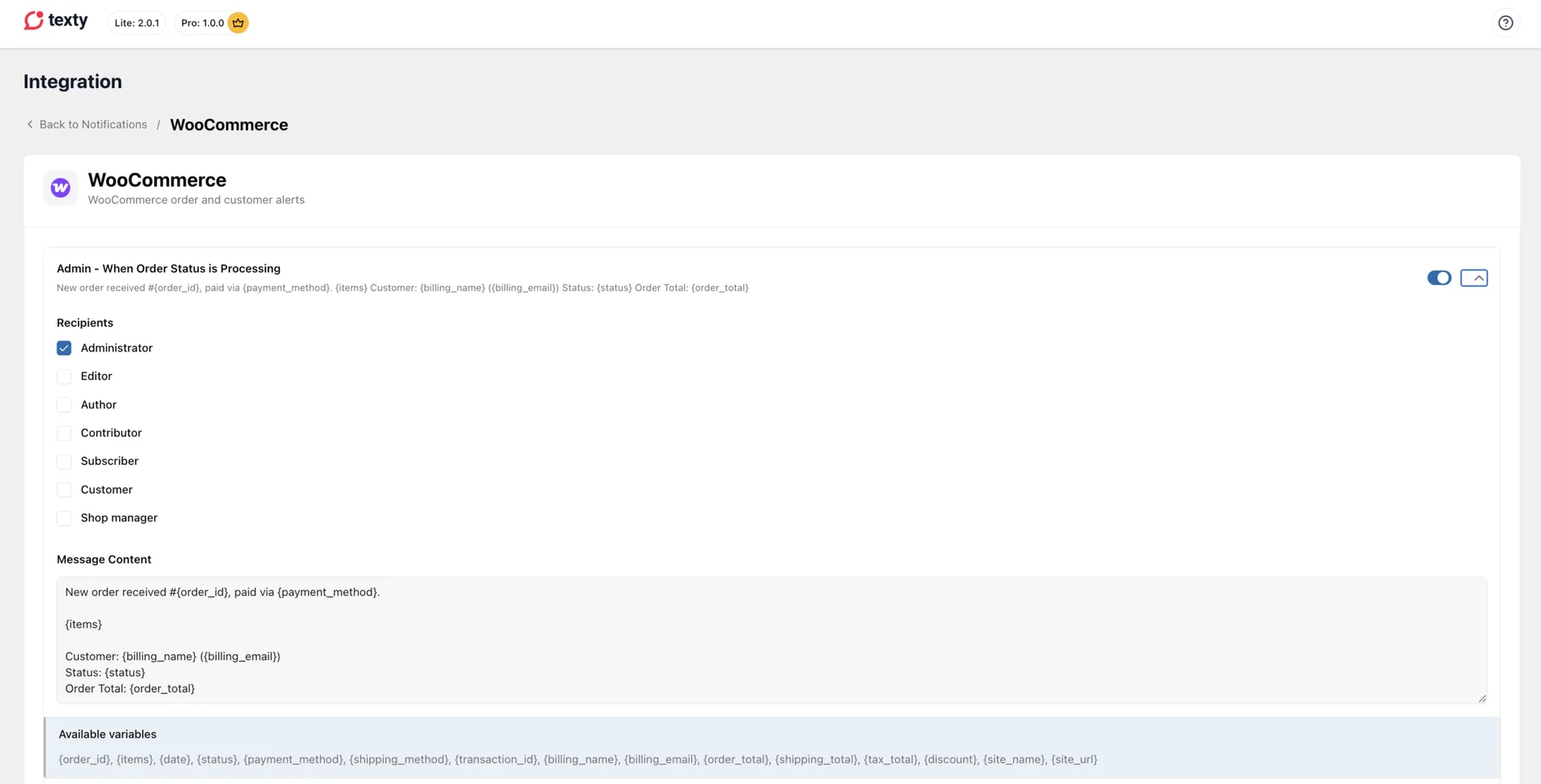
Next, choose the recipients that should receive the SMS. Check the message and its tags. You can customize the message based on the available variables, and hit on Save Changes.
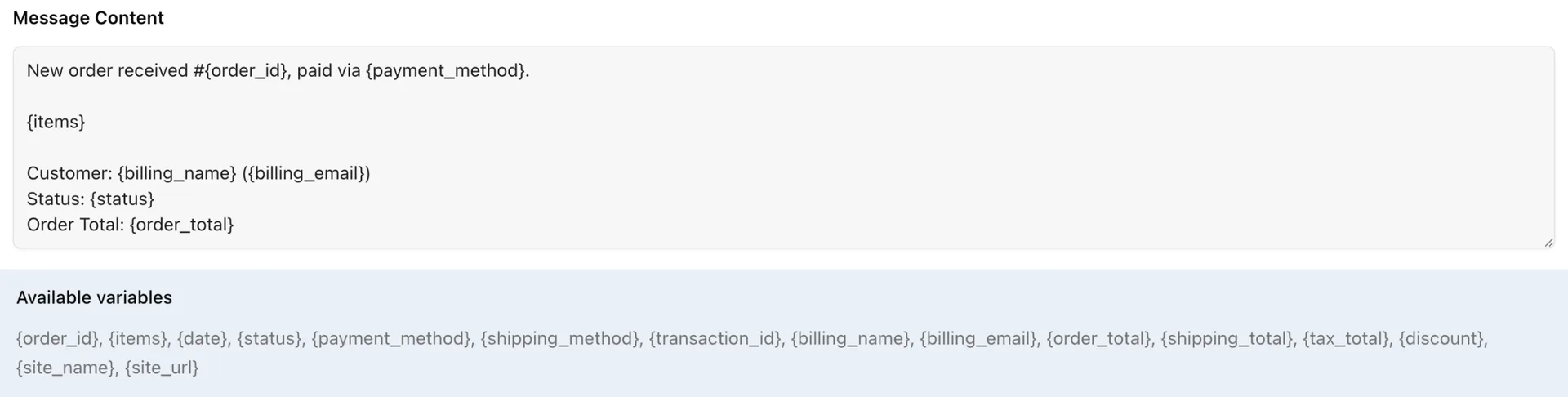
How do you update a customer?
Section titled “How do you update a customer?”Buyer alerts use the billing phone on that order. They do not use the buyer’s WordPress profile phone.
Stay in Texty > Notifications > Integrations. Find the WooCommerce customer event you need, such as Customer – When Order Status is Complete. Click on the toggle to turn it on.
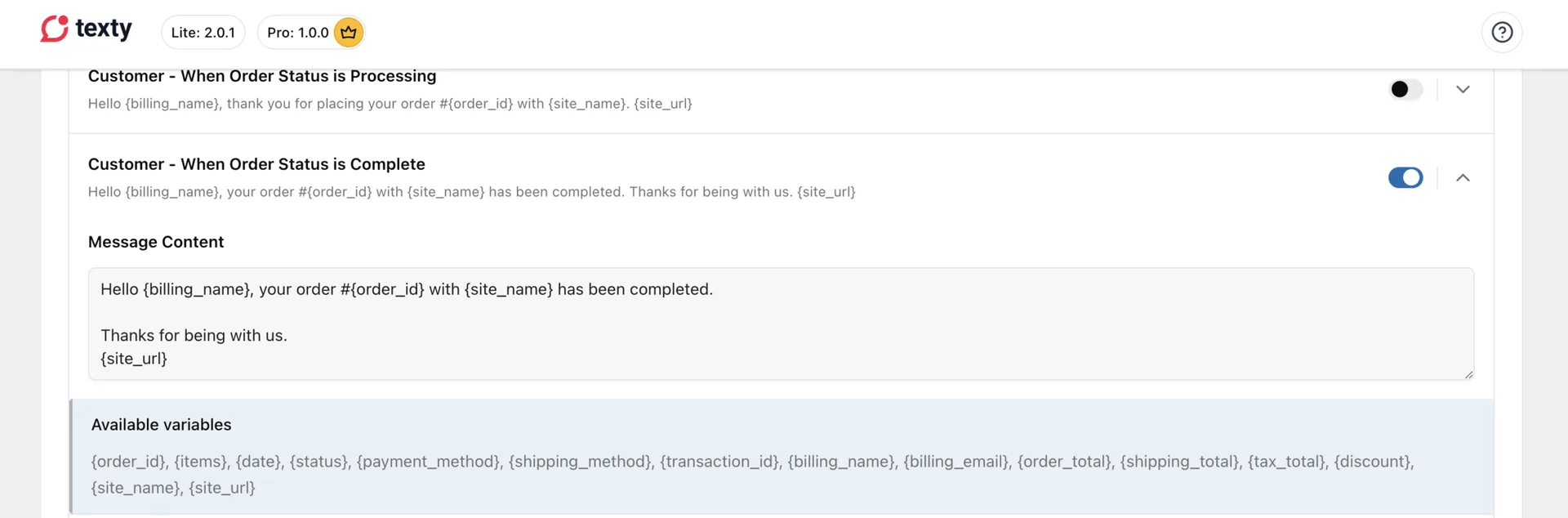
Next, check the message and its tags. You can customize the message based on the available variables, and hit on Save Changes.
A simple buyer message may look like this:
Hi {billing_name}, order #{order_id} is now {status}. Thank you, {site_name}.Texty fills each tag with live order data when it sends the SMS.
How do you test an order alert?
Section titled “How do you test an order alert?”Test each alert before you use it for live sales.
Create a test order with a phone number you own. Set the order to a different status.
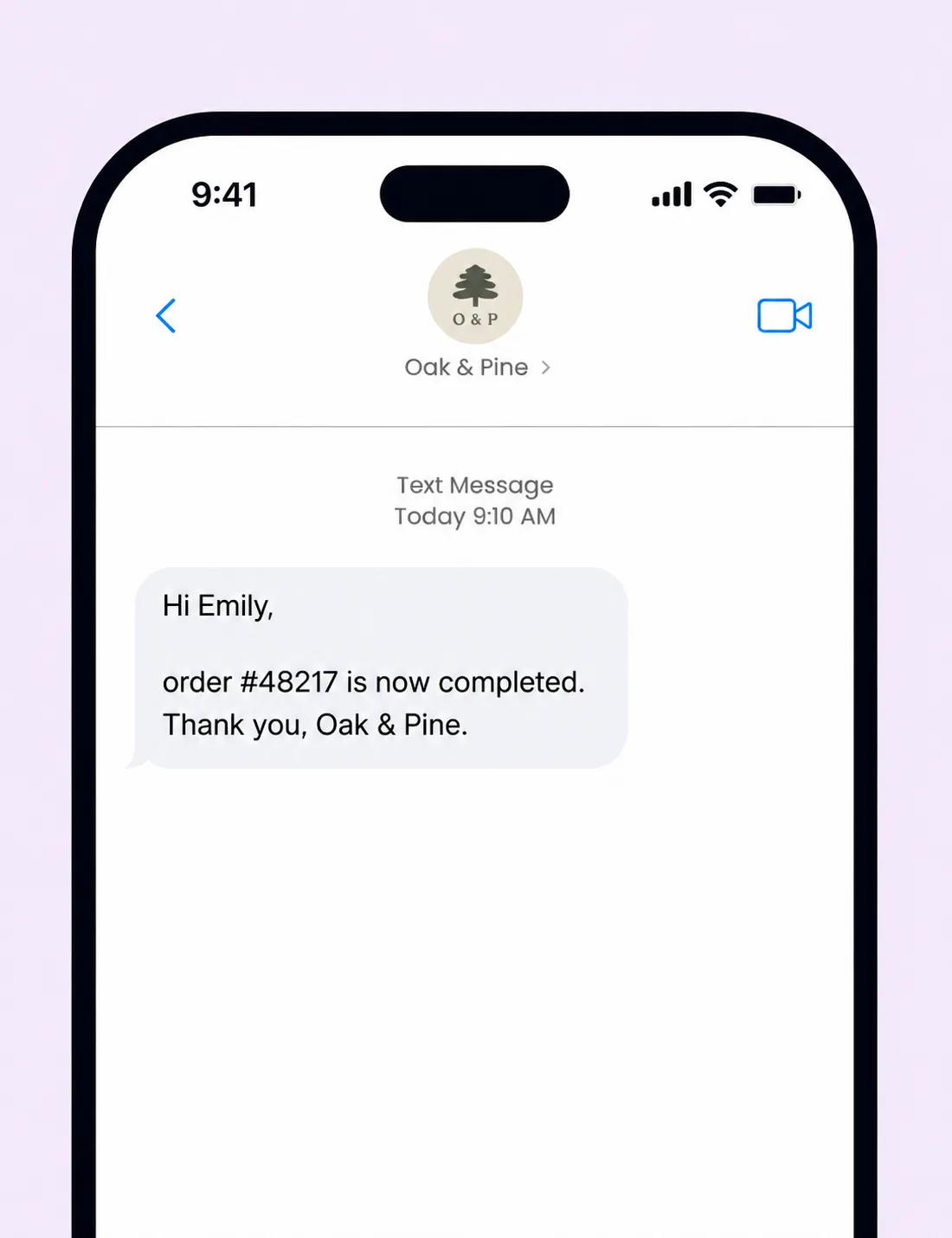
Check the receiver’s phone to see if you got the alert.
Open Texty > SMS Logs and find the new record. Check the phone, message, gateway, and status.
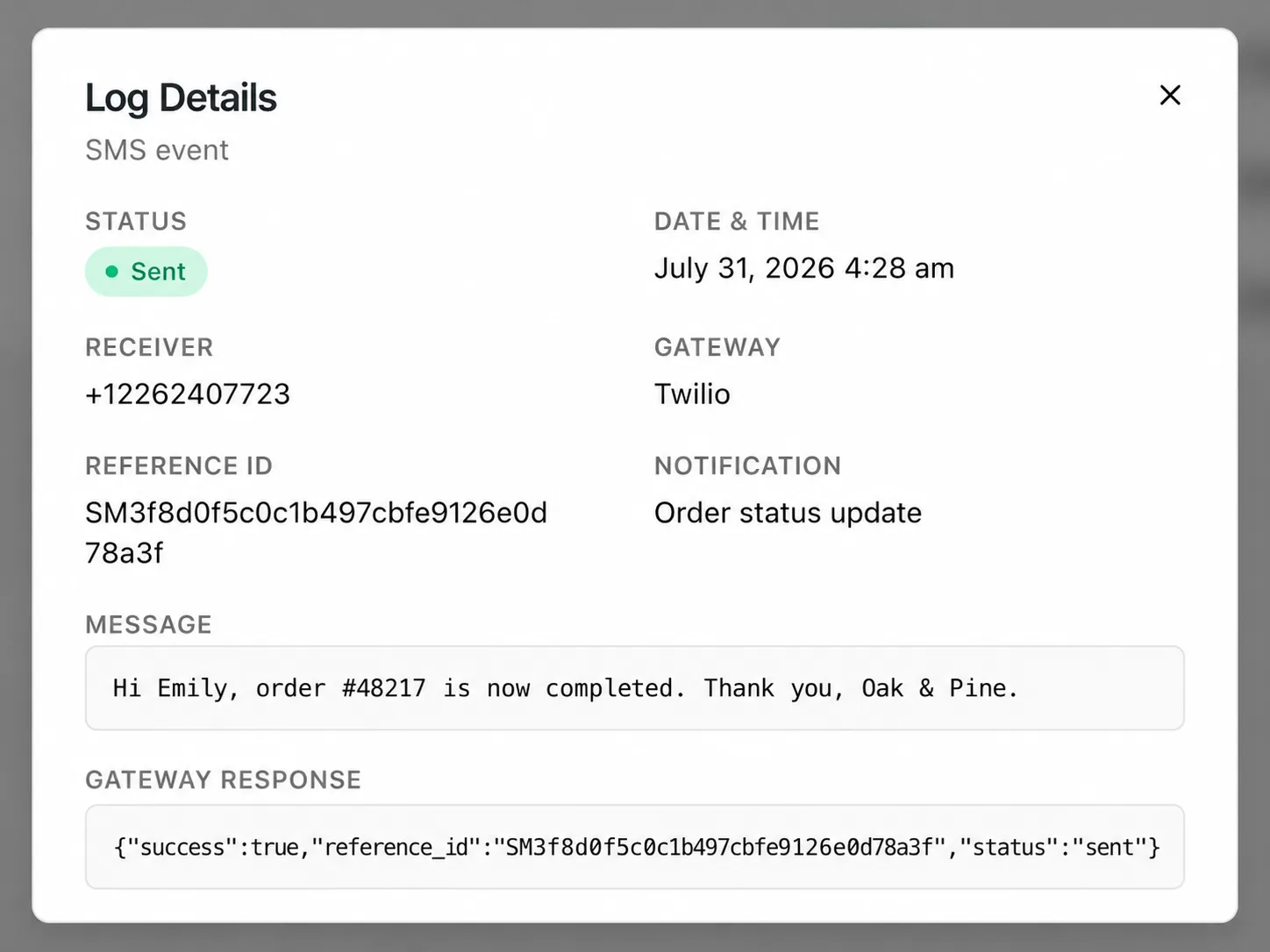
The setup works when Texty makes a log and the right person gets the SMS.
Important: An alert runs when the order status changes. Opening or saving an order without a new status does not test the alert.
Why did the text not send?
Section titled “Why did the text not send?”| What happened | What to check |
|---|---|
| No SMS Log was created | Check that the alert is on and the order reached the right status. |
| A staff user got nothing | Check the chosen role and the user’s Phone Number (Texty) field. |
| A buyer got nothing | Check the billing phone on that exact order. |
| The log shows a failed send | Open the log details and review the gateway response. |
| The message shows a raw tag | Use only the tags shown inside that order event. |
| All alerts stopped | Check the global pause control under Texty > Notifications > Settings. |
Can buyers and staff get the same update?
Section titled “Can buyers and staff get the same update?”Yes. Turn on both alerts for that order status. Texty sends each one to the right phone.
Can Texty send an SMS for an on-hold order?
Section titled “Can Texty send an SMS for an on-hold order?”Yes, but the built-in On Hold alert is for the buyer. There is no staff alert for that status.
Can I change the WooCommerce SMS message?
Section titled “Can I change the WooCommerce SMS message?”Yes. Open the event, edit the text, add valid tags, and save. See how to customize Texty SMS messages with variable tags for examples.
What comes next?
Section titled “What comes next?”Please follow the remaining guides to make the most out of Texty.