How to Connect Your First SMS Gateway
Texty needs an SMS gateway before it can send messages. Choose a supported provider, add its credentials in Texty > Gateway, activate it, and send a test SMS.
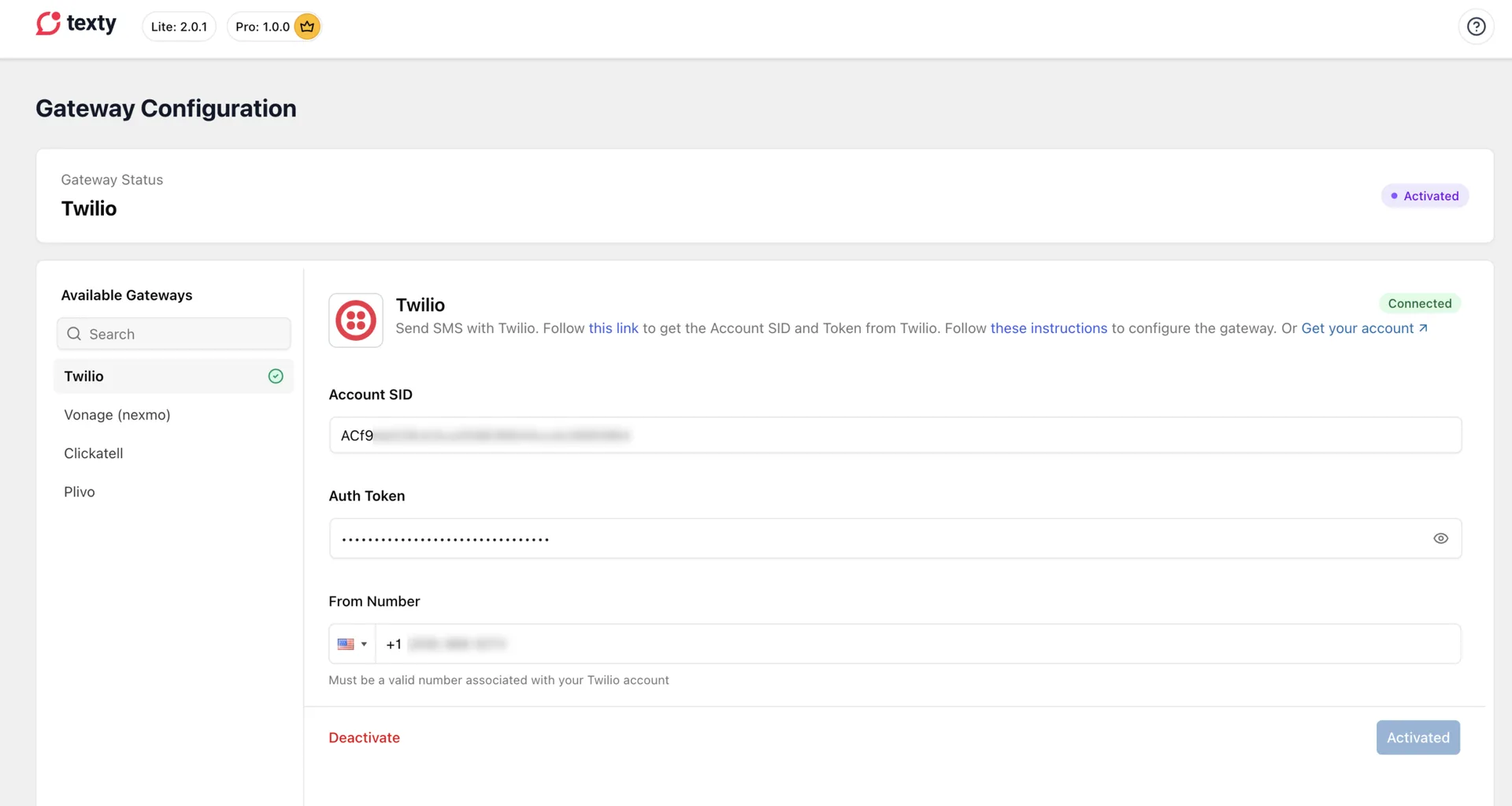
Do not skip the test. It shows whether the full setup works.
What do you need before you start?
Section titled “What do you need before you start?”- An active Texty installation. If needed, install Texty first.
- An account with Twilio, Vonage, Plivo, or Clickatell.
- The API credentials from that account.
- An approved sending number or sender ID, when your provider requires one.
- A phone number that can receive your test SMS.
Keep your credentials private: An API token or secret can allow access to your SMS account. Do not place it in screenshots or send it in a support ticket.
Which SMS gateway should you choose?
Section titled “Which SMS gateway should you choose?”Pick a gateway that works in the countries you need. If you already use one on this list, you can keep it.
| Gateway | Credentials used by Texty | Docs |
|---|---|---|
| Twilio | Account SID, Auth Token, and a sending number | Connect Twilio |
| Vonage | API Key, API Secret, and a sending number or sender ID | Connect Vonage |
| Plivo | Auth ID, Auth Token, and a sending number | Connect Plivo |
| Clickatell | API Key | Connect Clickatell |
Your gateway sets its own price and sending rules. Texty does not sell SMS credits. It does not add a fee to each text. You pay the gateway for each SMS it sends.
How do you find your gateway credentials?
Section titled “How do you find your gateway credentials?”Sign in to your gateway site and open its API settings. Ensure that you properly copy and store your API credentials.
You may need to buy or approve a sending number. Some countries use a sender ID instead. Check the rules for each place where you plan to send SMS.
How do you connect the gateway to Texty?
Section titled “How do you connect the gateway to Texty?”Log in to your WordPress admin. Go to Texty > Gateway.
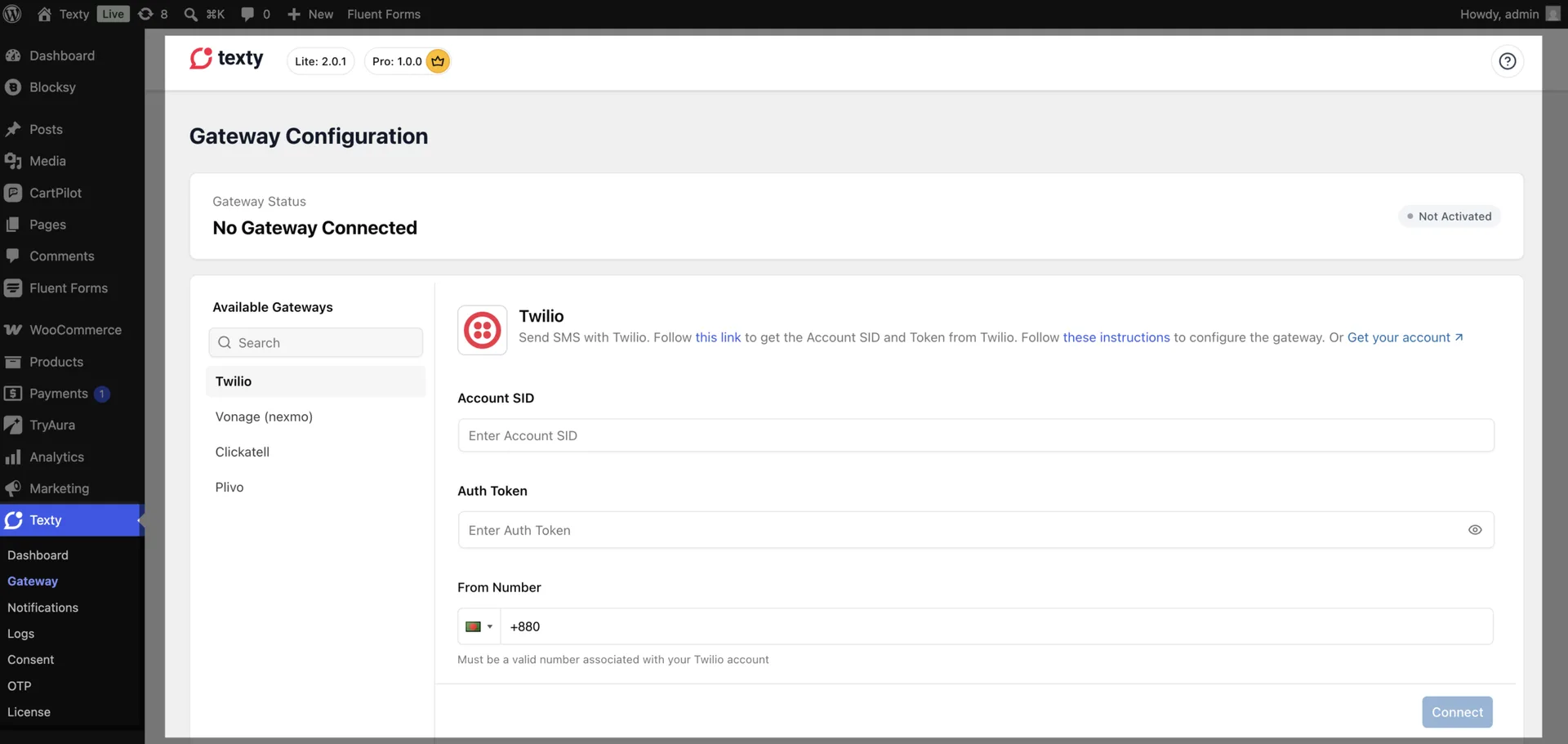
Select the tab for your SMS provider. Paste each credential into the matching field. Enter the sending number or sender ID if the form asks for one.
For our example, we will be using Twilio, and connecting using the Account SID and Auth Token.
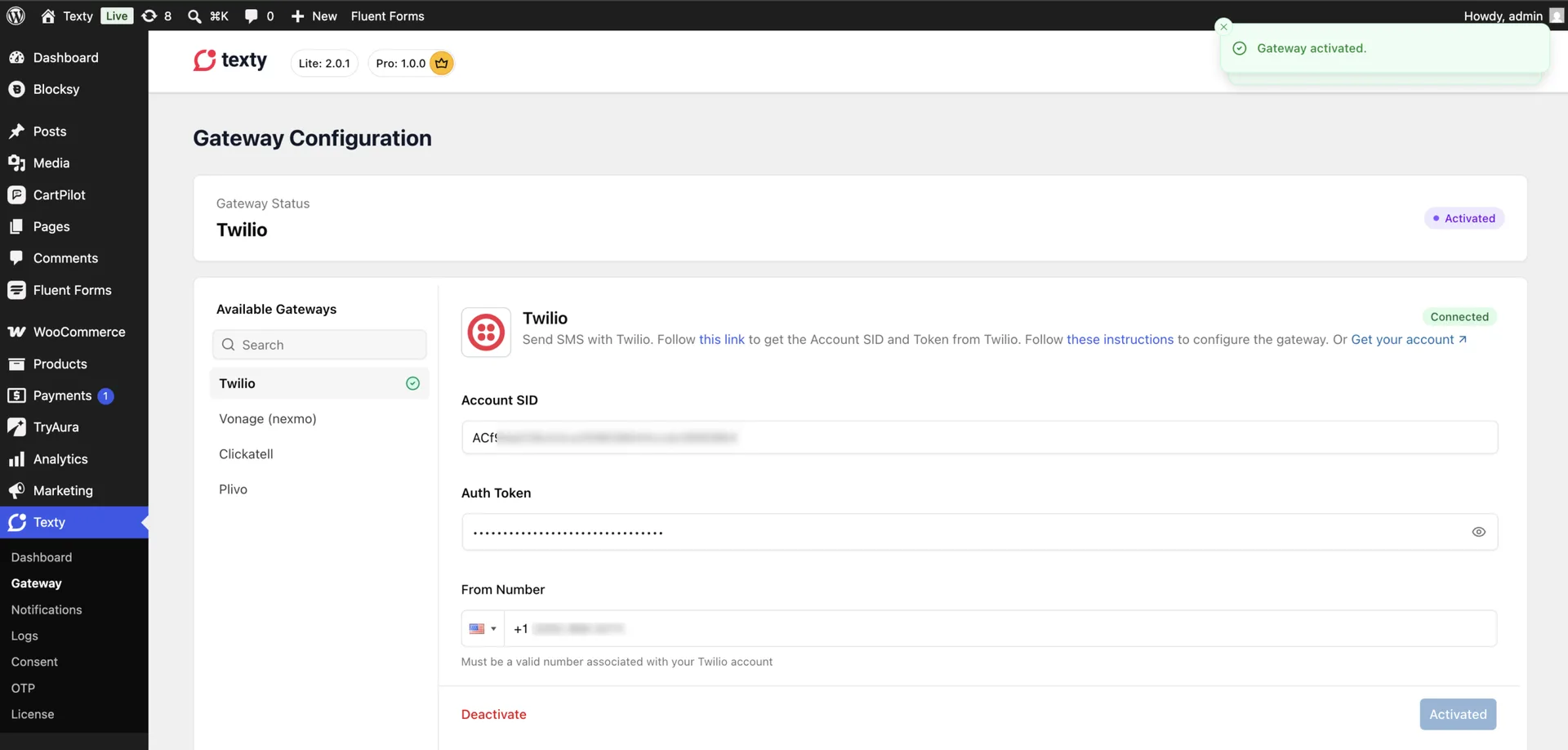
Review the values, then click Activate.
One gateway at a time: Texty can keep saved settings for more than one provider, but only one gateway can be active. Activating another gateway changes which provider sends new messages.
How do you send a test SMS?
Section titled “How do you send a test SMS?”Always test the gateway before you turn on store alerts or automations.
Go to Texty > Dashboard. Find the Quick Send SMS settings.
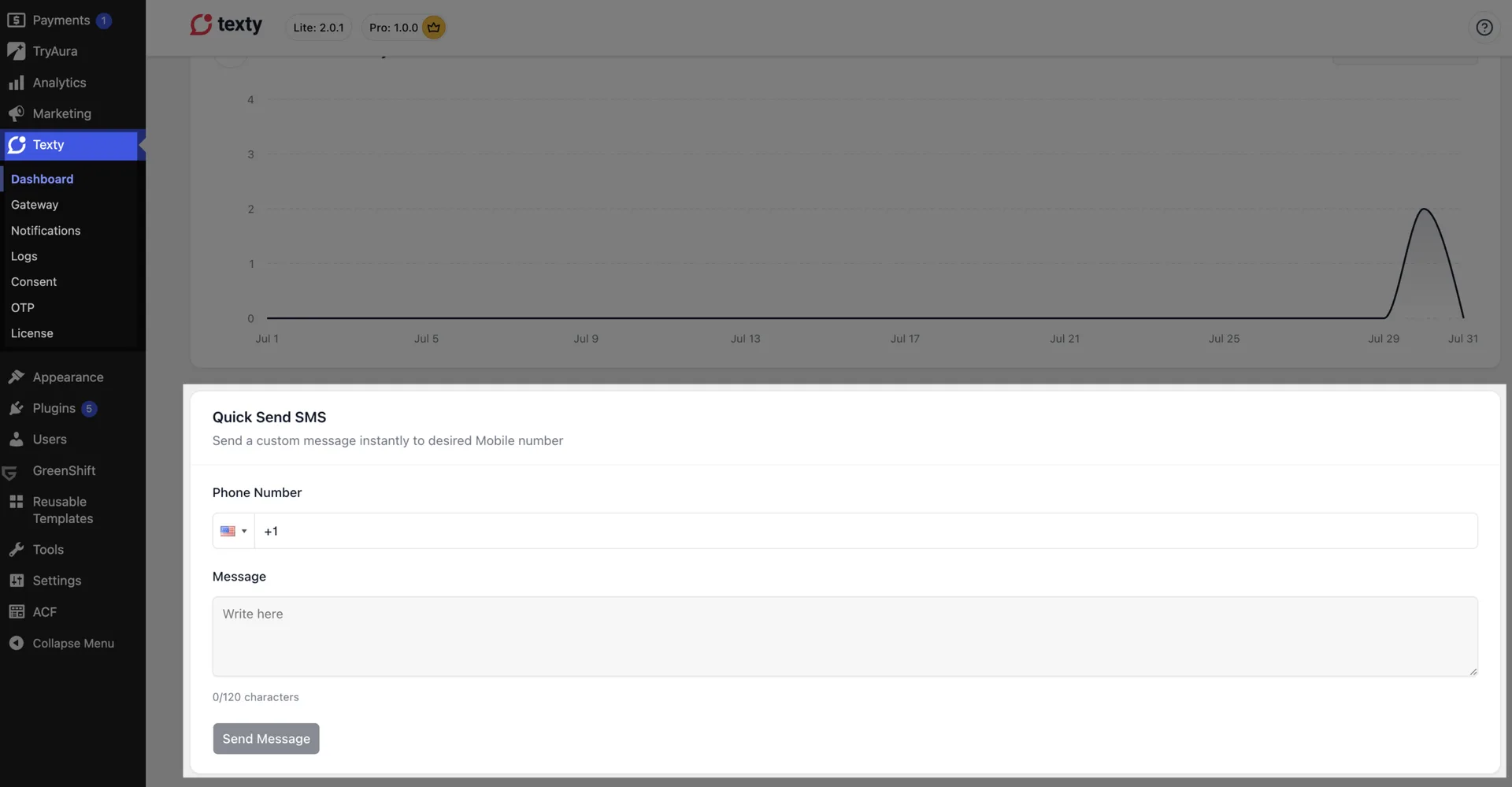
Enter the receiving number with the country code. It’s best to send to a number which you have access to. Write a short test message and click Send Test SMS.
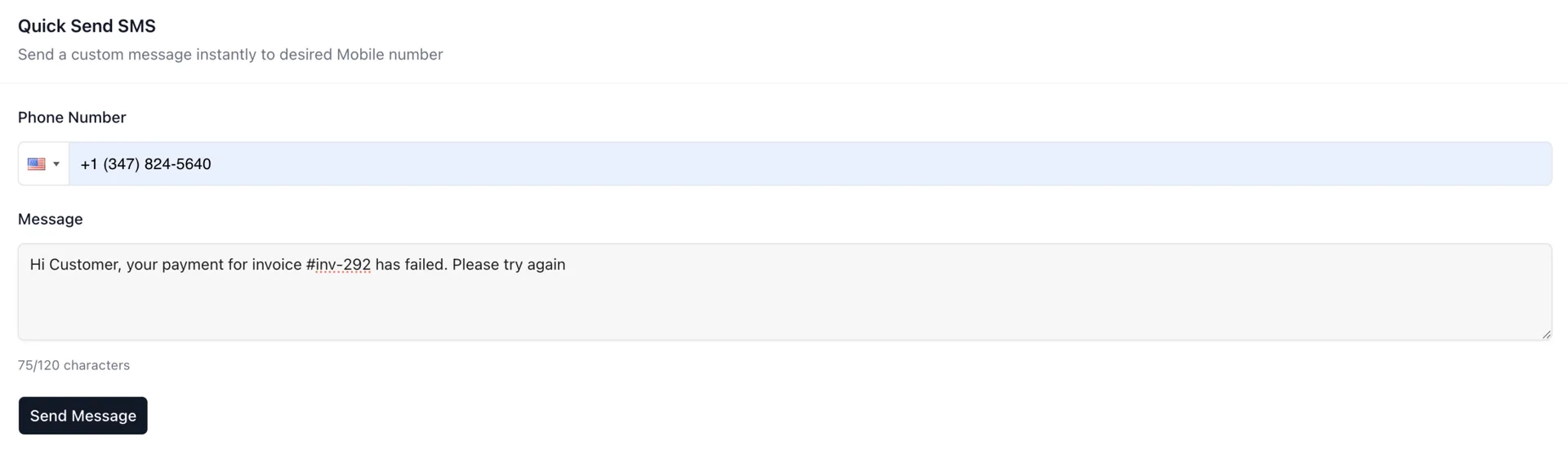
Check the phone for the message. You should receive the SMS from your site, with the configured message. Open Texty > SMS Logs and review the result.
Expected result: You see a success notice, the phone receives the SMS, and a new record appears in SMS Logs.
What If SMS Fails?
Section titled “What If SMS Fails?”| What happened | What to check |
|---|---|
| The gateway will not activate | Copy the credentials again. Remove spaces before or after each value. |
| Texty says no gateway is active | Return to Texty > Gateway and activate the provider you set up. |
| The provider rejects the sender | Use a number or sender ID that your provider approved for the destination country. |
| The provider rejects the phone number | Use the full international format with a plus sign and country code. |
| The send fails on a trial account | Check the trial limits. Some providers only send to numbers you have verified. |
| Texty shows success, but no SMS arrives | Review the message in SMS Logs and in your provider dashboard. Check the balance, route, and country limits. |
If the issue remains, save the Texty log status and the provider response. Contact our support team and we’ll help you fix the issues.
What should you set up next?
Section titled “What should you set up next?”Your gateway is ready. Go to the Texty notification settings and enable one alert. Then create the matching event, such as a test WooCommerce order, and confirm the new message in Texty > SMS Logs.
If you are new to the product, you can also return to What Is Texty and How Does It Work? for a quick view of alerts, automations, OTP, and consent.