How to Control Who Receives SMS Notifications in Texty
Texty gets the phone number from one of three places. Role-based alerts use a WordPress user profile. Buyer alerts use the billing phone on the order. Dokan alerts use the vendor’s store profile.
Where does Texty get each phone?
Section titled “Where does Texty get each phone?”The alert type tells Texty where to look.
| Alert type | Who receives it |
|---|---|
| New user registration | Selected WordPress roles |
| New comment | Selected WordPress roles |
| WooCommerce admin order alert | Selected WordPress roles |
| WooCommerce customer order alert | Customer on that order |
| Dokan vendor order alert | Vendor linked to that order |
Texty skips a role-based user with no saved phone. Buyer and vendor alerts also need a valid number in their own source.
How do you add a phone for role-based alerts?
Section titled “How do you add a phone for role-based alerts?”Use this method for WordPress user, comment, and WooCommerce admin alerts.
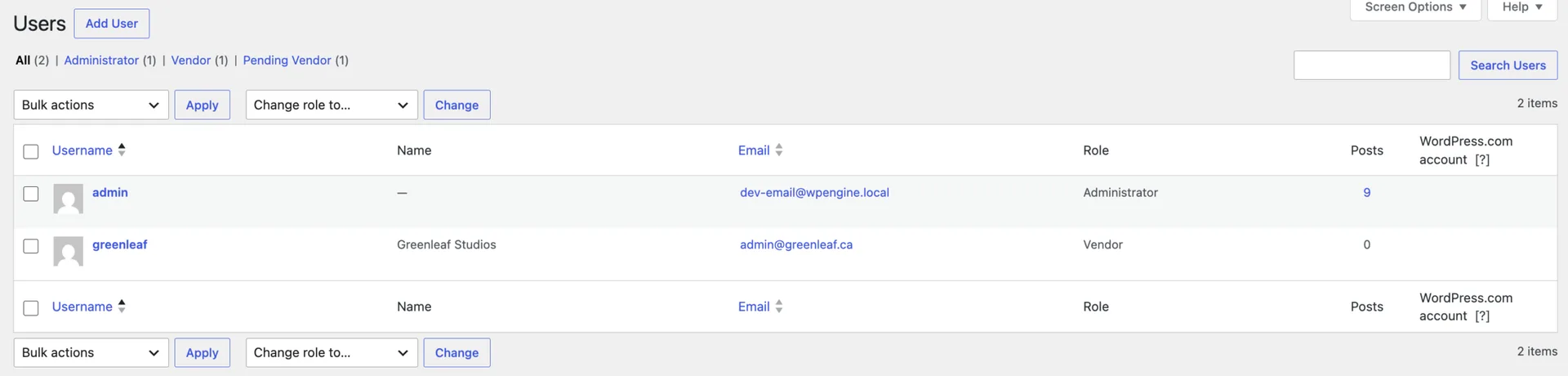
Go to Users > All Users. Open the profile of the person who should get alerts.
Find Phone Number. Enter the full phone with its country code. Select Update Profile.
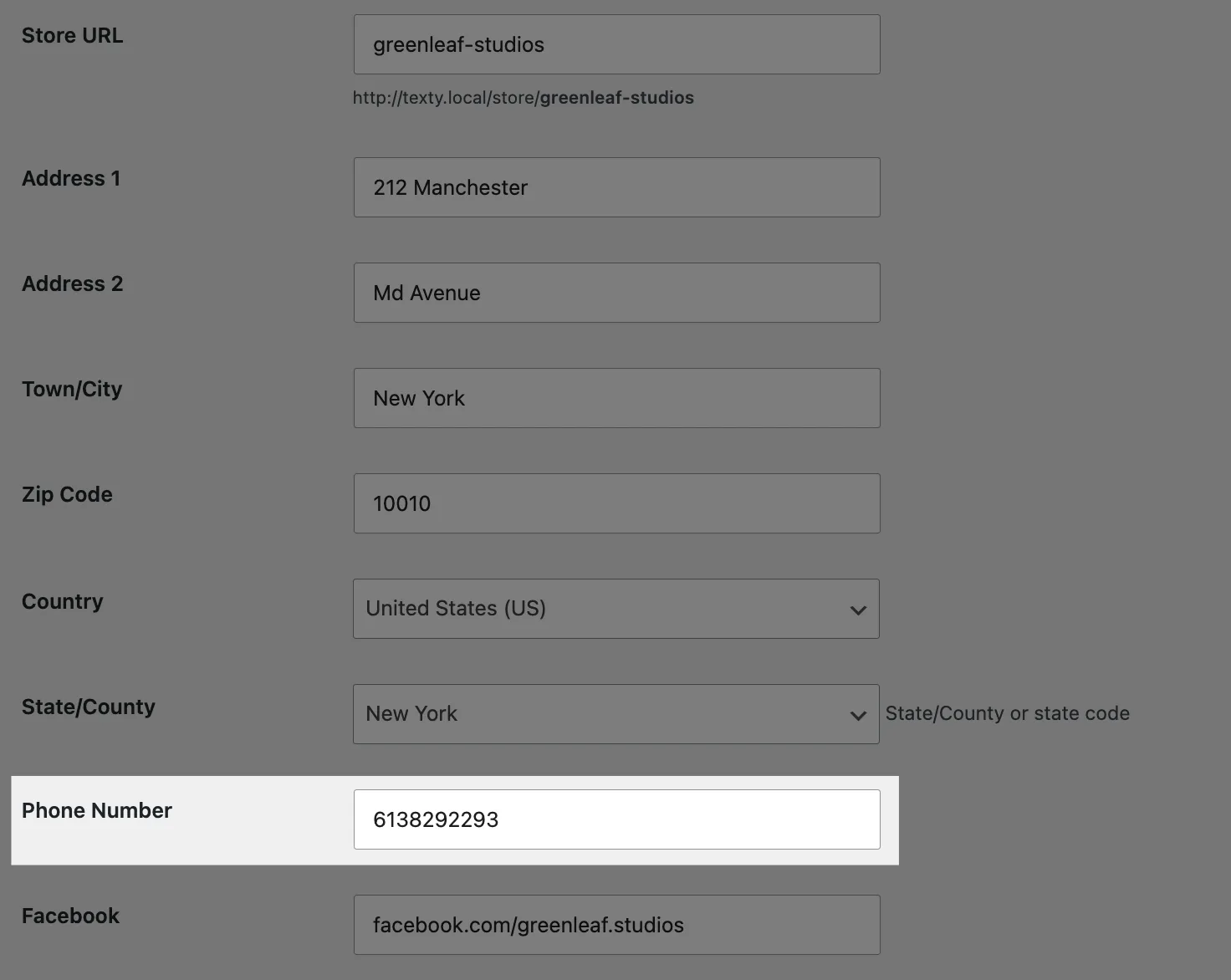
Do this for each person who should get role-based alerts.
Next, open the alert under Texty > Notifications. Choose the roles that should get it. Texty sends to each user in those roles who has a saved phone.
Where does Texty find a buyer’s phone?
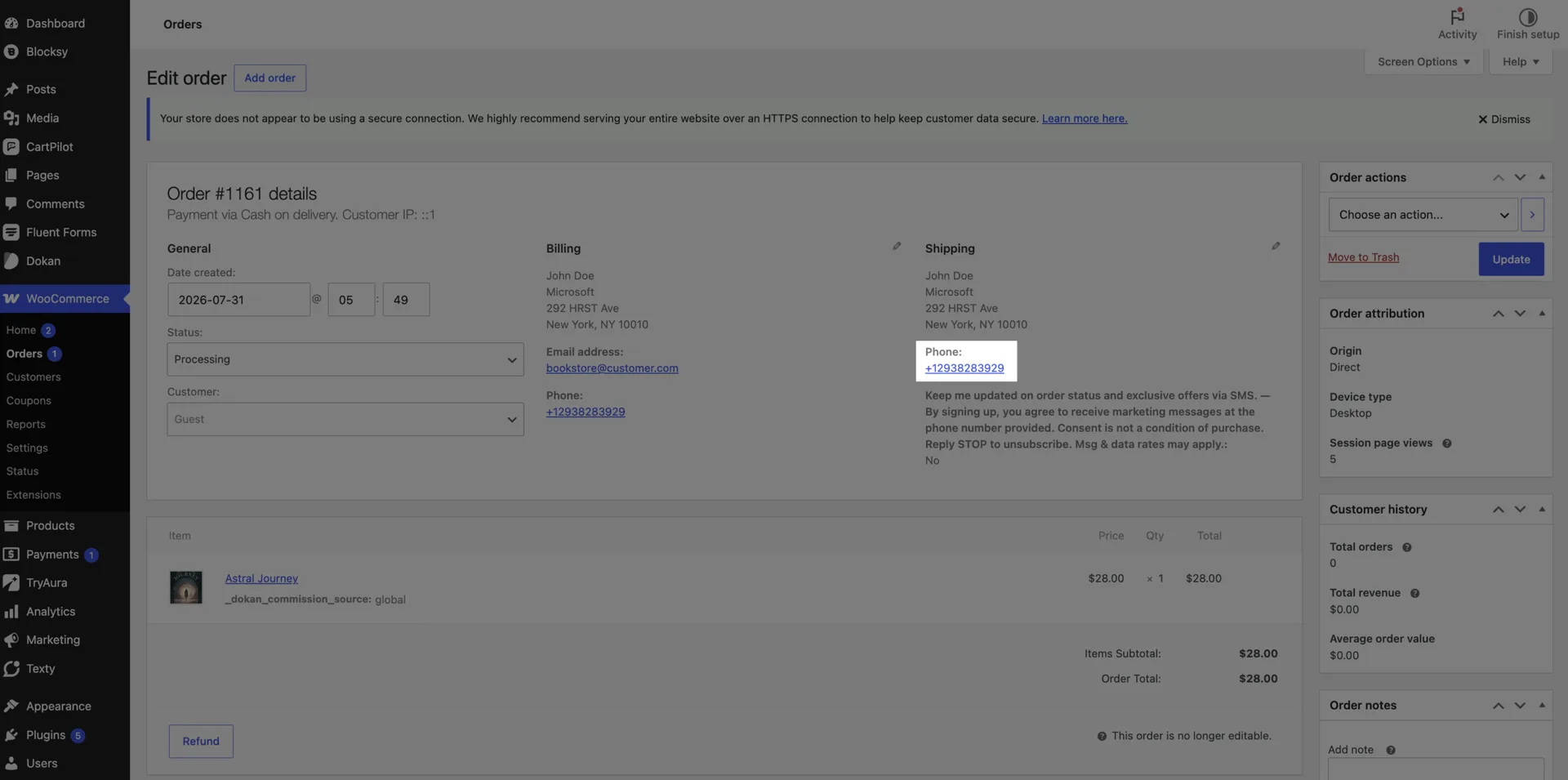
Section titled “Where does Texty find a buyer’s phone?”WooCommerce buyer alerts use the billing phone on that order. They do not use the Phone Number field.
To check the number:
Go to WooCommerce > Orders. You will find the customer phone number registered (if you have in enabled during checkout).
Where does Texty find a vendor’s phone?
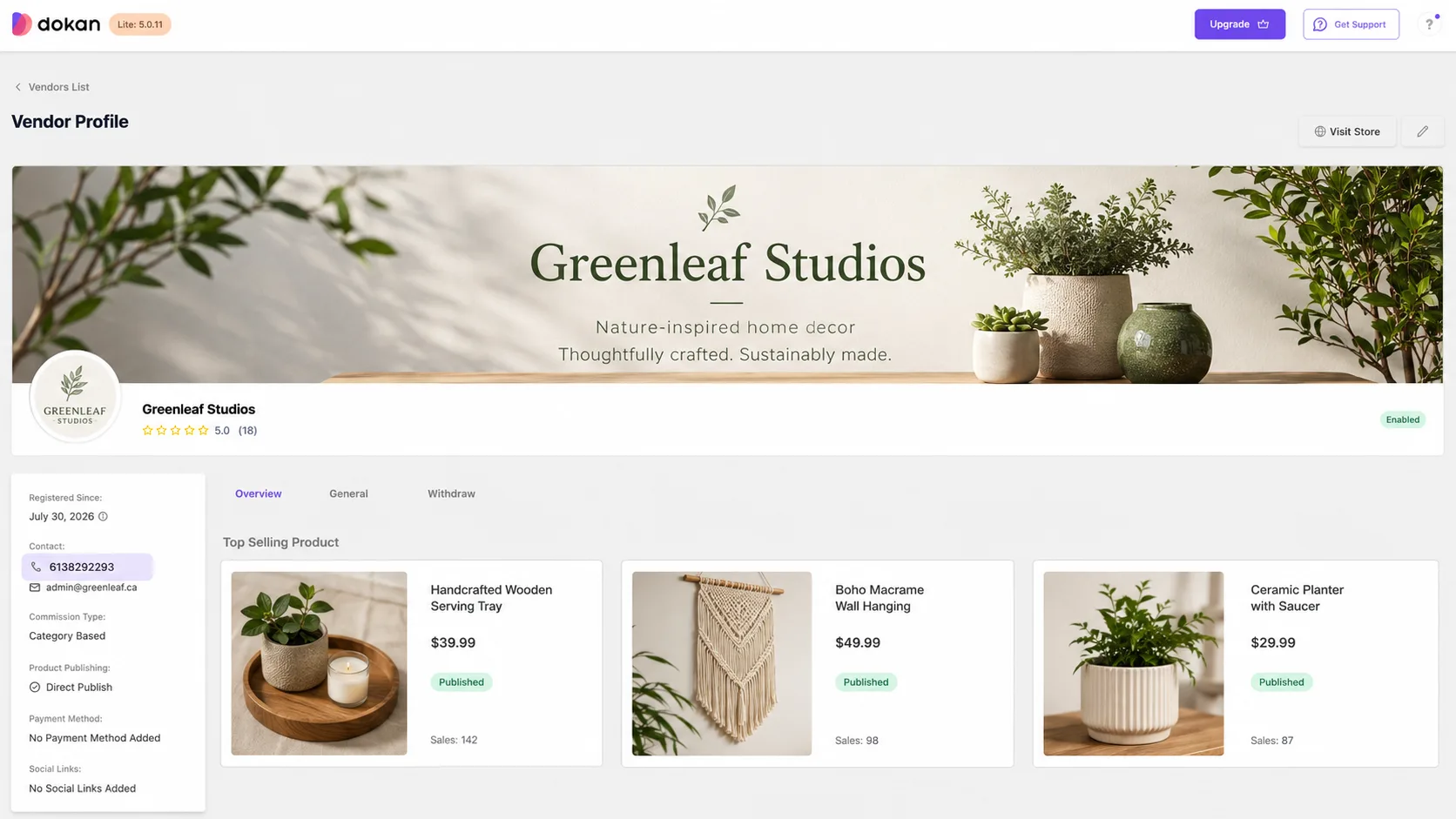
Section titled “Where does Texty find a vendor’s phone?”Dokan vendor alerts use the phone in the vendor’s Dokan store profile. The vendor does not need a separate Texty phone field.
If a vendor alert is missing, check:
- Dokan is active.
- The order belongs to that vendor.
- The vendor profile has a valid phone.
- The matching Dokan event is enabled in Texty.
Why didn’t we receive the SMS?
Section titled “Why didn’t we receive the SMS?”| What happened | What to check |
|---|---|
| No admin got it | Check the chosen role and each user’s Texty phone field. |
| Some staff got it, but others did not | Check the missing users’ roles and saved phones. |
| A buyer got nothing | Check the billing phone on that exact order. |
| A vendor got nothing | Check the Dokan store phone and the order owner. |
| The phone looks right, but the send failed | Open the SMS Log and check the gateway response. |
| No log was created | Check the alert toggle, event, active gateway, and global pause setting. |
Can several admins receive the same SMS?
Section titled “Can several admins receive the same SMS?”Yes. Choose their role and save a Texty phone on each user profile.
Can I set one global phone number for all alerts?
Section titled “Can I set one global phone number for all alerts?”The alert sets the rule. Role-based events use user profiles. Buyer alerts use the order phone. Dokan alerts use the vendor profile.
Does Texty fix or add a country code?
Section titled “Does Texty fix or add a country code?”No. Save the full number in the format your SMS provider accepts.
What comes next?
Section titled “What comes next?”Please follow the remaining guides to make the most out of Texty.