How to Install Texty
The easiest way to install Texty is from your WordPress admin. Search for the plugin, install it, and activate it. The whole setup stays off until you connect an SMS gateway and enable an alert.
Before you install Texty
Section titled “Before you install Texty”Make sure your site meets these needs:
- WordPress 6.8 or later.
- PHP 7.4 or later.
- Permission to install WordPress plugins.
To check your site versions, go to Tools > Site Health > Info. Your host can help if the site uses an older version.
How do you install Texty from WordPress?
Section titled “How do you install Texty from WordPress?”This is the best method for most sites.
Log in to your WordPress admin. Go to Plugins > Add New.
Enter Texty in the search box.
Find the Texty plugin and check the plugin name and author.
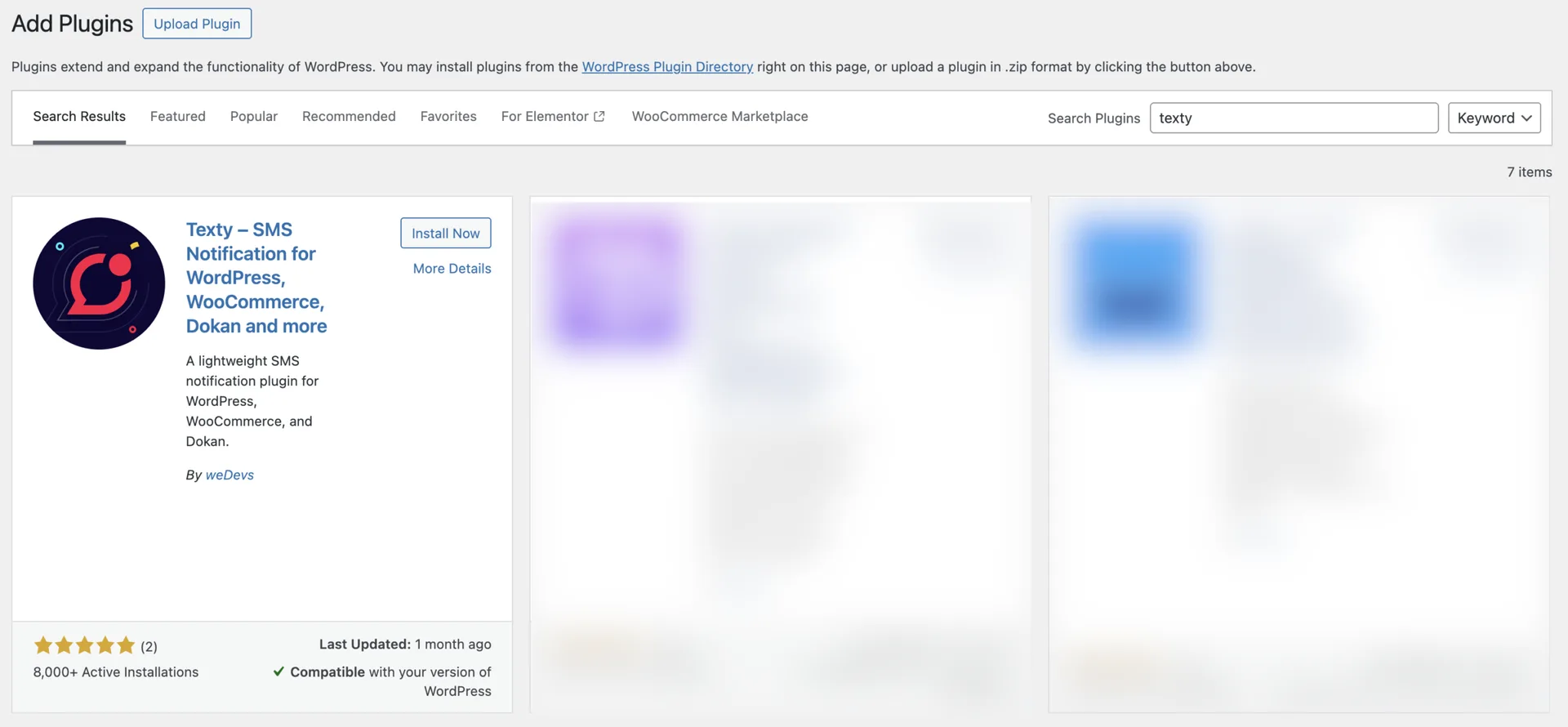
Click Install Now. Click Activate when the install is complete.

How do you check that Texty is active?
Section titled “How do you check that Texty is active?”Go to Plugins > Installed Plugins. Find Texty and confirm that its status is Active. Look for Texty in the left WordPress menu.
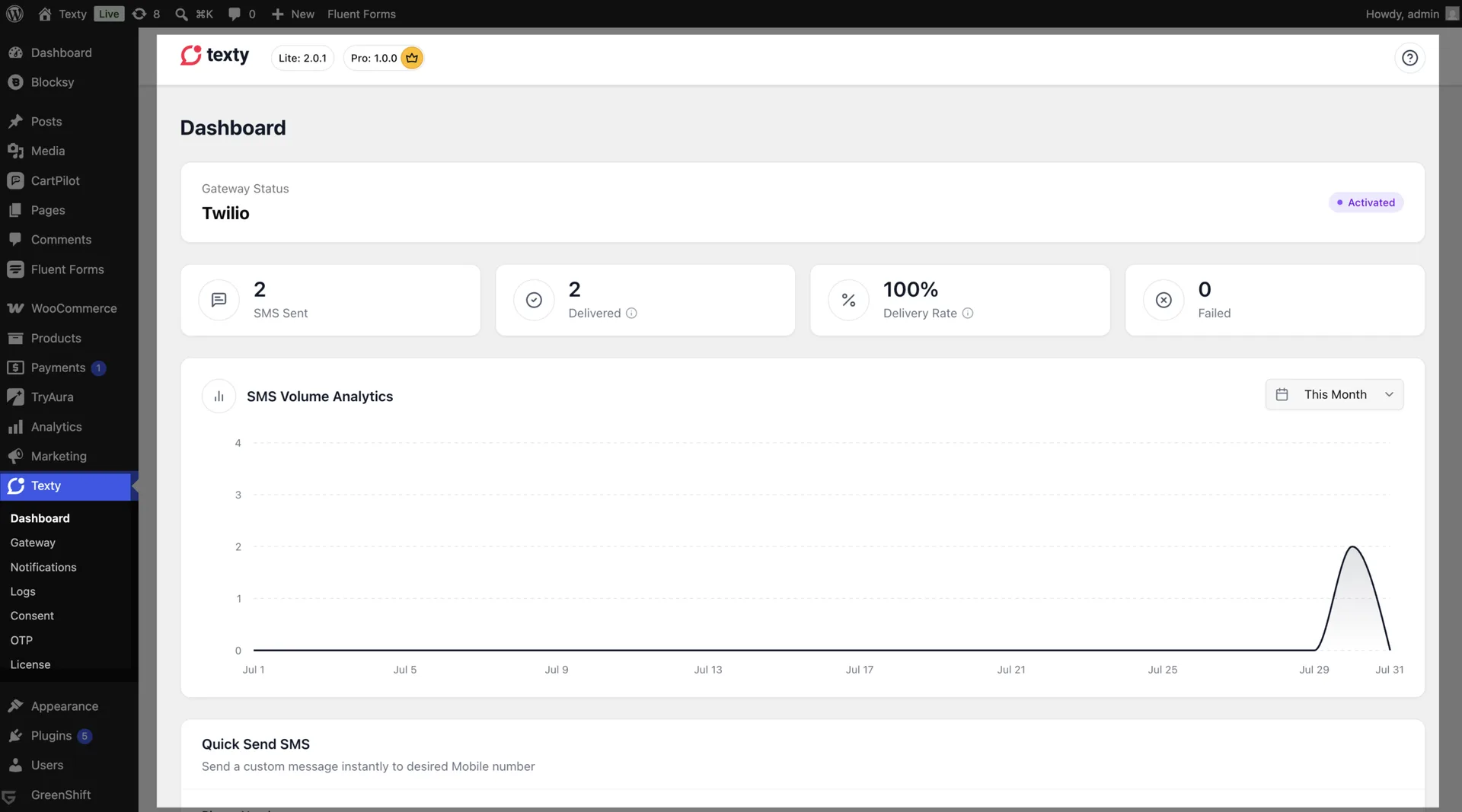
Open Texty and make sure the dashboard loads.
How do you install Texty Pro?
Section titled “How do you install Texty Pro?”Texty Pro adds automations, OTP phone checks, and SMS consent tools. It needs the free Texty plugin, so install and activate Texty first.
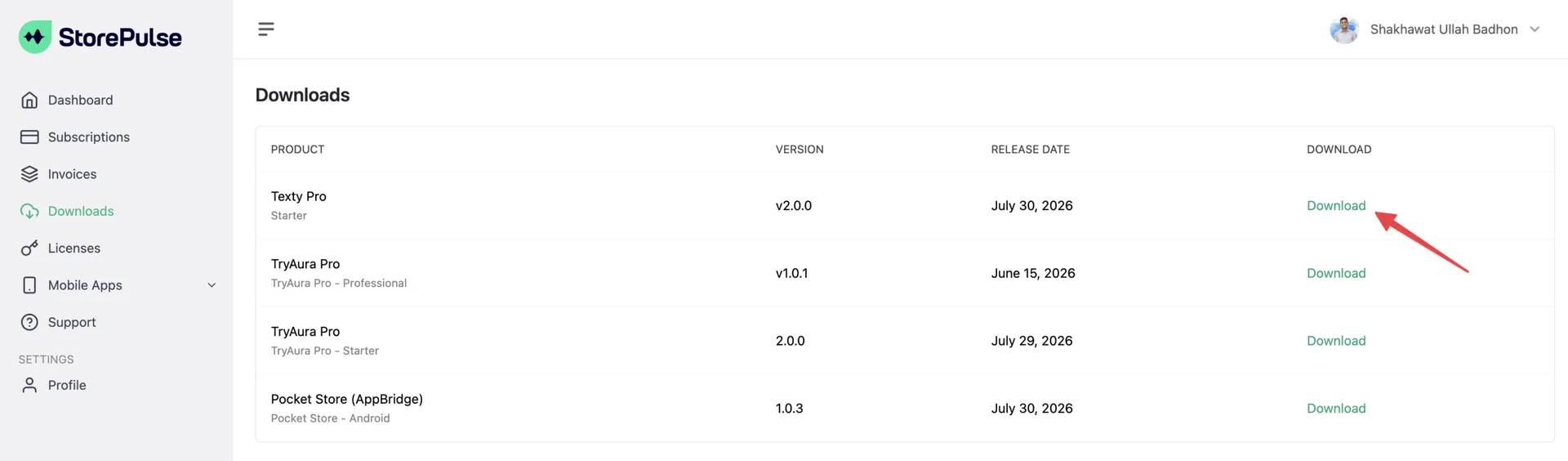
If you’ve purchased Texty, you have to visit your StorePulse account, visit the Downloads tab from the left sidebar, and download the Texty Pro .zip file from your account.
In WordPress, go to Plugins > Add New.
Click Upload Plugin and select the Texty Pro .zip file.
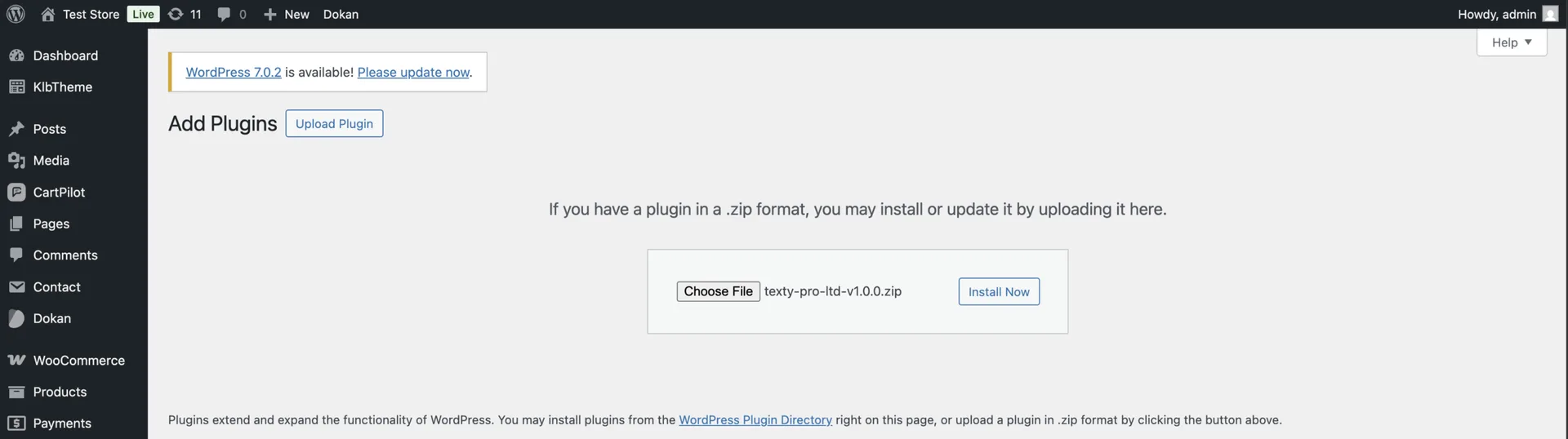
Click Install Now, then click Activate Plugin. Open the license screen in Texty and enter the key from your account.
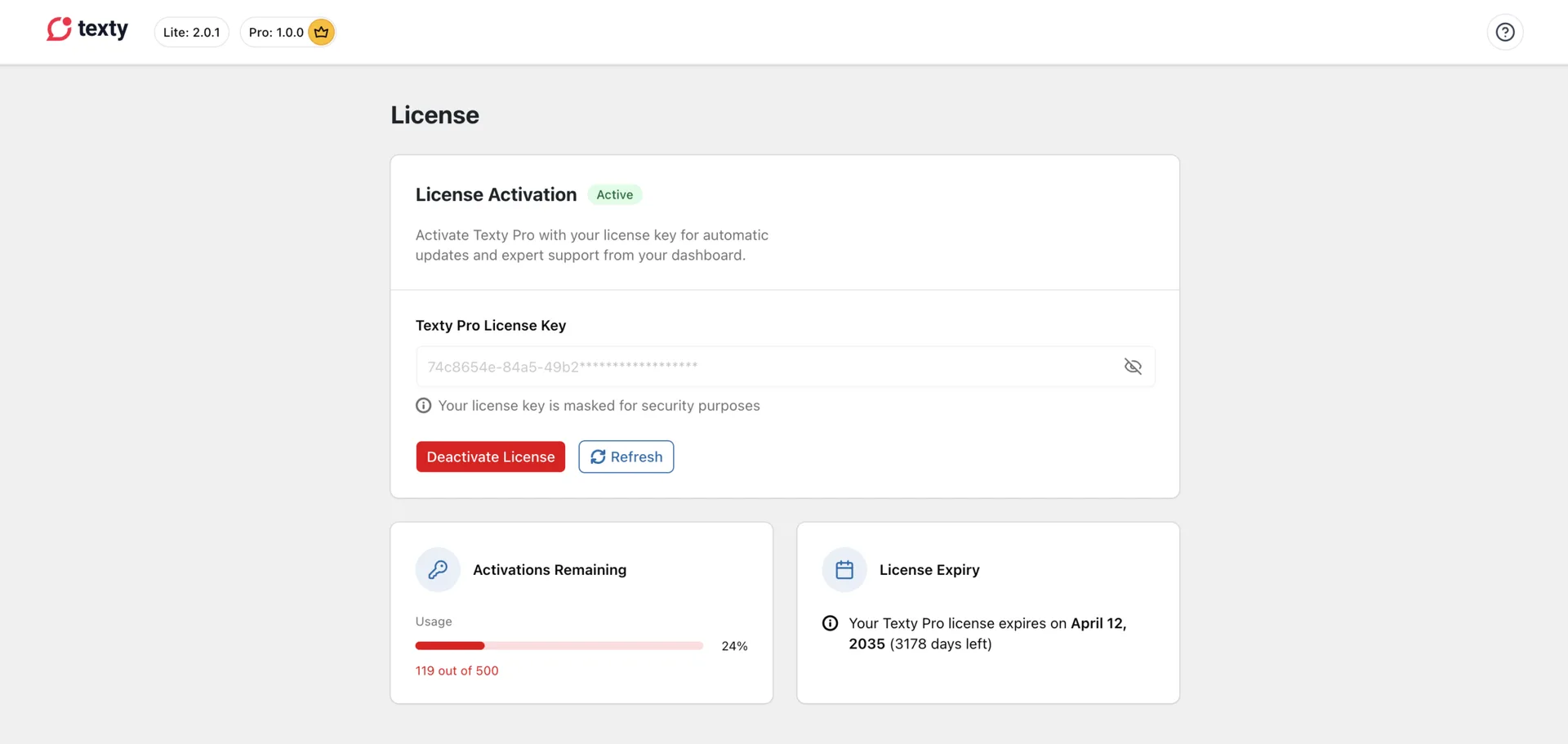
Keep both plugins active. Deactivating the free plugin also stops the features that Pro adds.
Troubleshooting
Section titled “Troubleshooting”Here are some errors that you might face and how you can solve them.
| Problem | What to check |
|---|---|
| You cannot see Add New | Make sure you are an administrator. A network admin or host may also block plugin installs. |
| The ZIP upload fails | Upload the original ZIP file. If WordPress reports a size limit, ask your host to raise it. |
| The Texty menu is missing | Open Installed Plugins and activate Texty. Then reload the WordPress admin. |
| Texty Pro will not activate | Install and activate the free Texty plugin first. |
| The dashboard shows an error | Check the required WordPress and PHP versions. Then test for a plugin conflict. |
What should you do next?
Section titled “What should you do next?”Texty is now installed, but it cannot send an SMS yet. Next, connect your first SMS gateway and send a test message.