How to Customize Automation Timing and Cooldowns
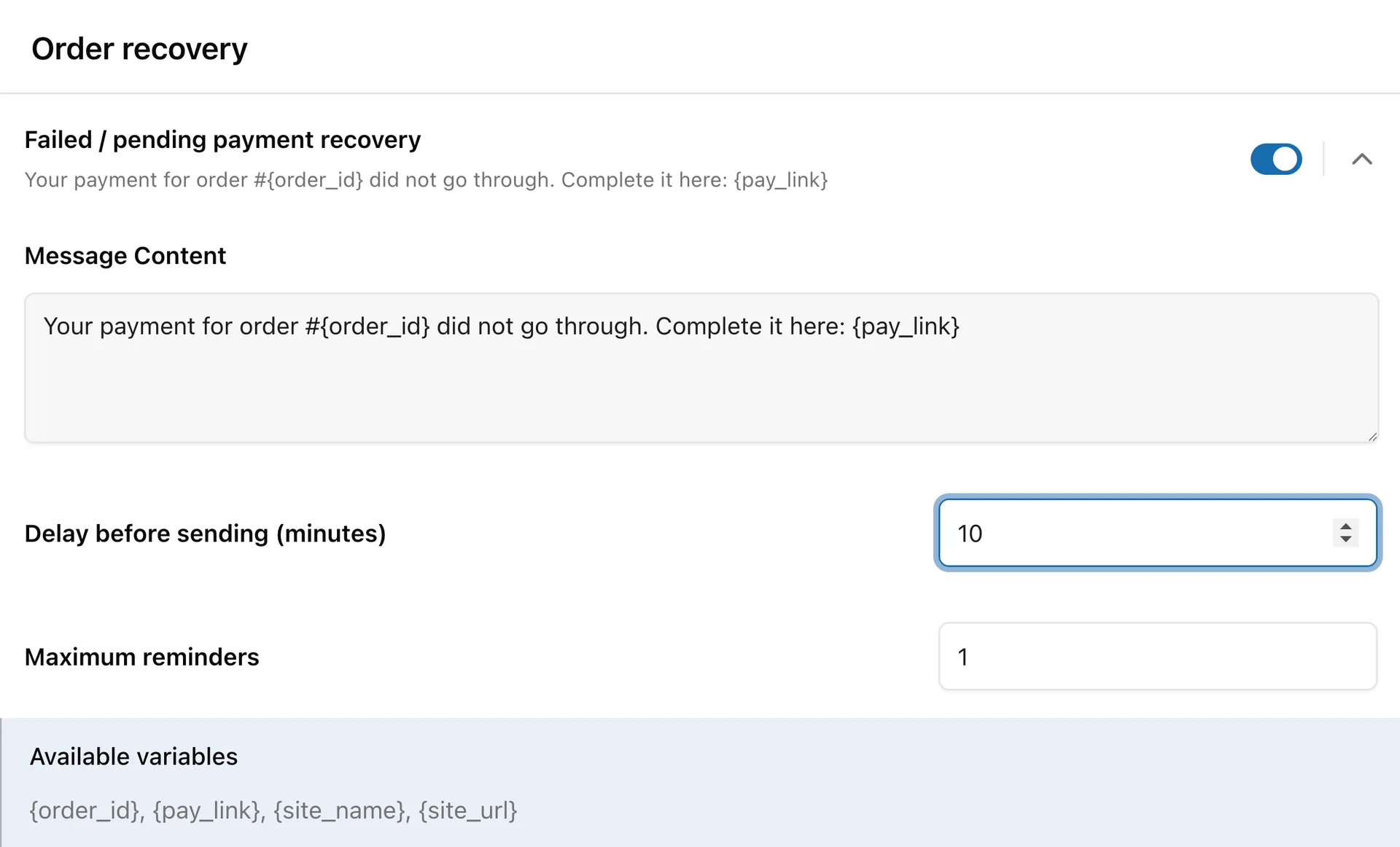
Open a trigger under Texty > Notifications > Automations to change its rules. These may include a wait, reminder limit, cooldown, threshold, or product choice. Save the change and create a matching test event. Then check the send time in Texty > SMS Logs.
What do the automation rules mean?
Section titled “What do the automation rules mean?”Each rule controls a different part of the send process.
| Rule | What it controls |
|---|---|
| Delay | How long Texty waits after the event before sending |
| Maximum reminders | How many messages the same order can receive |
| Cooldown | How long Texty waits before sending the trigger again to the same person |
| Threshold | The minimum value an event must meet before it can send |
| Product choice | Which item Texty names when an order has several products |
Not every trigger has all these rules. Use only the fields shown inside the trigger you are editing.
How do you change an automation rule?
Section titled “How do you change an automation rule?”- Go to Texty > Notifications > Automations.
- Find the trigger you want to change.
- Select the trigger row to open its settings.
- Change the delay, limit, cooldown, or other rule.
- Check the unit, such as minutes, hours, or days.
- Save your changes.
- Create a matching test event.
- Check the result in Texty > SMS Logs.
What are the default timing and control settings?
Section titled “What are the default timing and control settings?”| Trigger | Field | Default | What it controls |
|---|---|---|---|
| Failed or pending payment recovery | Delay before sending | 10 minutes | Wait after a failed or pending payment |
| Failed or pending payment recovery | Maximum reminders | 1 | Messages allowed for the same order |
| On-hold payment reminder | Delay before sending | 24 hours | Wait after an order goes on hold |
| On-hold payment reminder | Maximum reminders | 1 | Messages allowed for the same order |
| Price drop | Minimum drop to notify | 1% | Smallest price cut that can send an alert |
| Review request | Delay before sending | 5 days | Wait after the order is complete |
| Review request | Product to ask about | Highest-value item | Product named in a multi-item order |
| Customer note added | Maximum note length | 280 characters | Point where Texty cuts a longer note |
| License or download expiry | Days before expiry | 7 days | How early the first reminder sends |
| License or download expiry | Also notify on expiry day | Off | Whether a second alert sends on the expiry date |
| Win-back or lapsed customer | Days since last order | 90 days | Gap before a customer becomes eligible |
| Win-back or lapsed customer | Cooldown between win-backs | 180 days | Wait before another win-back to that person |
| Replenishment or reorder | Cooldown between nudges | 30 days | Wait before another nudge for the same person and product |
| Low or out of stock | Send to store numbers | Empty | Store phone numbers that receive stock alerts |
| Low or out of stock | Also alert on out of stock | Off | Whether Texty sends a separate zero-stock message |
Back in stock, First-order welcome, and Security alert have no timing field. They send when their event happens.
Some fields do not set a wait. The note length caps long text. The price rule checks if the price cut is large enough.
Which settings should you choose?
Section titled “Which settings should you choose?”Start with the defaults. Change a rule only when your store needs a new value.
- Give payment systems enough time to finish before sending a recovery SMS.
- Ask for a review after customers have had time to use the product.
- Use longer cooldowns when products are bought less often.
- Set a price threshold that reflects a real change, not a rounding update.
- Keep reminder limits low until your tests show a clear need for more.
Change one rule at a time. This makes the result easier to check.
How do you test a delay or cooldown?
Section titled “How do you test a delay or cooldown?”Use a test order, product, customer, and phone number that you control.
- Save the new rule.
- Record the time when you create the event.
- Wait until the saved delay has passed.
- Open Texty > SMS Logs.
- Check the log time and final message.
- Repeat the event if you need to test a limit or cooldown.
- Confirm that Texty skips the extra send when the rule blocks it.
For a long delay, test on a staging site or with a safe test account. Do not shorten a live rule if real customers may meet it during the test.
Success check: The first SMS sends at the expected time, and Texty blocks extra messages after the saved limit or during the cooldown.
Why did the SMS send at the wrong time?
Section titled “Why did the SMS send at the wrong time?”| What happened | What to check |
|---|---|
| It sent too soon | Check the saved delay and its time unit. |
| It has not sent yet | Confirm that the full delay passed and the trigger is on. |
| A price alert did not send | Make sure the price cut met the minimum percentage. |
| A review request names the wrong item | Review the product choice setting. |
| A repeat message is missing | Check the maximum reminders or cooldown. |
| Too many messages were sent | Lower the limit, raise the cooldown, and test again. |
| A stock alert went to the wrong phone | Review each number in the store phone list. |
Can every Texty automation use a delay?
Section titled “Can every Texty automation use a delay?”No. A delay appears only on triggers that support one. Other triggers run when their event or threshold is met.
What is the difference between a cooldown and a reminder limit?
Section titled “What is the difference between a cooldown and a reminder limit?”A cooldown controls the gap between messages. A reminder limit controls the total number allowed for the same event or order.
Does changing a delay affect messages already sent?
Section titled “Does changing a delay affect messages already sent?”No. It changes future sends. Test the saved rule with a new event so the result is clear.
Why is the store phone list inside the timing reference?
Section titled “Why is the store phone list inside the timing reference?”It sits with the low-stock trigger’s control fields. The list chooses store recipients, while the other toggle controls zero-stock alerts.
What should you do next?
Section titled “What should you do next?”Please follow the remaining guides to make the most out of Texty.