How to Set Up Dokan Vendor SMS Notifications
Texty can alert each Dokan vendor when an order status changes. Open the event you need, turn it on, and check the text. Then save it and run a test. Texty sends the SMS to the vendor’s store phone.
What do you need before you start?
Section titled “What do you need before you start?”Make sure:
- Texty, WooCommerce, and Dokan are active.
- One SMS gateway is live.
- Your test vendor has a phone number in their Dokan store profile.
- You can make an order for that vendor.
The Dokan events show only while Dokan is active. If your gateway is not ready, follow how to connect your first SMS gateway.
Which order events can alert a vendor?
Section titled “Which order events can alert a vendor?”Texty has five vendor alerts.
| Order status | Vendor receives an SMS |
|---|---|
| Processing | Yes |
| Complete | Yes |
| Cancelled | Yes |
| Failed | Yes |
| Refunded | Yes |
Each alert goes to the vendor linked to that order. If one sale has goods from many vendors, each one gets an update for their own order.
How do you turn on a vendor alert?
Section titled “How do you turn on a vendor alert?”Go to Texty > Notifications. Open the Integrations tab.
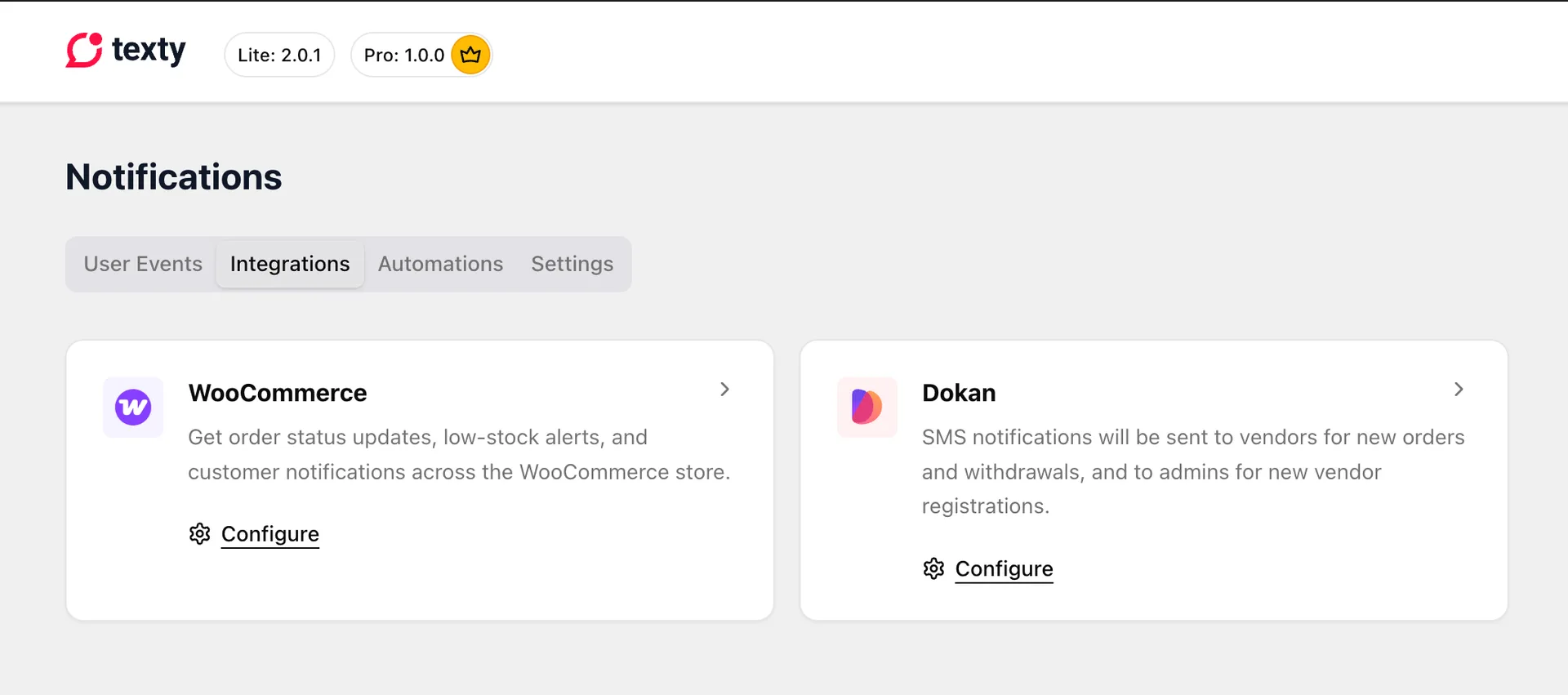
Find the Dokan event you need, such as Vendor – When Order Status is Complete.
Open the event and turn it on. Update the message with the available variables. Save the event.
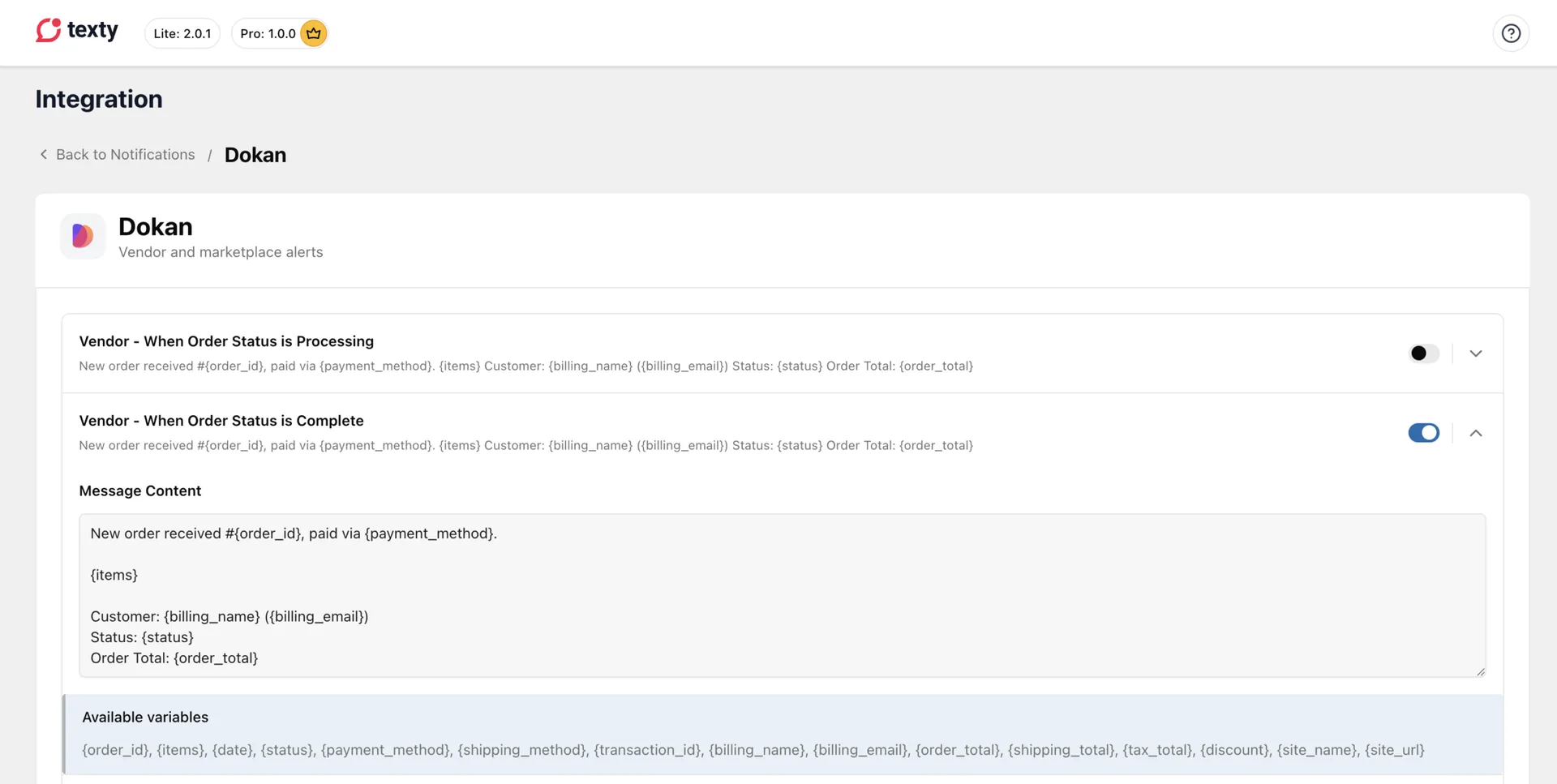
Repeat these steps for the order states your vendors need. You do not have to use all five alerts.
Where does Texty find the vendor’s phone?
Section titled “Where does Texty find the vendor’s phone?”Texty uses the phone saved in the vendor’s Dokan store profile. Vendors do not need to fill in a separate Texty phone field.
Ask the vendor to save the full number with its country code.
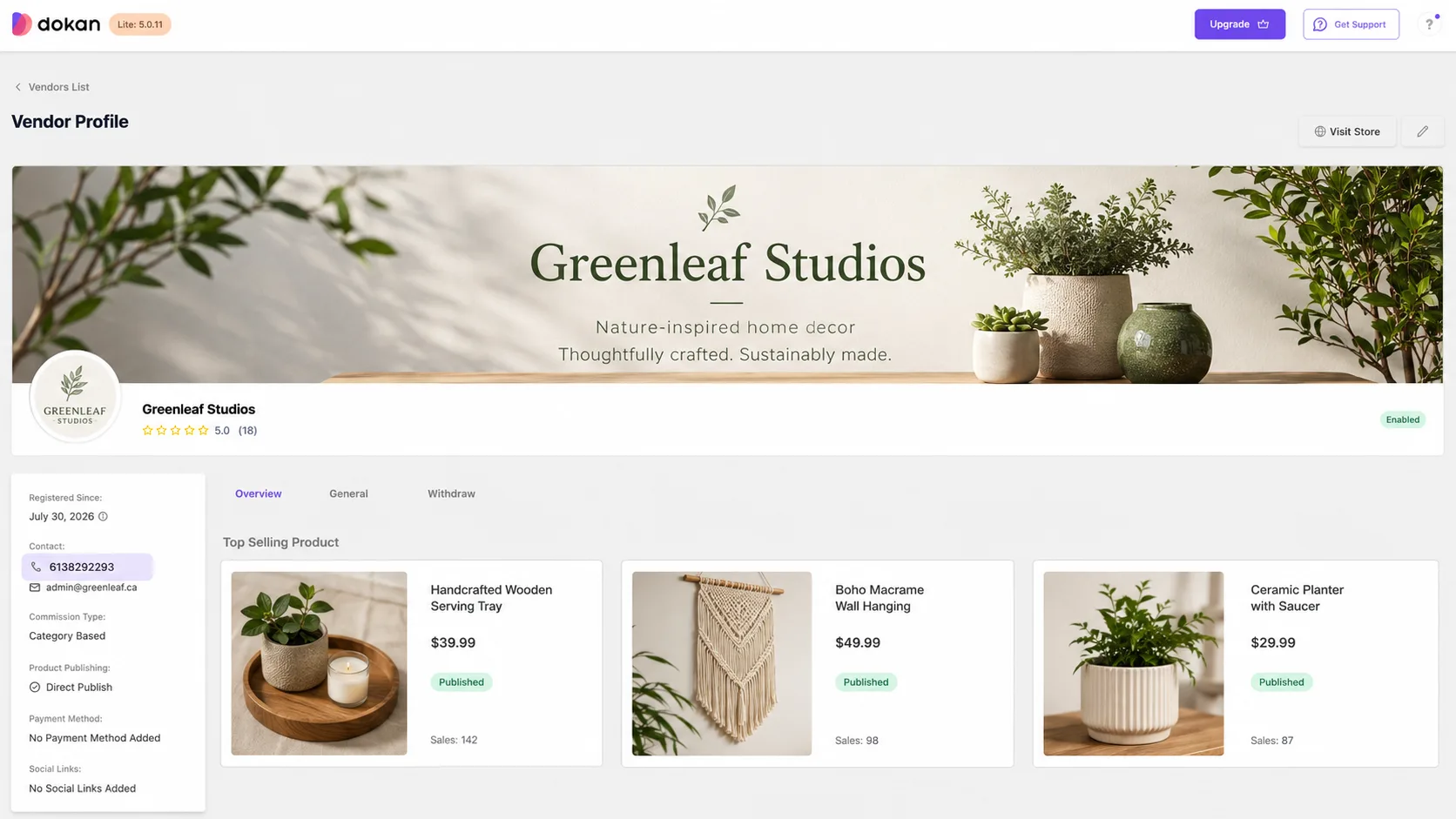
If the vendor changes the store phone, Texty uses the new one for later alerts.
How do you customize the vendor message?
Section titled “How do you customize the vendor message?”Dokan alerts use the same order tags as WooCommerce alerts. A short message may look like this:
Order #{order_id} is {status}. Items: {items}. Total: {order_total}.Use only the tags shown inside the Dokan event. The \{items} value can grow when an order has many goods. Test the final text with a real size order.
See how to customize Texty SMS messages with dynamic variables for the full order tag list.
How do you test a vendor alert?
Section titled “How do you test a vendor alert?”Confirm the test vendor has a valid phone number. Create a test order that includes one of that vendor’s products.
Change the vendor order to the status used by your enabled event. Check the vendor’s phone.
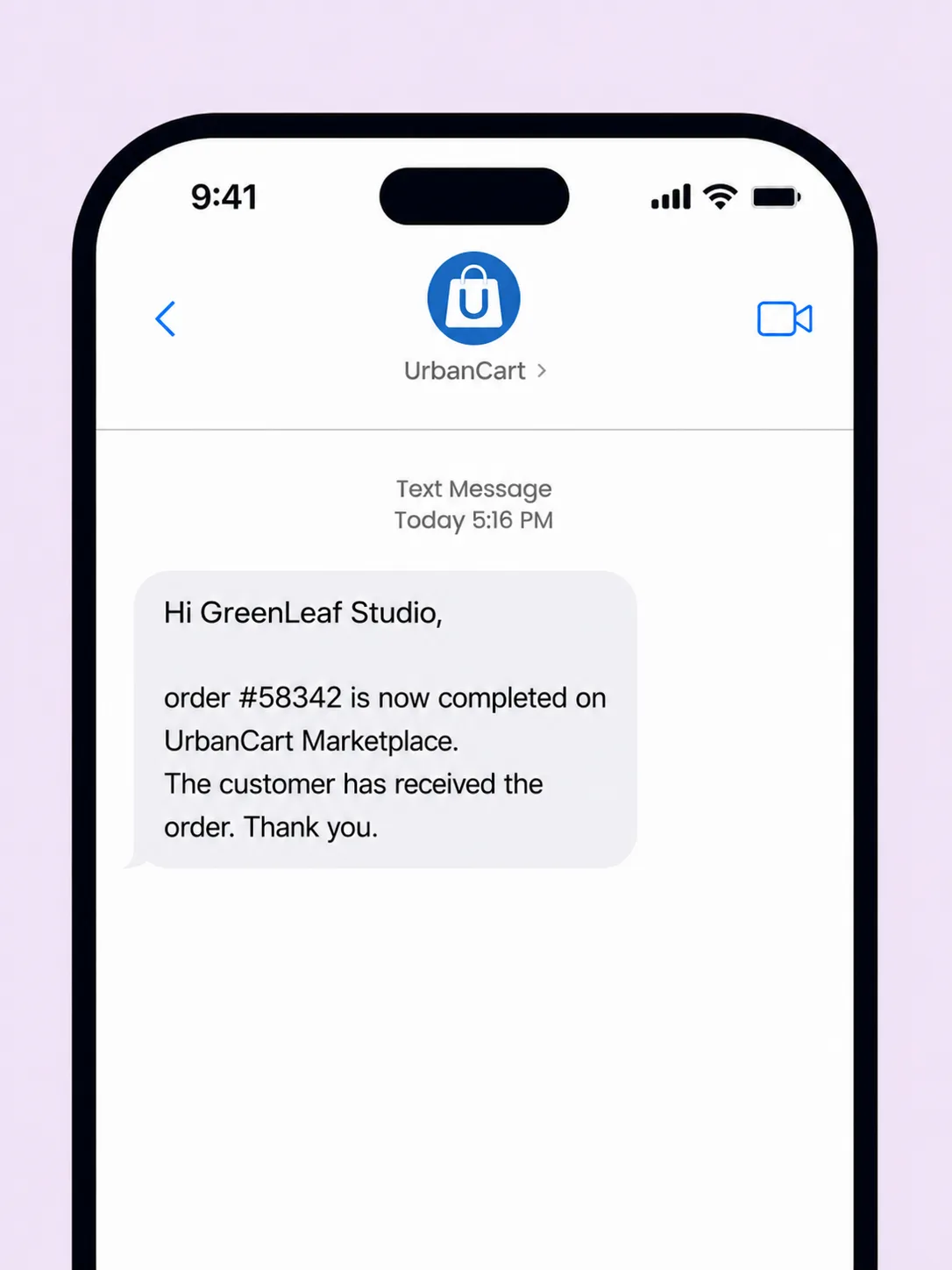
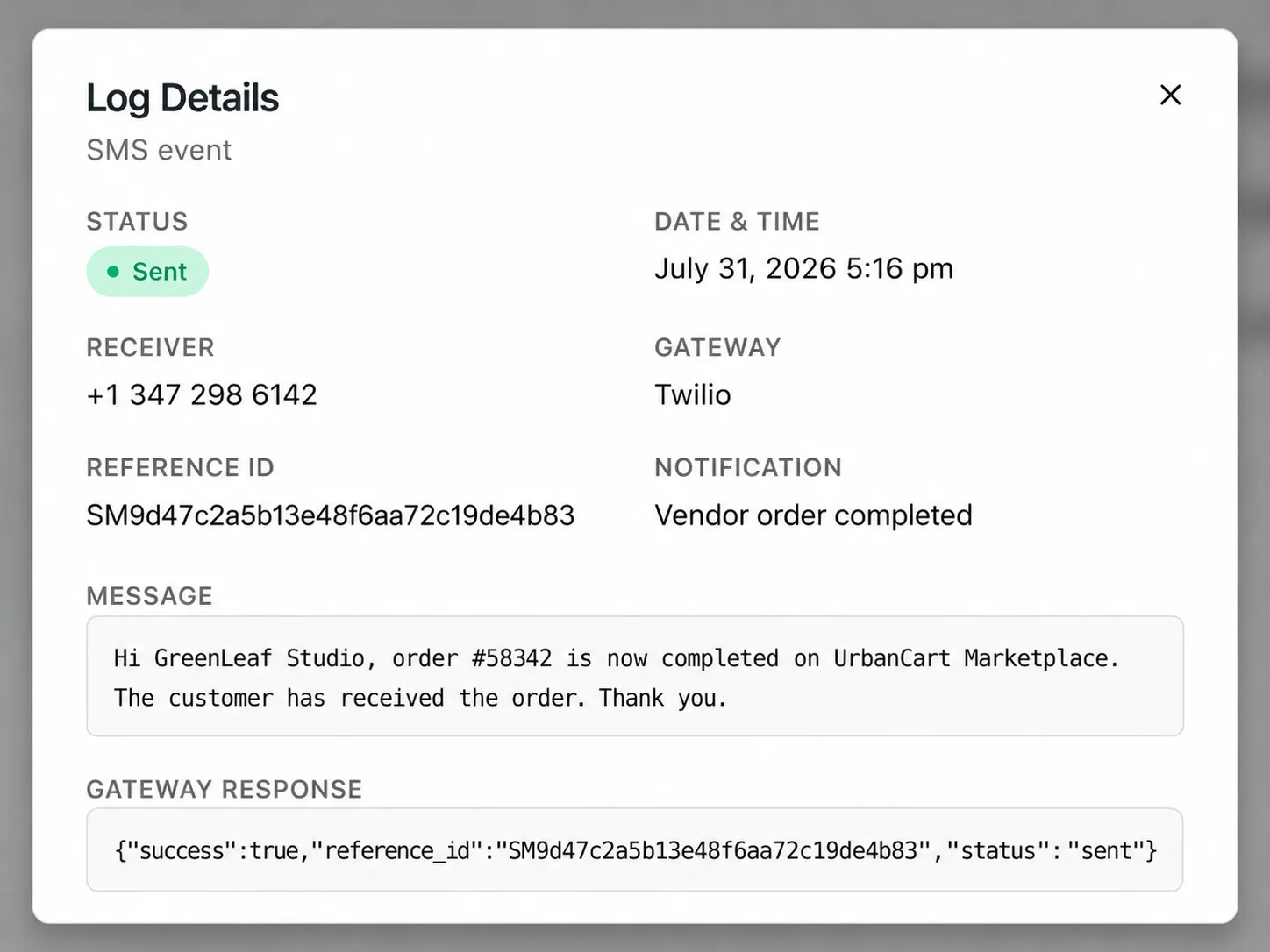
Open Texty > SMS Logs. Check the phone, message, gateway, and send status.
The setup works when the right vendor gets the message and Texty logs the send.
Why did the vendor get no SMS?
Section titled “Why did the vendor get no SMS?”| What happened | What to check |
|---|---|
| Dokan events are missing | Check that Dokan is on. |
| No SMS Log was created | Check the event toggle and the vendor order status change. |
| The wrong vendor was tested | Check that the order has a product from the test vendor. |
| The phone is blank or wrong | Check that vendor’s Dokan store profile. |
| The log shows a failed send | Review the gateway response and the phone format. |
| Every Texty alert has stopped | Check the global pause control under Texty > Notifications > Settings. |
Does one alert go to every vendor?
Section titled “Does one alert go to every vendor?”No. Texty sends the alert to the vendor linked to the order that changed status.
Can store admins receive the same order alert?
Section titled “Can store admins receive the same order alert?”Yes. Turn on the matching WooCommerce staff alert as well. Dokan events are made for vendors.
Why can I not see Dokan in Texty?
Section titled “Why can I not see Dokan in Texty?”The Dokan events load only when Dokan is on. Turn it on, then reload Texty > Notifications > Integrations.
What comes next?
Section titled “What comes next?”Please follow the remaining guides to make the most out of Texty.