Smart Coupons
Smart Coupons is StoreGrowth’s coupon module: “Automatic, code and link coupons that always leave the shopper with the better deal.” When two deals can’t combine, the shopper gets the larger one, so a shopper who types a smaller code never loses a better discount.
| Method | How the shopper gets it |
|---|---|
| Automatic | Applies by itself when the cart qualifies. There is no code to type. |
| Discount code | The shopper types the code in the cart or at checkout. |
| Link | The shopper opens a link and the coupon is added to their cart. |
Code and link coupons are real WooCommerce coupons, so they work wherever WooCommerce coupons work. They also appear in WooCommerce » Coupons, marked “Managed by Smart Coupons”. You edit them in Smart Coupons, not in WooCommerce.
What do you need before you start?
Section titled “What do you need before you start?”- StoreGrowth installed and active. See Installing StoreGrowth.
- Coupons turned on in WooCommerce » Settings » General (“Enable the use of coupon codes”). If they are off, Smart Coupons shows: “Coupons are turned off in WooCommerce > Settings > General. Automatic coupons won’t apply and codes can’t be entered until they’re on.”
- For a Buy X get Y coupon, the BOGO module turned on and a BOGO rule to use.
How do you turn on the Smart Coupons module?
Section titled “How do you turn on the Smart Coupons module?”-
In your WordPress dashboard, go to StoreGrowth » Modules.
-
Find the Smart Coupons card and click its toggle to turn the module on.
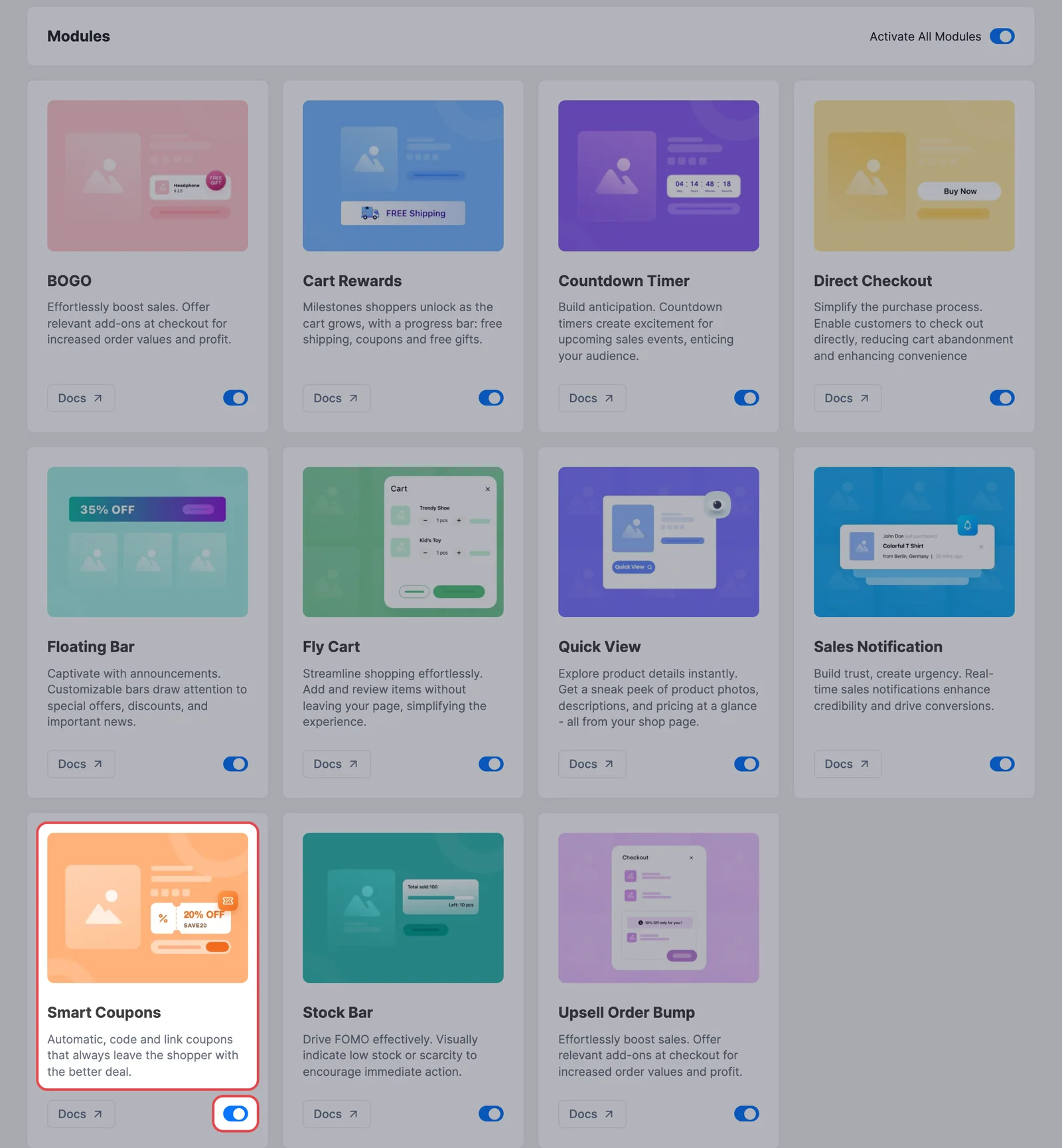
While the module is off, its coupons don’t work. The Smart Coupons page says: “Smart Coupons is turned off. While it’s off, its coupons are invalid. Turn it on to create and manage coupons.” Click Turn on Smart Coupons to switch it back on.
Where do you find your coupons?
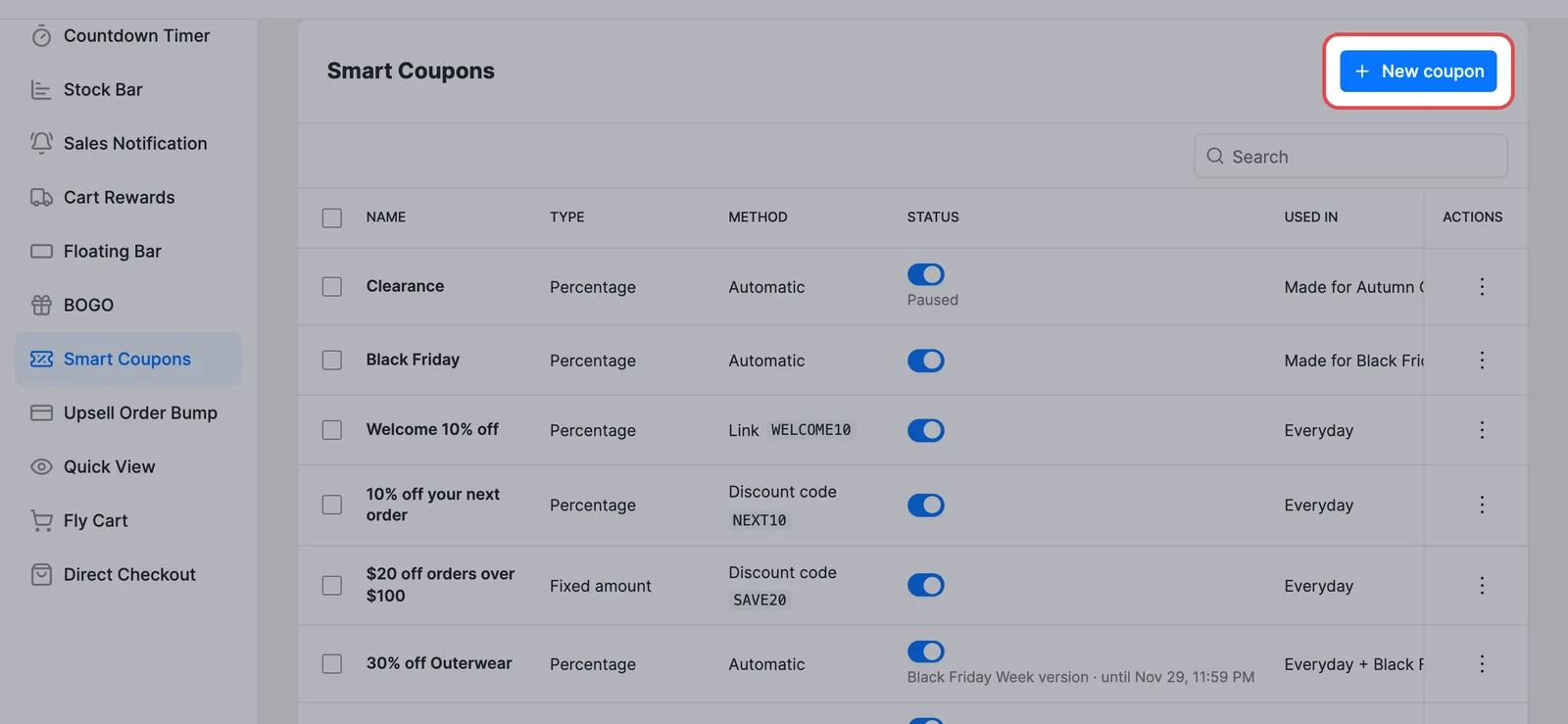
Section titled “Where do you find your coupons?”Go to StoreGrowth » Features and click Smart Coupons. The page lists every coupon. Under the list: “Code and link coupons also appear in WooCommerce > Coupons, marked Managed by Smart Coupons.”
| Column | What it shows |
|---|---|
| Name | The coupon’s title. Click it to edit the coupon. |
| Type | Percentage, Fixed amount, Buy more save more or Buy X get Y. Buy X get Y coupons also show a BOGO module chip. |
| Method | Automatic, Discount code or Link. |
| Status | Whether the coupon is live right now. A coupon without dates, or outside its dates, is not live. |
| Used in | Whether the coupon runs every day, is attached to a campaign, or was made for one, for example Everyday or Everyday + Black Friday Week. |
| Uses | How many orders used the coupon. |
| Discount given | The total discount shoppers received from it. |
| Revenue | The sales from orders that used it. |
| Actions | Edit opens the coupon. For a link coupon, Copy link copies its link. |
Use Search coupons to find a coupon by name. To delete coupons, select them in the list and delete them.
How do you create a coupon?
Section titled “How do you create a coupon?”-
On the Smart Coupons page, click New coupon.
-
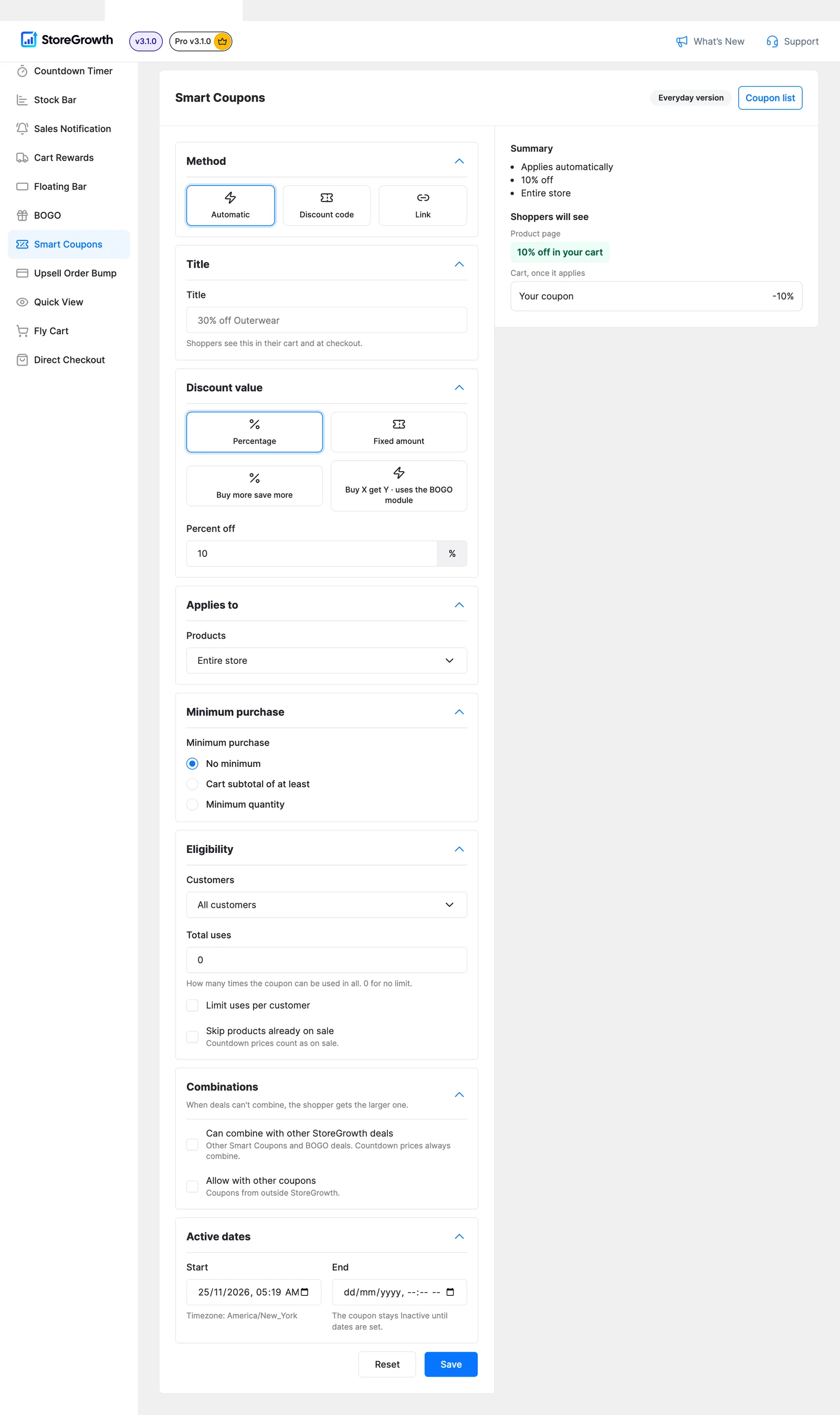
Fill in each card of the form, from Method to Active dates. The Everyday version tag at the top shows which version you are editing. The sections below explain every setting.
-
Check the Summary below the form. It describes the coupon in plain words, and Shoppers will see previews it on the product page and in the cart.
-
Save the coupon.
Method
Section titled “Method”| Setting | What it does |
|---|---|
| Method | How the shopper gets the coupon: Automatic, Discount code or Link. Pick Automatic for a store-wide sale and Discount code for a code you share in an email. |
| Discount code | The code shoppers type, for example SAVE20. It appears for Discount code and Link. “For a link coupon, changing the code changes its link.” |
| Coupon link | For Link only. “Shoppers who open this link get the coupon in their cart.” The link is your store address with ?spsg_coupon= and the code, for example https://yourstore.com/?spsg_coupon=welcome10. Click Copy to copy it for an ad, email or message. |
| Setting | What it does |
|---|---|
| Title | The coupon’s name, for example “30% off Outerwear”. “Shoppers see this in their cart and at checkout.” |
Discount value
Section titled “Discount value”| Setting | What it does |
|---|---|
| Discount type | Percentage takes a percentage off the eligible products. Fixed amount takes an amount off the cart: “Taken off the cart, split across eligible products by price.” Buy more save more and Buy X get Y are explained below. |
| Percent off or Amount off | How much the coupon takes off: a percentage for Percentage, or an amount in your store currency for Fixed amount. Shoppers see it as the coupon’s line in the cart totals. |
Buy more save more gives a bigger discount as the shopper buys more. It needs StoreGrowth Pro: the Free plan marks it Pro.
| Setting | What it does |
|---|---|
| Tiers by | Count tiers by Number of items or by Cart subtotal. |
| Tiers | Each tier has an At least value and a Percent off. “The largest tier the eligible items reach applies.” Click Add tier for another step and Remove tier to delete one. |
Buy X get Y uses a rule from the BOGO module. Smart Coupons doesn’t build the deal itself.
| Setting | What it does |
|---|---|
| Choose a BOGO rule | The BOGO rule that defines the deal. Once picked, the card shows “Deal defined by BOGO rule: [name]” and Edit deal opens the rule. |
If the BOGO module is off, the Buy X get Y card reads “BOGO module is off”. Click Enable BOGO to turn it on.
With a Discount code or Link method, the BOGO rule only applies when the shopper uses this coupon: “This BOGO rule will only apply when shoppers use this coupon.”
Applies to
Section titled “Applies to”| Setting | What it does |
|---|---|
| Products | Which products get the discount: Entire store, Specific categories or Specific products. When you pick categories or products, choose them in the field that appears. |
Minimum purchase
Section titled “Minimum purchase”| Setting | What it does |
|---|---|
| Minimum purchase | What the cart needs before the coupon applies: No minimum, Cart subtotal of at least or Minimum quantity. A minimum also lets the cart nudge the shopper, for example “Add $20 more to unlock 30% off”. |
| Minimum subtotal | For Cart subtotal of at least: the subtotal the cart must reach. |
| Minimum quantity | For Minimum quantity: how many eligible items the cart must hold. |
Eligibility
Section titled “Eligibility”| Setting | What it does |
|---|---|
| Customers | Who can use the coupon: All customers, Specific roles, First-time customers, Returning customers or Specific customers. The last three are marked (Pro) on the Free plan. |
| Roles | For Specific roles: the WordPress user roles that can use it, such as Customer or Vendor. |
| Customer emails | For Specific customers: “Separate emails with commas. Checked against the billing email at checkout.” |
| Total uses | “How many times the coupon can be used in all. 0 for no limit.” Use it for a limited offer, such as the first 100 orders. |
| Limit uses per customer | Turn it on to cap how often one shopper can use the coupon, then set Uses per customer. |
| Skip products already on sale | Leaves out products that already have a sale price. “Countdown prices count as on sale.” |
Combinations
Section titled “Combinations”“When deals can’t combine, the shopper gets the larger one.”
| Setting | What it does |
|---|---|
| Can combine with other StoreGrowth deals | Lets this coupon stack with other deals instead of competing with them. “Other Smart Coupons and BOGO deals. Countdown prices always combine.” Leave it off if you don’t want a shopper to get two discounts on the same product. |
| Allow with other coupons | Lets this coupon stack with “Coupons from outside StoreGrowth.”, such as plain WooCommerce coupons. |
Both are off by default.
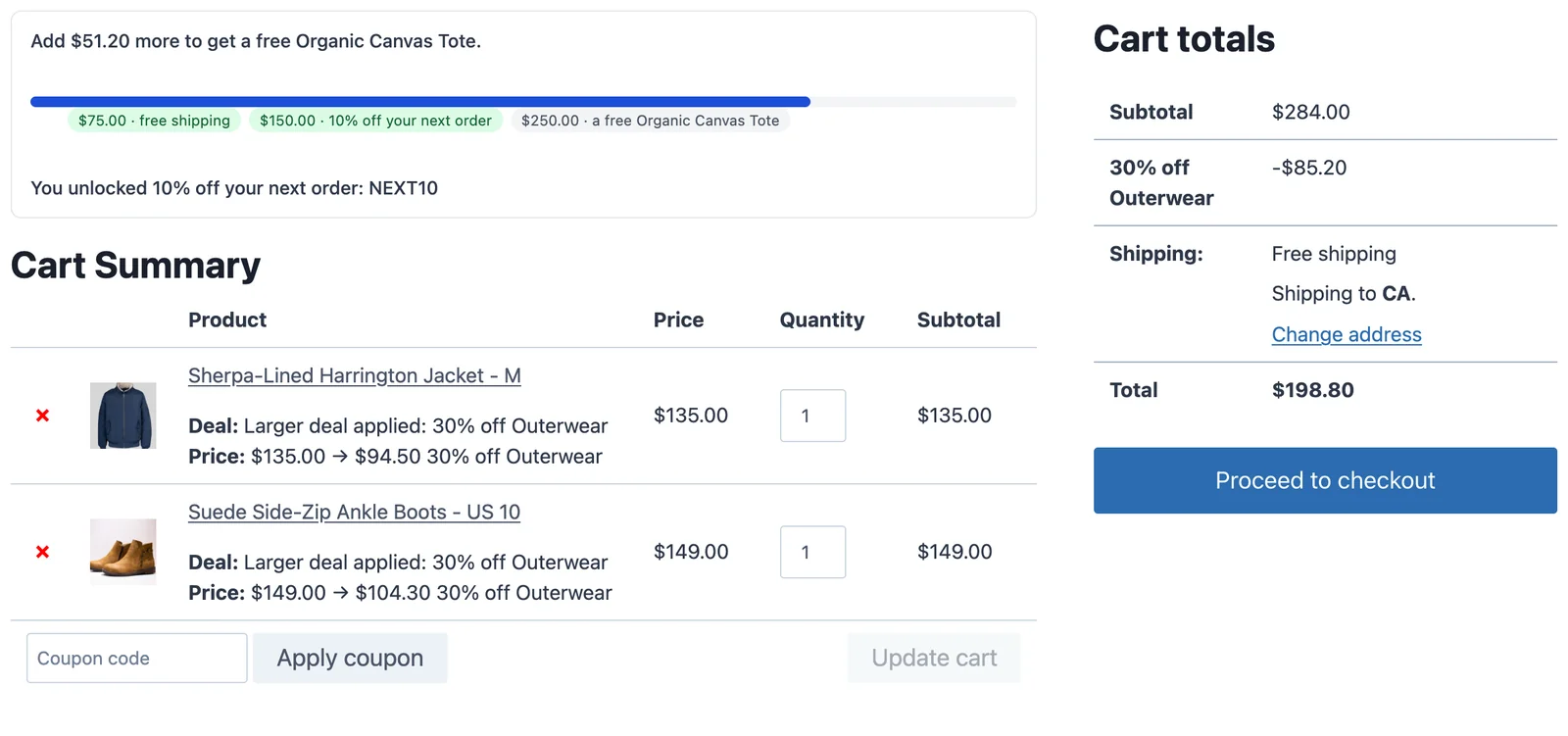
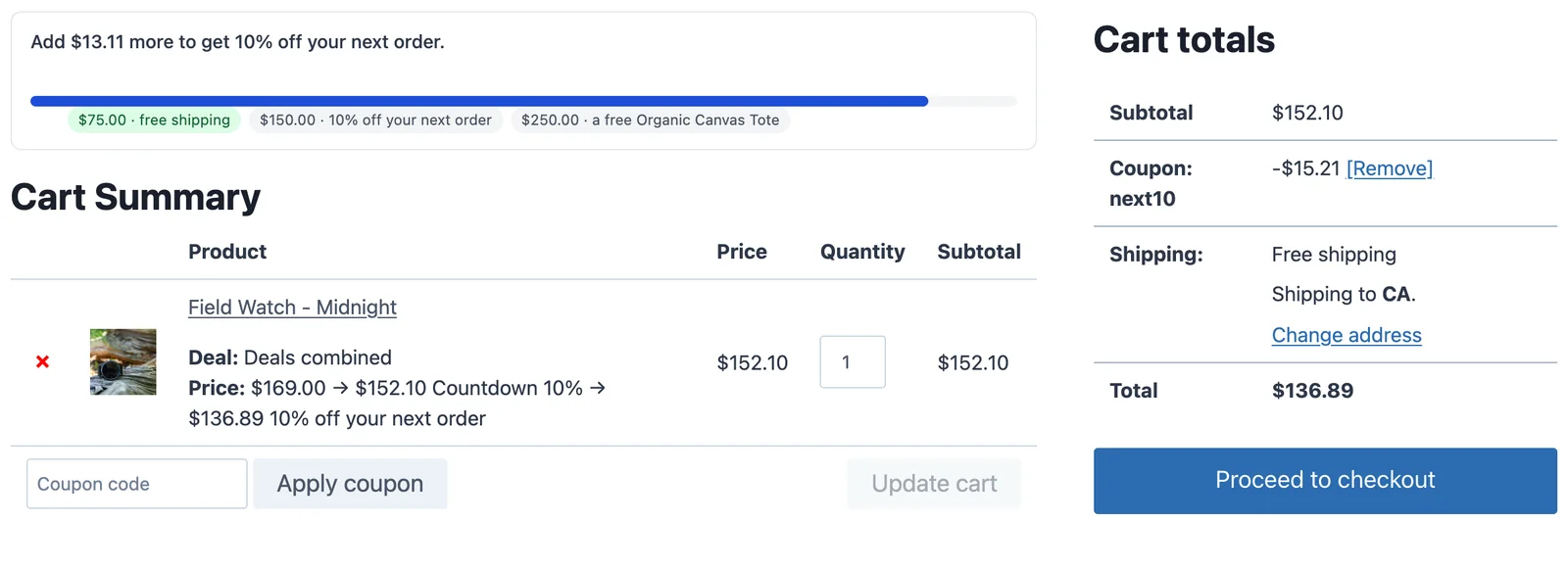
In the cart, each product line shows which deal it got and how the price was worked out:
| Label | When it shows |
|---|---|
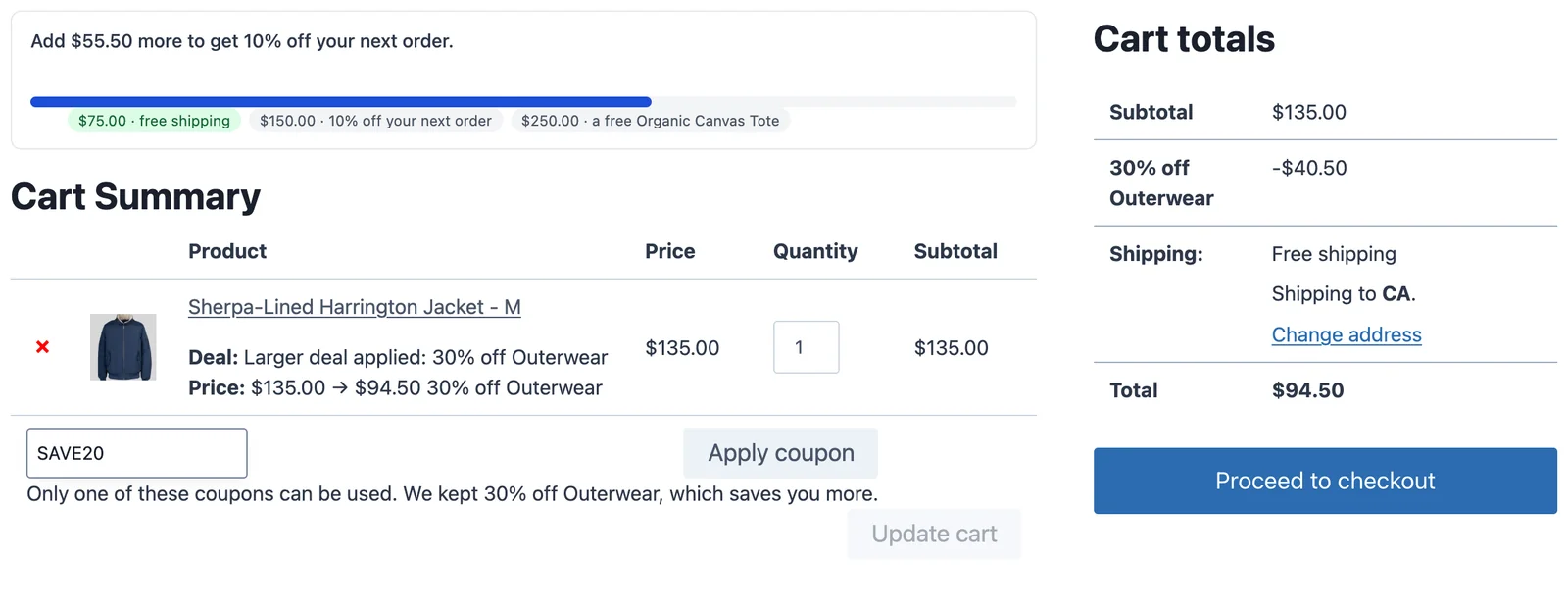
| Larger deal applied: [deal] | Two deals that can’t combine both apply to the product. The line names the one that saves more, for example “Larger deal applied: 30% off Outerwear”, and shows its price, such as “$135.00 → $94.50 30% off Outerwear”. |
| Deals combined | The product gets more than one deal, step by step. A Countdown price always combines, for example “$169.00 → $152.10 Countdown 10% → $136.89 10% off your next order”. |
Active dates
Section titled “Active dates”| Setting | What it does |
|---|---|
| Start and End | The date and time the coupon runs, in your site’s timezone. The timezone shows under the field. “The coupon stays Inactive until dates are set.” |
If the coupon belongs to a campaign, this card is locked and shows “Set by campaign: [campaign], [start] to [end]” with Open campaign. See How offers work in a campaign.
What happens when coupons clash?
Section titled “What happens when coupons clash?”When the shopper’s cart has deals that can’t combine, StoreGrowth keeps the one that saves the shopper more and tells them why. For example, with the automatic “30% off Outerwear” coupon in the cart, entering a smaller code shows: “Only one of these coupons can be used. We kept 30% off Outerwear, which saves you more.”
| Situation | What happens |
|---|---|
| Two coupons that can’t combine | The larger one stays, with the message above. |
| A code loses to another deal on every product it applies to | The code is removed with a message that names the deal that saves more. |
| A code wins on some products | It stays on those products. |
| A coupon from another plugin has WooCommerce’s “Individual use only” on | WooCommerce’s normal rules apply. |
Smart Coupons never turns on WooCommerce’s “Individual use only” setting, because WooCommerce would keep the last code entered instead of the larger one.
What does the Free plan include?
Section titled “What does the Free plan include?”The Free plan includes one active automatic coupon. Code and link coupons are unlimited. If you turn on a second automatic coupon, StoreGrowth asks you to choose: “[coupon] is on. Swap it for this one, or upgrade to Pro for unlimited automatic coupons.” You can click Turn off [coupon] to swap, or Upgrade to Pro.
See Free vs Pro for every limit.
How do Smart Coupons work in a campaign?
Section titled “How do Smart Coupons work in a campaign?”A coupon can be attached to a campaign with a different amount while the campaign runs. The saved WooCommerce coupon keeps its everyday amount, so nothing needs changing back afterwards.
In a campaign version, the method and code can’t change: “Method and code are read-only in a campaign version. A different code needs a coupon made for this campaign.” To run a separate code such as BF25, create a coupon made for the campaign instead.
What if something doesn’t work?
Section titled “What if something doesn’t work?”| Problem | What to do |
|---|---|
| A code says it isn’t valid | Check that the coupon’s Active dates are set and include today, and that Smart Coupons is turned on. |
| An automatic coupon doesn’t apply | Check Applies to, Minimum purchase and Eligibility, and that coupons are on in WooCommerce » Settings » General. |
| A code was removed from the cart | Another deal saves the shopper more on those products. Turn on Can combine with other StoreGrowth deals if both should apply. |
| You can’t edit a coupon in WooCommerce | Coupons marked “Managed by Smart Coupons” are edited in StoreGrowth » Features » Smart Coupons. |
What should you set up next?
Section titled “What should you set up next?”- BOGO: build the rule a Buy X get Y coupon uses.
- Cart Rewards: give a coupon as a reward when the cart reaches an amount.
- Campaigns: run your coupons inside a scheduled sale.