How offers work in a campaign
An offer is a deal from one of your modules: a Smart Coupon, a BOGO rule or an Order Bump. Every offer has an everyday version, the one you set on its module page. A campaign can change an offer for its time window without touching that everyday version, so your normal deals come back by themselves when the campaign is over.
| Kind of offer in a campaign | What it is | Outside the campaign |
|---|---|---|
| Attached · Used as is | An everyday offer the campaign switches on, unchanged | Runs as its everyday version |
| Attached · Customised | An everyday offer with different values during the campaign, for example 40% off instead of 25% | Runs as its everyday version |
| Made for this campaign | A new offer that exists only inside this campaign | Does not run |
What do you need before you start?
Section titled “What do you need before you start?”- A campaign to work on. See Creating a campaign.
- The module of each offer turned on: Smart Coupons, BOGO or Upsell Order Bump.
How do you attach an offer you already have?
Section titled “How do you attach an offer you already have?”In the campaign’s Offers card, click Attach an existing offer. If the campaign already has offers, click Add offer first. The list groups your offers by module: Smart Coupons, BOGO rules (Product rule or Store-wide rule) and Order Bumps. Click Attach next to the one you want, then choose:
| Choice | What happens |
|---|---|
| Use as is | The campaign switches the offer on with its everyday values. Use it when the deal is already right and you only want it inside the campaign’s schedule and report. |
| Customise for this campaign | You set different values that apply only while the campaign runs. The offer row then shows both, for example “Everyday: 25% off · During this campaign: 40% off”. |
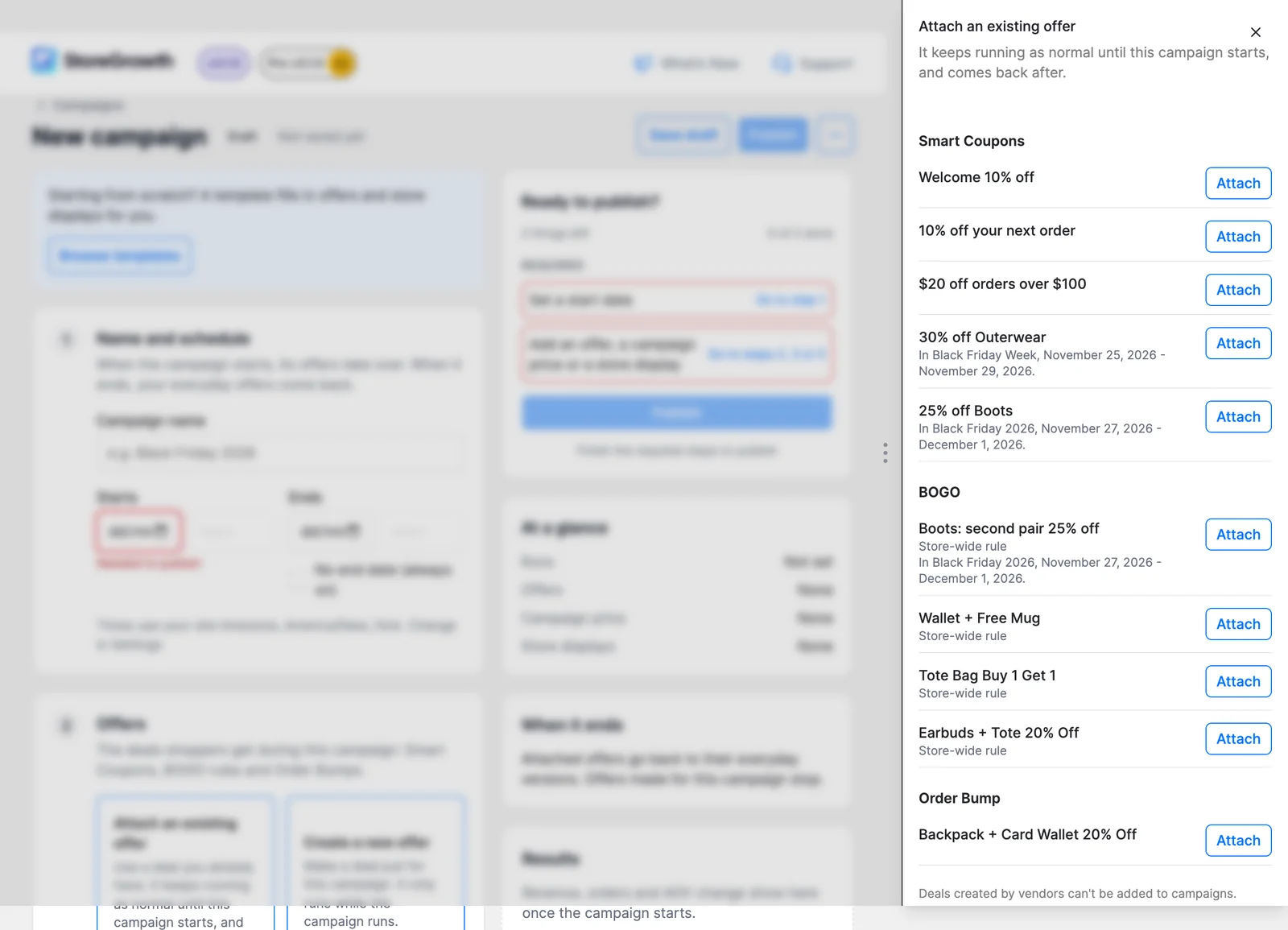
An attached offer “keeps running as normal until this campaign starts, and comes back after.” If its everyday version is off, the campaign switches it on for its window, and it goes back to off afterwards.
Why can’t you attach some offers?
Section titled “Why can’t you attach some offers?”- The offer is in another campaign at the same time. The drawer shows “Campaign dates can’t overlap for the same offer.” An offer can be in several campaigns only if their dates don’t overlap. Ended campaigns don’t count.
- Its module is off. It is listed under Not available with “[module] is off. Enable it to use it here.” and an Enable button.
- A vendor created it. “Deals created by vendors can’t be added to campaigns.”
How do you create an offer just for the campaign?
Section titled “How do you create an offer just for the campaign?”In the Offers card, click Create a new offer (after Add offer if the campaign already has offers). The usual editor for that offer type opens, titled “New [offer type], made for [campaign]”. Save it, then click Back to campaign. It appears in the Offers card as Made for this campaign.
An offer made for a campaign “only runs while the campaign runs.” Use one when you want a deal that should never run on a normal day, such as a separate Black Friday coupon code.
What happens to your offers when the campaign starts and stops?
Section titled “What happens to your offers when the campaign starts and stops?”| When | What happens to attached offers | What happens to offers made for the campaign |
|---|---|---|
| Draft or scheduled | Their everyday versions keep running unchanged | Not live |
| The campaign starts | The campaign version takes over: “Campaign takes over.” | Switched on |
| The campaign is paused | Back to their everyday versions until you resume | Off until you resume |
| The campaign ends | “Everything goes back to everyday.” | Stop |
| The campaign is deleted | Back to their everyday versions | Deleted with the campaign |
| The Pro licence expires | Back to their everyday versions | Offline |
Your everyday settings never change. If you edit an attached offer’s everyday version while a campaign runs, the edit takes effect when the campaign ends.
The campaign’s What happens when card describes each step for your own offers, for example “25% off Boots goes back to its everyday version.”
How does the campaign price work with Countdown?
Section titled “How does the campaign price work with Countdown?”The campaign price is a % off chosen products that uses the Countdown Timer module. It becomes the product’s price for the whole campaign, and the other deals are worked out from it.
If a product already has its own Countdown discount, the campaign price replaces it while the campaign runs. The product’s own discount pauses, then comes back: “Products’ own Countdown settings are kept and return after the campaign.”
What does the shopper see when prices change?
Section titled “What does the shopper see when prices change?”A campaign can start or end while a shopper already has items in their cart. StoreGrowth prices the cart again on every change, so the shopper always pays what is live right now, and the cart shows a short notice when prices change. For example, a free gift that no longer qualifies is removed from the cart with a message.
How do you remove an offer from a campaign?
Section titled “How do you remove an offer from a campaign?”Click Remove on the offer’s row.
- An attached offer leaves the campaign and keeps its everyday version: “Its everyday version is untouched.”
- An offer made for this campaign asks what to do with it: Delete it, or Keep as everyday offer. Keeping it turns it into a normal everyday offer that starts switched off. A kept Smart Coupon shows the status Inactive and Used in reads Everyday, so it doesn’t go live until you turn it on.
What should you read next?
Section titled “What should you read next?”- Creating a campaign: the rest of the campaign page.
- Campaign reports: which orders count toward a campaign.