Campaigns
A campaign groups everything a promotion needs under one schedule: the offers shoppers get, an optional campaign price, and the places on your store where shoppers see it. When the campaign starts, its offers take over. When it ends, your everyday offers come back by themselves, so you never have to change your deals back after a sale.
| Part of a campaign | What it does |
|---|---|
| Offers | The deals shoppers get during the campaign: Smart Coupons, BOGO rules and Order Bumps. |
| Campaign price | One % off chosen products for the whole campaign, shown with a strike-through price. |
| Store displays | Where shoppers see the campaign, such as a countdown timer, a floating bar or a product badge. |
| Campaign link | A link for ads, emails or Texty that applies the offer and credits the campaign. |
| Results | Revenue, orders, offer acceptance and AOV change, compared with the 30 days before. |
What do you need before you start?
Section titled “What do you need before you start?”- StoreGrowth and StoreGrowth Pro installed, with an active licence. See Installing StoreGrowth.
- The modules your campaign uses turned on, for example Smart Coupons, BOGO or the Countdown Timer for a campaign price.
- Your site timezone set in Settings » General. Campaign times use it.
Where do you find your campaigns?
Section titled “Where do you find your campaigns?”In your WordPress dashboard, go to StoreGrowth » Campaigns. The page title reads “Every promotion you have run, with what it earned”.
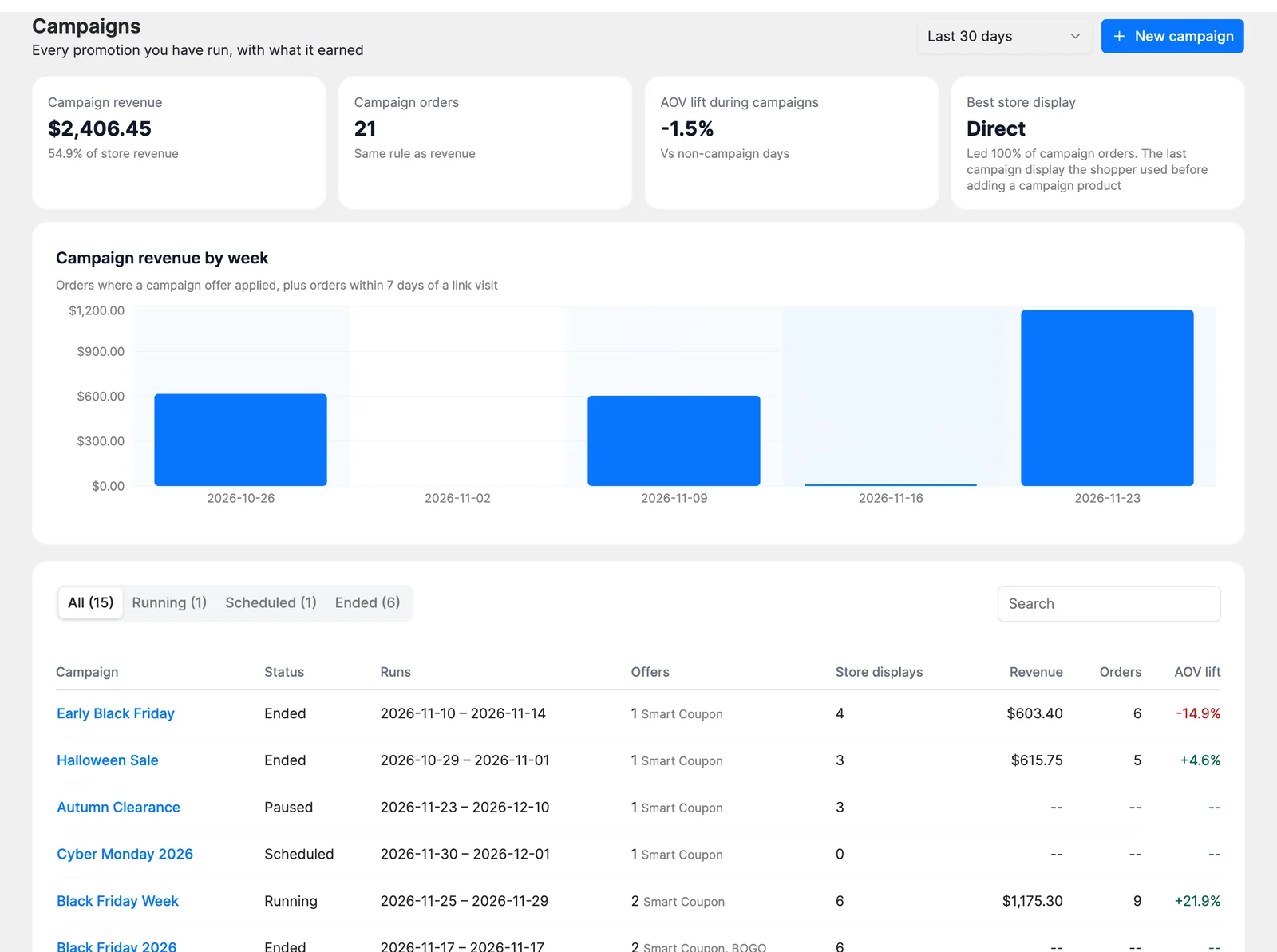
At the top, four cards sum up your campaigns for the chosen Date range (Last 30 days, Last 90 days or This year):
| Card | What it shows |
|---|---|
| Campaign revenue | Sales credited to your campaigns, with their share of all store revenue. |
| Campaign orders | How many orders in the date range were credited to a campaign, counted the same way as revenue. |
| AOV lift during campaigns | How the average order value during campaigns compares with non-campaign days. |
| Best store display | The display that led the most campaign orders: “The last campaign display the shopper used before adding a campaign product”. |
The Campaign revenue by week chart shows those sales over time. See Campaign reports for how orders are credited.
Below the chart, the tabs All, Running, Scheduled and Ended filter the list, and Search campaigns finds one by name.
| Column | What it shows |
|---|---|
| Campaign | The campaign’s name. Click the row to open it. |
| Status | Draft, Scheduled, Running, Paused or Ended. |
| Runs | The start and end dates. |
| Offers | How many offers it has, and which modules they come from. |
| Store displays | How many store displays are on. |
| Revenue, Orders and AOV lift | The campaign’s results. They show -- until the campaign has run. |
What do the campaign statuses mean?
Section titled “What do the campaign statuses mean?”The status follows the clock in your site timezone. A scheduled campaign becomes Running when its start time comes, and Ended after its end time.
| Status | What it means | Can you change it? |
|---|---|---|
| Draft | Saved but not published. Your everyday offers run as normal. | Yes: “Editable until it starts” |
| Scheduled | Published, with a start date in the future. “Until then, your everyday offers keep running as normal.” | Yes: “Editable until it starts” |
| Running | Live on your store. The campaign’s offers and displays are on. | Yes: “Changes apply right away” |
| Paused | Stopped for now. “Offers are back to their everyday versions and store displays are off.” | Yes: “Changes apply when you resume” |
| Ended | Finished for good. The results are frozen. | No: “Read-only. Run again to reuse it.” |
What can you do with a campaign?
Section titled “What can you do with a campaign?”Open a campaign to see its actions. Which ones show depends on the status.
| Action | What it does |
|---|---|
| Save draft | Saves your changes without publishing. |
| Publish | Schedules the campaign, or starts it right away if the start time has passed. “Offers switch over by themselves.” |
| Unpublish | Takes a scheduled campaign back to a draft. |
| Pause | “turns everything off for now.” Offers go back to their everyday versions and store displays switch off until you resume. |
| Resume | “switches the campaign offers and displays back on”. |
| End now | “finishes it for good and freezes the results.” StoreGrowth asks you to confirm first. |
| Run again | “Copies the offers and store displays into a new draft. You pick new dates.” Shown on an ended campaign. |
| Clone | Copies the campaign into a new draft. |
| Delete | Removes the campaign. Find it under More actions. |
What happens when your Pro licence expires?
Section titled “What happens when your Pro licence expires?”Campaigns stop as soon as the licence expires. There is no grace period. The Campaigns page shows “Your StoreGrowth Pro licence has expired, so your campaigns are stopped. Renew it to run them again.” with Renew licence, and each campaign in the list shows Stopped: licence expired.
While the licence is not active:
- Your campaigns keep their status but have no effect on the store.
- Attached offers go back to their everyday versions, and offers made for a campaign go offline.
- You can still open your campaigns, but you can’t change them.
Renew the licence to bring running campaigns back into effect.
What do you see without Pro?
Section titled “What do you see without Pro?”Campaigns needs StoreGrowth Pro with an active licence. See Free vs Pro.
What should you read next?
Section titled “What should you read next?”- Creating a campaign: set up, check and publish your first campaign.
- How offers work in a campaign: what happens to your everyday deals while a campaign runs.
- Campaign reports: how campaign results are counted.