Campaign reports
Every campaign has its own report in the Results card of the campaign page. It shows what the campaign earned and compares it with the 30 days before it started. The Campaigns list sums up all your campaigns. See Campaigns.
What do you need before you start?
Section titled “What do you need before you start?”- A campaign that has started. Before that, the card reads “Revenue, orders and AOV change show here once the campaign starts.”
Which orders count toward a campaign?
Section titled “Which orders count toward a campaign?”An order is credited to a campaign when either of these is true:
- A campaign offer applied to it: an offer customised for the campaign, an offer made for the campaign, or the campaign price.
- The shopper opened the campaign link within the attribution window, and the order contains a campaign product.
One order counts toward one campaign only. Sales from an attached offer outside the campaign’s dates count toward the offer’s module, not the campaign.
What does the campaign report show?
Section titled “What does the campaign report show?”Open a campaign that has started. The results come first on the page, above the campaign’s Setup. They show the results so far, the results up to a pause, or the final results.
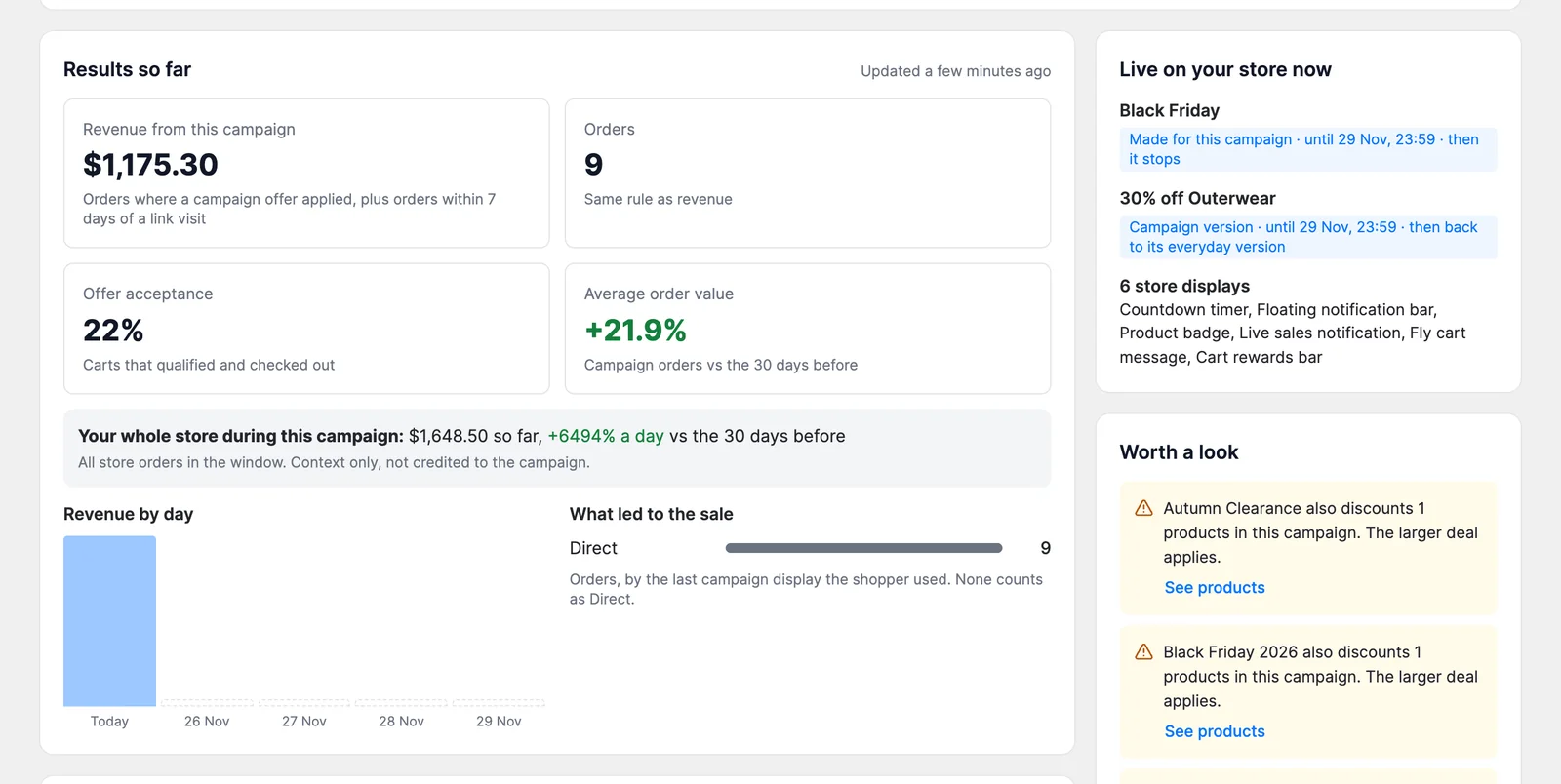
| Metric | How it is counted |
|---|---|
| Revenue from this campaign | “Orders where a campaign offer applied, plus orders within 7 days of a link visit”. The number of days follows your attribution window. |
| Orders | “Same rule as revenue” |
| Offer acceptance | “Carts that qualified and checked out” |
| Average order value | “Campaign orders vs the 30 days before” |
Under the metrics, Your whole store during this campaign shows your store revenue a day during the campaign compared with the 30 days before: “All store orders in the window. Context only, not credited to the campaign.” Use it to see whether the sale lifted the whole store, not only the campaign products.
The two charts show:
| Chart | What it shows |
|---|---|
| Revenue by day | Credited revenue for each day of the campaign. |
| What led to the sale | “Orders, by the last campaign display the shopper used. None counts as Direct.” |
How do the results change with the status?
Section titled “How do the results change with the status?”| Status | What the Results card shows |
|---|---|
| Running | “Results so far”, updated every few minutes |
| Paused | “Results up to the pause”. “Nothing new is counted while paused” |
| Ended | “Final results”, “Frozen when the campaign ended”, with a one-line summary of what it earned and how average order value compared with the 30 days before |
How do you set the attribution window?
Section titled “How do you set the attribution window?”The attribution window decides how long a campaign link visit can credit an order. With 7 days, a shopper who opens the link on Monday and buys a campaign product on Friday counts toward the campaign.
-
Go to StoreGrowth » Settings.
-
Set Campaign link attribution window (days): “How long a campaign link visit credits an order.”
-
Click Save.
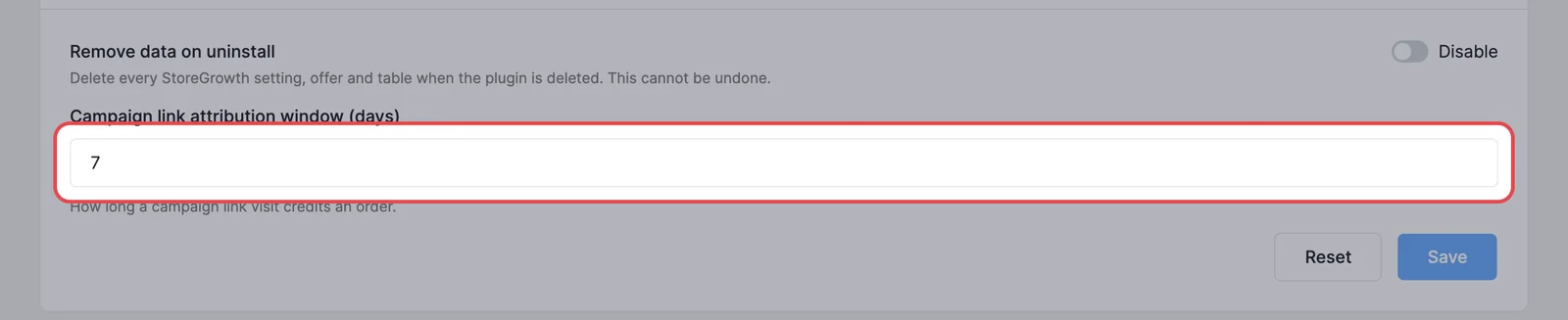
Use a longer window if shoppers often compare before they buy, and a shorter one for quick flash sales.
What does the Campaigns list add up?
Section titled “What does the Campaigns list add up?”The cards at the top of StoreGrowth » Campaigns add up every campaign in the chosen date range.
| Card | What it shows |
|---|---|
| Campaign revenue | Credited revenue from all campaigns, and its share of store revenue. |
| Campaign orders | How many orders in the date range were credited to any campaign, counted the same way as revenue. |
| AOV lift during campaigns | Average order value during campaigns “Vs non-campaign days”. |
| Best store display | The display that “Led [x]% of campaign orders”. |
What should you read next?
Section titled “What should you read next?”- Creating a campaign: add a campaign link and store displays so more orders can be credited.
- How offers work in a campaign: which offers count as campaign offers.