Cart Rewards
Cart Rewards gives shoppers a reward when their cart reaches a set amount, and shows a progress bar with how much is left to spend. Each step is a milestone: a threshold and the reward it unlocks. Cart Rewards replaces the Free Shipping Rules module from StoreGrowth 3.0.
| Reward | What the shopper gets |
|---|---|
| Free shipping | The free shipping method of your WooCommerce shipping zone |
| Coupon | A coupon you choose, shown to the shopper as a code to use |
| Free gift | A product you choose, added to the cart at no charge |
| Fixed discount | A fixed amount off the cart, shown as a discount line in the cart totals |
| Percentage discount | A percentage off the cart, shown as a discount line in the cart totals |
Rewards follow the cart as it changes. When the cart goes above a threshold, the reward is added. When the shopper removes items or lowers a quantity and the cart drops below it, the reward is taken away again.
Its settings are split across four tabs:
| Tab | What you set |
|---|---|
| Milestones | The thresholds and rewards, the bar copy and where the bar shows |
| Content | The goal completion text, the banner icon and the call-to-action button |
| Configure | Where the bar sits on the page, and when and to whom it shows |
| Design | The bar’s size, font, colors and a ready-made template |
What do you need before you start?
Section titled “What do you need before you start?”- StoreGrowth installed and active. See Installing StoreGrowth.
- For a free shipping reward, a Free shipping method in each WooCommerce shipping zone where the reward should apply. The steps are below.
- For a coupon reward, the coupon you want to give. For a free gift, the gift product.
- StoreGrowth Pro if you want more than one milestone. See Free vs Pro.
How do you turn on the Cart Rewards module?
Section titled “How do you turn on the Cart Rewards module?”-
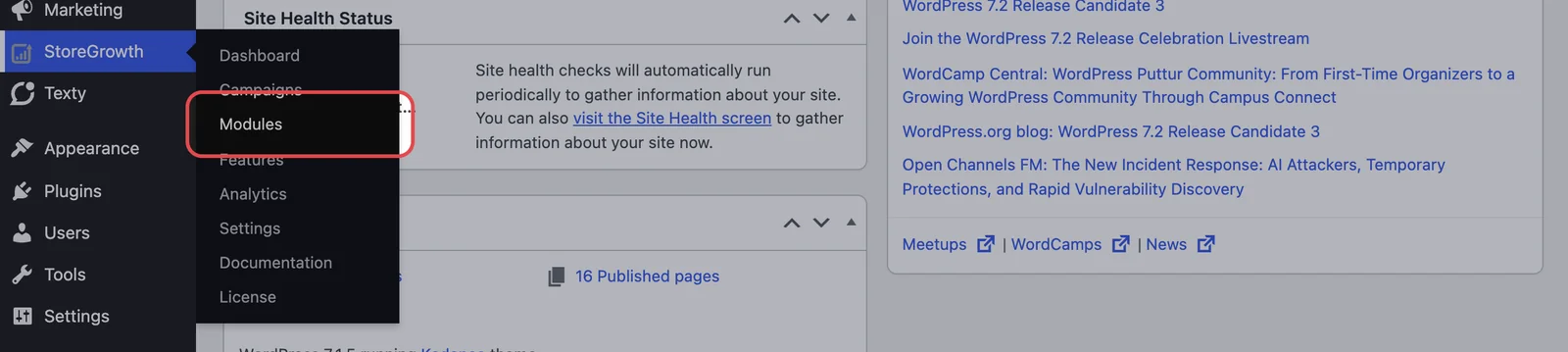
In your WordPress dashboard, go to StoreGrowth » Modules.
-
Find the Cart Rewards card. Its description reads “Milestones shoppers unlock as the cart grows, with a progress bar: free shipping, coupons and free gifts.”
-
Click the toggle on the card to turn the module on.
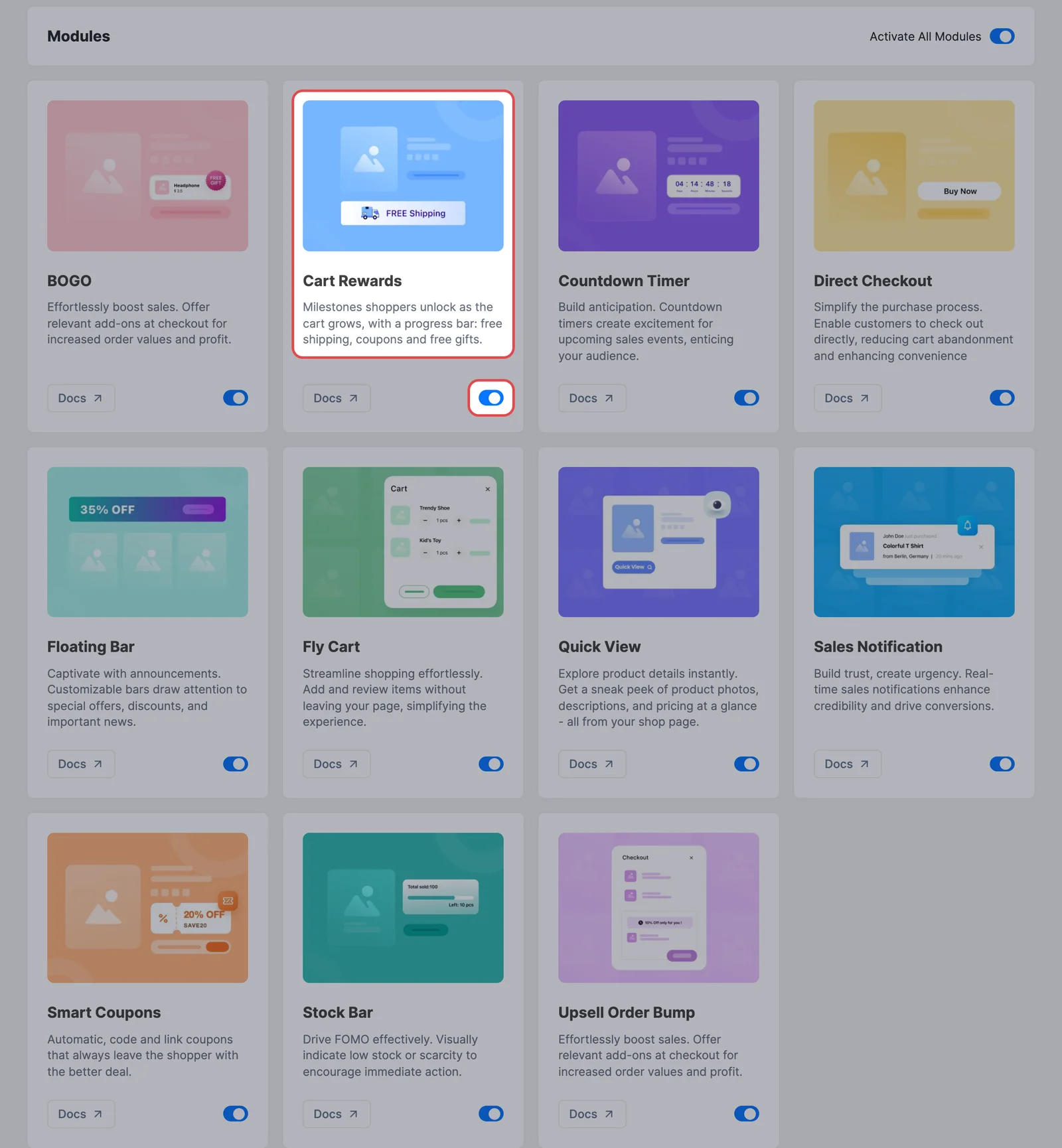
Once it is on, Cart Rewards appears in the list of features on the left of the StoreGrowth » Features page.
How do you set up free shipping in WooCommerce first?
Section titled “How do you set up free shipping in WooCommerce first?”A free shipping reward uses the Free shipping method of the shopper’s WooCommerce shipping zone. StoreGrowth does not create free shipping on its own, so each zone that should offer the reward needs this method.
-
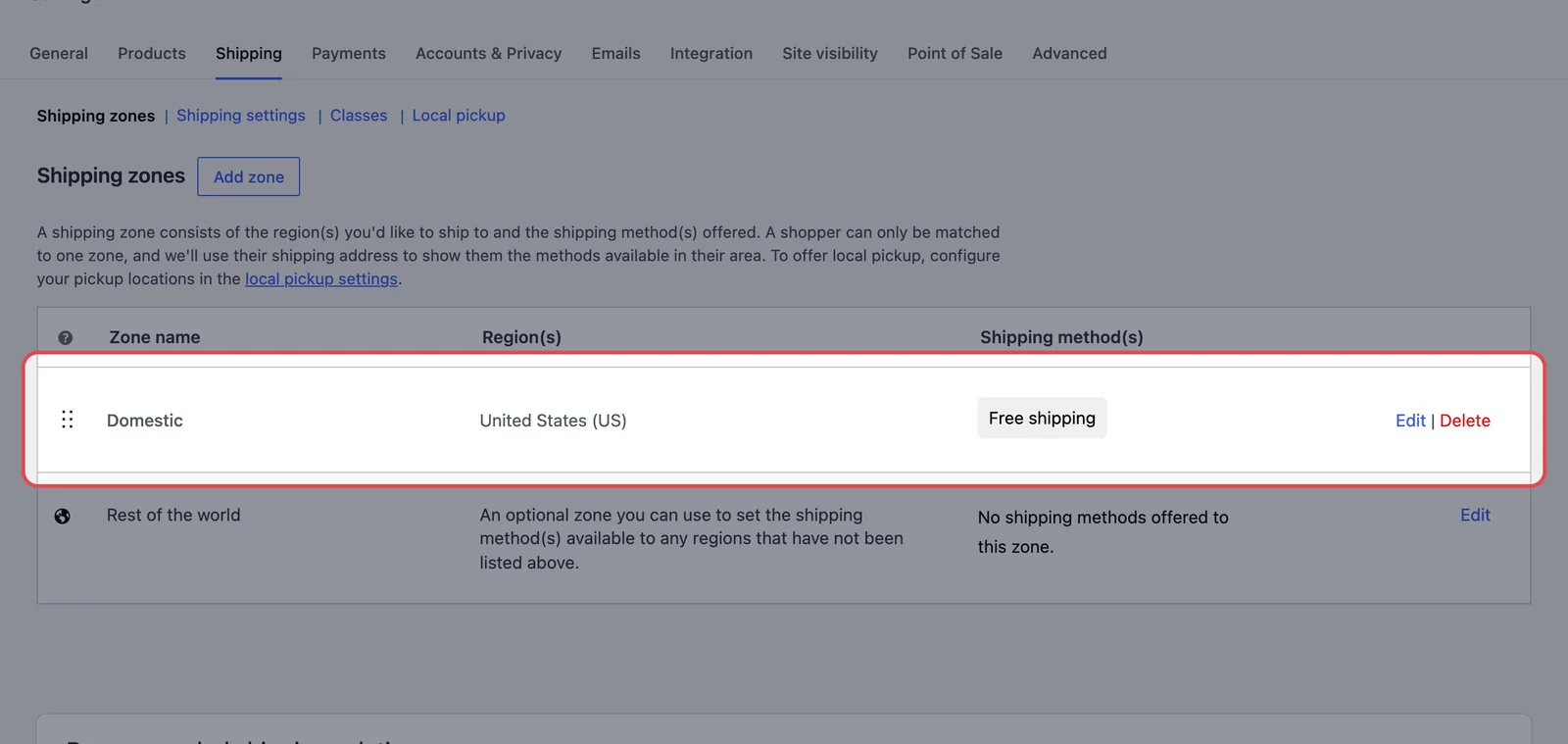
Go to WooCommerce » Settings » Shipping. The Shipping zones list shows each zone with its regions and shipping methods.
-
Click “Edit” on the zone your shoppers belong to, or click “Add zone” to create one.
-
In the zone, click Add shipping method, choose “Free shipping” and set “Free shipping requires” to “No requirement”. Cart Rewards decides when the rate shows, so you don’t need a minimum order amount here.
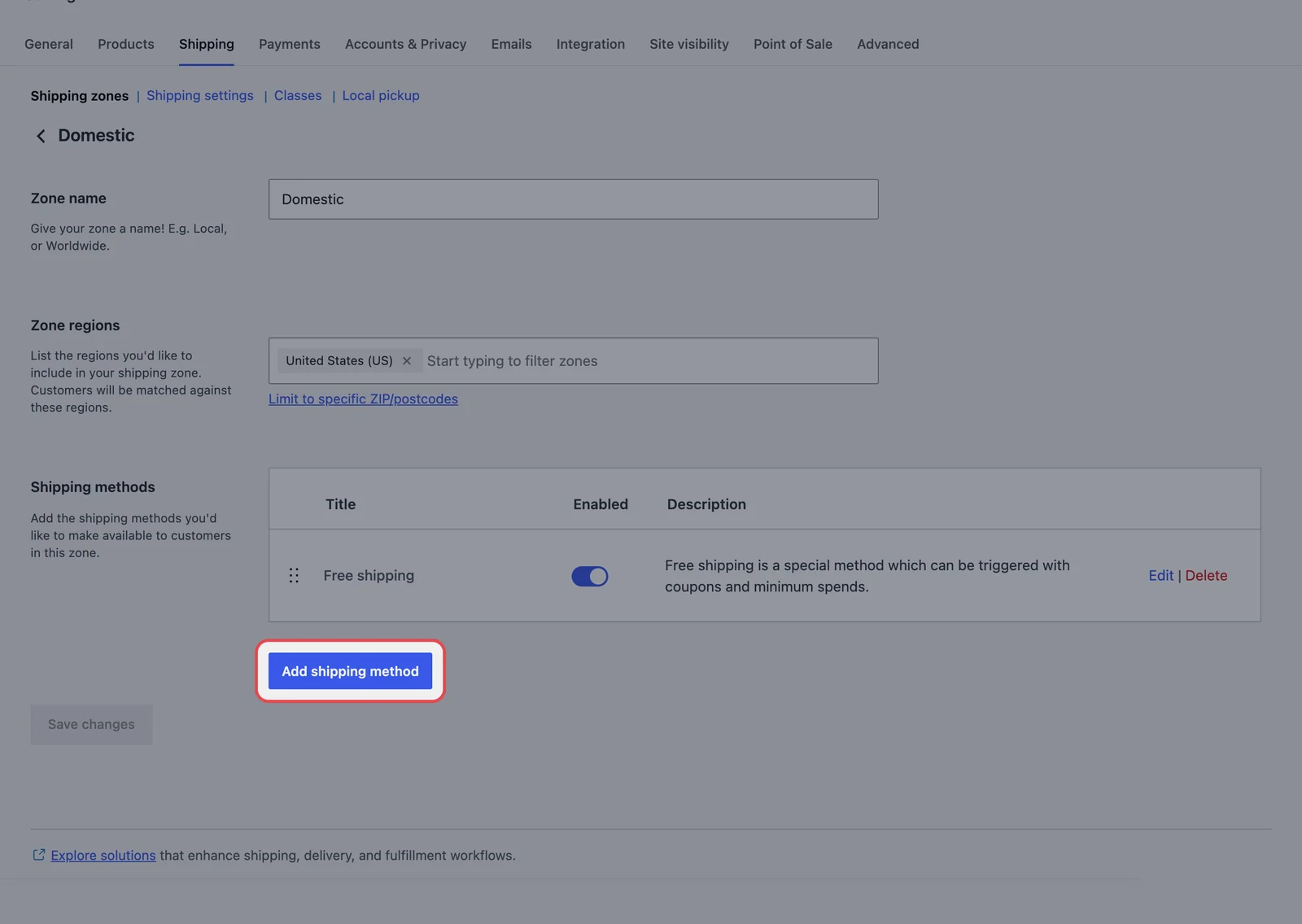
Below the milestone’s threshold, Cart Rewards hides the free shipping rate. Keep at least one paid method in the zone, or shoppers with a smaller cart see no shipping options at checkout.
If a zone has no Free shipping method, the Milestones tab warns you: “Your [zone] zone has no Free shipping method, so this reward won’t apply there.” Click Open shipping settings next to the warning to fix it.

How do you add milestones?
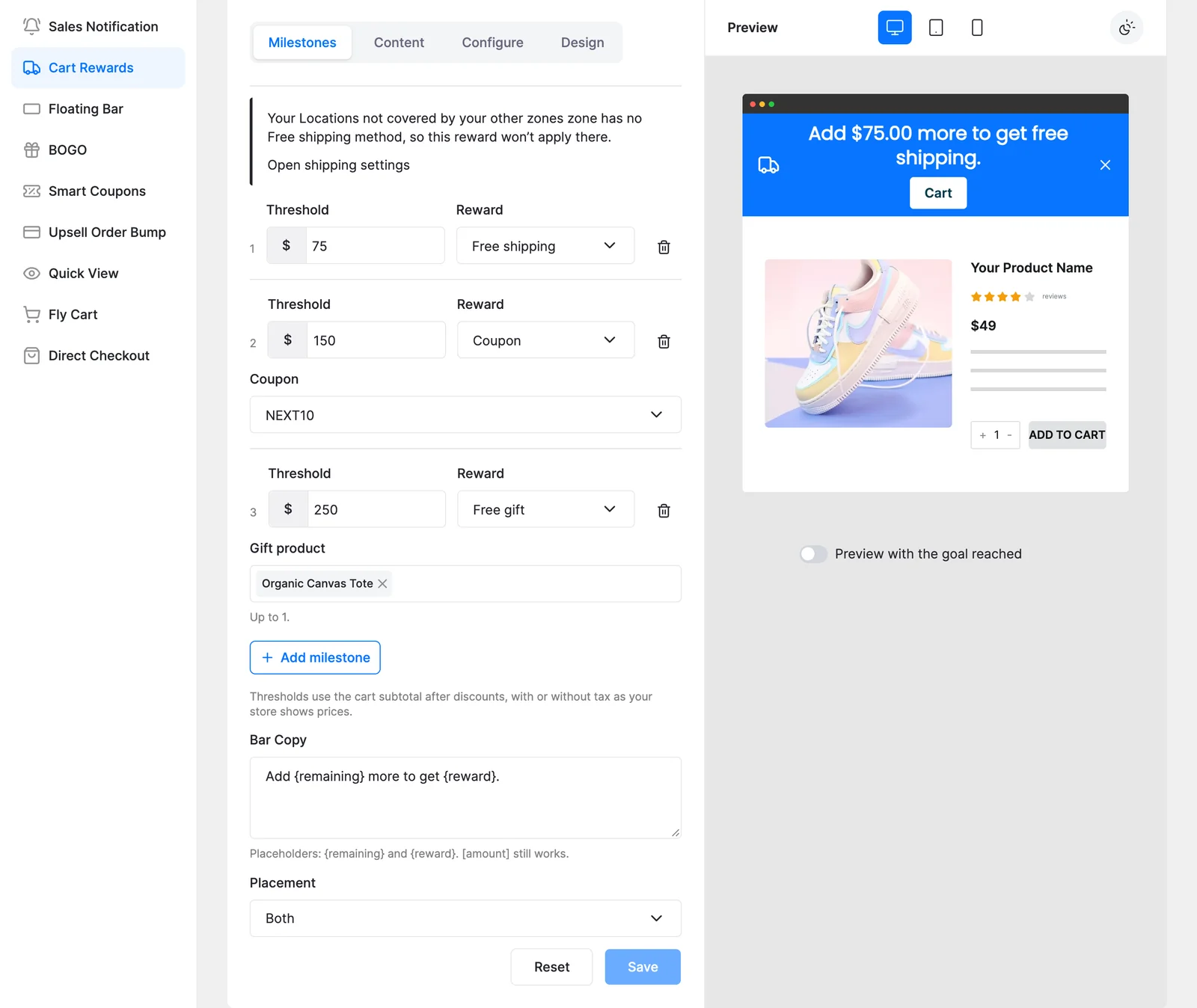
Section titled “How do you add milestones?”Go to StoreGrowth » Features and click Cart Rewards. The Milestones tab opens first. A live Preview on the right shows the bar on a sample product page and updates as you make changes. Turn on Preview with the goal reached to see the bar after the goal is met.
-
In milestone 1, enter the Threshold: the cart amount that unlocks the reward.
-
Pick the Reward. For Coupon, choose the coupon in Choose a coupon, which lists your Smart Coupons code coupons. For Free gift, pick the Gift product. For Fixed discount or Percentage discount, enter the Amount.
-
To add another step, click Add milestone. Milestones are ordered by threshold.
-
Click Save. The bar shows on your store once you save these settings.
Thresholds use the cart subtotal after discounts, with or without tax as your store shows prices. That way the “add more” amount on the bar always matches the totals the shopper sees in the cart.
| Setting | What it does |
|---|---|
| Threshold | The cart subtotal, after discounts, that unlocks this milestone’s reward. Set the first milestone a little above your average order value so most shoppers have a reason to add one more item. |
| Reward | What the shopper gets once the cart reaches the threshold: Free shipping, Coupon, Free gift, Fixed discount or Percentage discount. |
| Remove milestone | Deletes the milestone. The others keep their thresholds and rewards. |
| Add milestone | Adds the next step. Each milestone has its own threshold and one reward. |
| Bar Copy | The message on the progress bar before the shopper reaches the next milestone. Under the box: “Placeholders: {remaining} and {reward}. [amount] still works.” {remaining} is the amount left to spend and {reward} names the next reward. The default is “Add more [amount] to get free shipping.” |
| Placement | Where the progress panel shows: inside the Fly cart, at the top of the Cart page, or Both. The site-wide bar is set on the Configure tab. The bar lists every milestone with its amount, for example “$75.00 · free shipping”. Choose Fly cart if most shoppers check out from the side cart. |
How do you set the bar’s text and button?
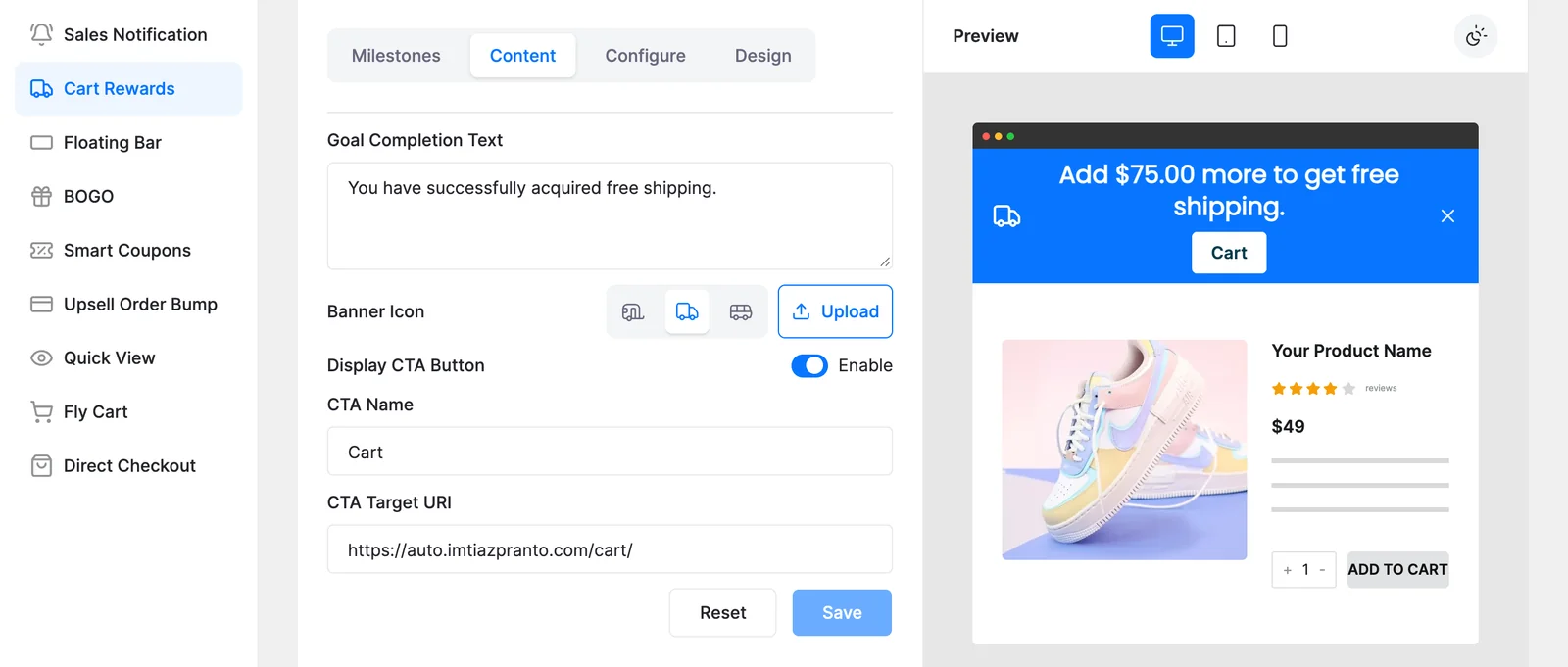
Section titled “How do you set the bar’s text and button?”The Content tab sets the message once the goal is reached, the icon and the call-to-action button.
| Setting | What it does |
|---|---|
| Goal Completion Text | The message on the bar once the shopper has unlocked the reward, for example “You have successfully acquired free shipping.” Keep it short so it fits on one line on mobile. |
| Banner Icon | The small icon at the left of the bar’s message. Pick one of the ready-made icons, or click Upload to use your own image. |
| Display CTA Button | Turns the call-to-action button on the bar on or off. |
| CTA Name | The label on the button, for example “Cart”. |
| CTA Target URI | The page the button opens, for example your cart page. |
How do you choose where and when the bar shows?
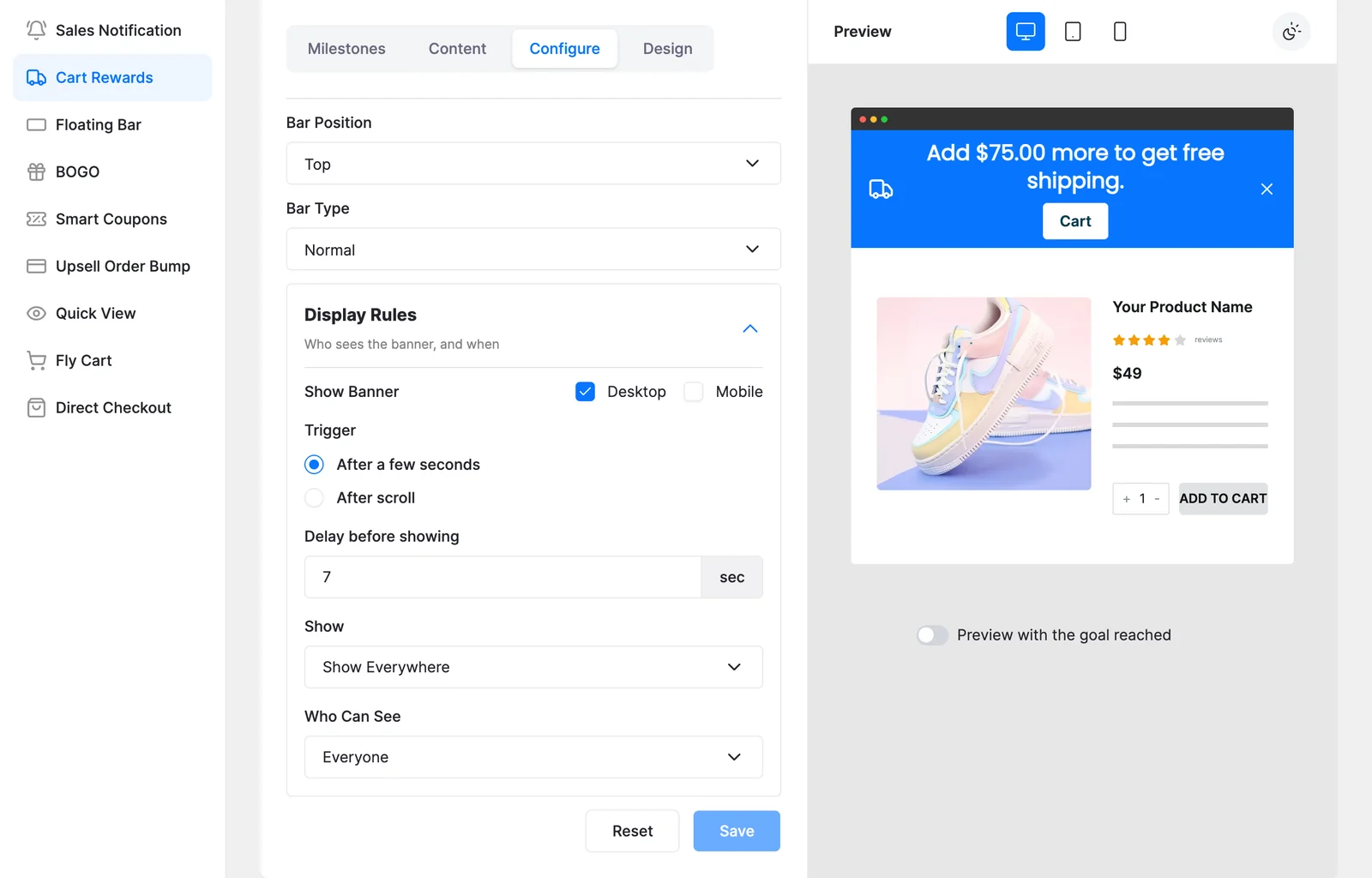
Section titled “How do you choose where and when the bar shows?”Cart Rewards shows its message in two places. The progress panel sits where Placement puts it, in the Fly Cart or on the cart page. A site-wide bar also runs across the top or bottom of every page, and the Configure tab controls where that bar sits and when it shows.
| Setting | What it does |
|---|---|
| Bar Position | Puts the bar at the Top or the Bottom of the storefront page. |
| Bar Type | Sticky keeps the bar fixed on screen while the shopper scrolls. Normal lets it scroll away with the page. |
Display Rules
Section titled “Display Rules”“Who sees the banner, and when”
| Setting | What it does |
|---|---|
| Show Banner | Tick Desktop, Mobile or both to choose which devices show the bar. With neither ticked, the bar is not shown on the store. |
| Trigger | When the bar appears: After a few seconds (set the wait in Delay before showing) or After scroll, once the shopper has scrolled past the bar’s height. |
| Delay before showing | Seconds the page waits before the bar appears. A short delay lets shoppers see the page first. |
| Show | Show Everywhere puts the bar on every page. Show on Specific Pages limits it to the page types you pick, such as the front page or single product pages. |
| Who Can See | Limits the bar to Everyone, Logged-in customers or Guests only. |
How do you style the bar?
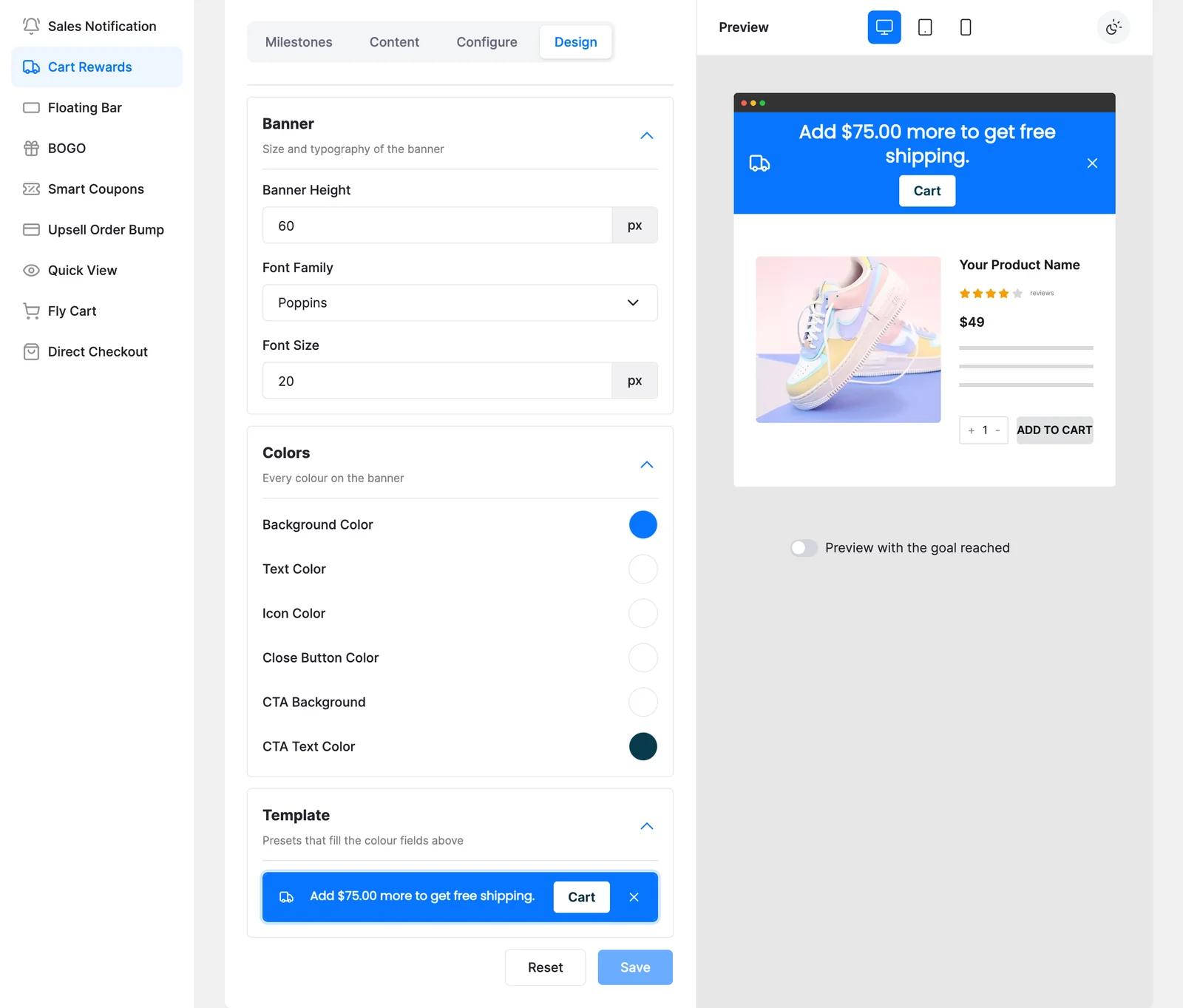
Section titled “How do you style the bar?”The Design tab styles the bar so it matches your store.
Banner
Section titled “Banner”“Size and typography of the banner”
| Setting | What it does |
|---|---|
| Banner Height | How tall the bar is, in pixels, across the top or bottom of the storefront. |
| Font Family | The typeface of the bar’s message. The choices are Poppins, Inter, Roboto, Open Sans, Lato, Montserrat and IBM Plex Sans. |
| Font Size | The size of the bar’s message text, in pixels. |
Colors
Section titled “Colors”“Every colour on the banner”
| Setting | What it does |
|---|---|
| Background Color | Fills the whole bar behind the message. |
| Text Color | Colors the message text in the bar. Pick a color that stays readable on your Background Color. |
| Icon Color | Colors the icon at the left of the message. |
| Close Button Color | Colors the close (x) button at the right end of the bar that shoppers click to dismiss it. |
| CTA Background | Fills the call-to-action button. It only appears when Display CTA Button is on. |
| CTA Text Color | Colors the label of the call-to-action button. |
Template
Section titled “Template”“Presets that fill the colour fields above”
The picker offers Blue template, which sets a blue bar with white text, icon and close button.
What does the shopper see?
Section titled “What does the shopper see?”The progress panel and the site-wide bar show what is left to spend for the next milestone, using your Bar Copy, for example “Add $51.00 more to get free shipping.” Below the message, each milestone shows its amount and reward.
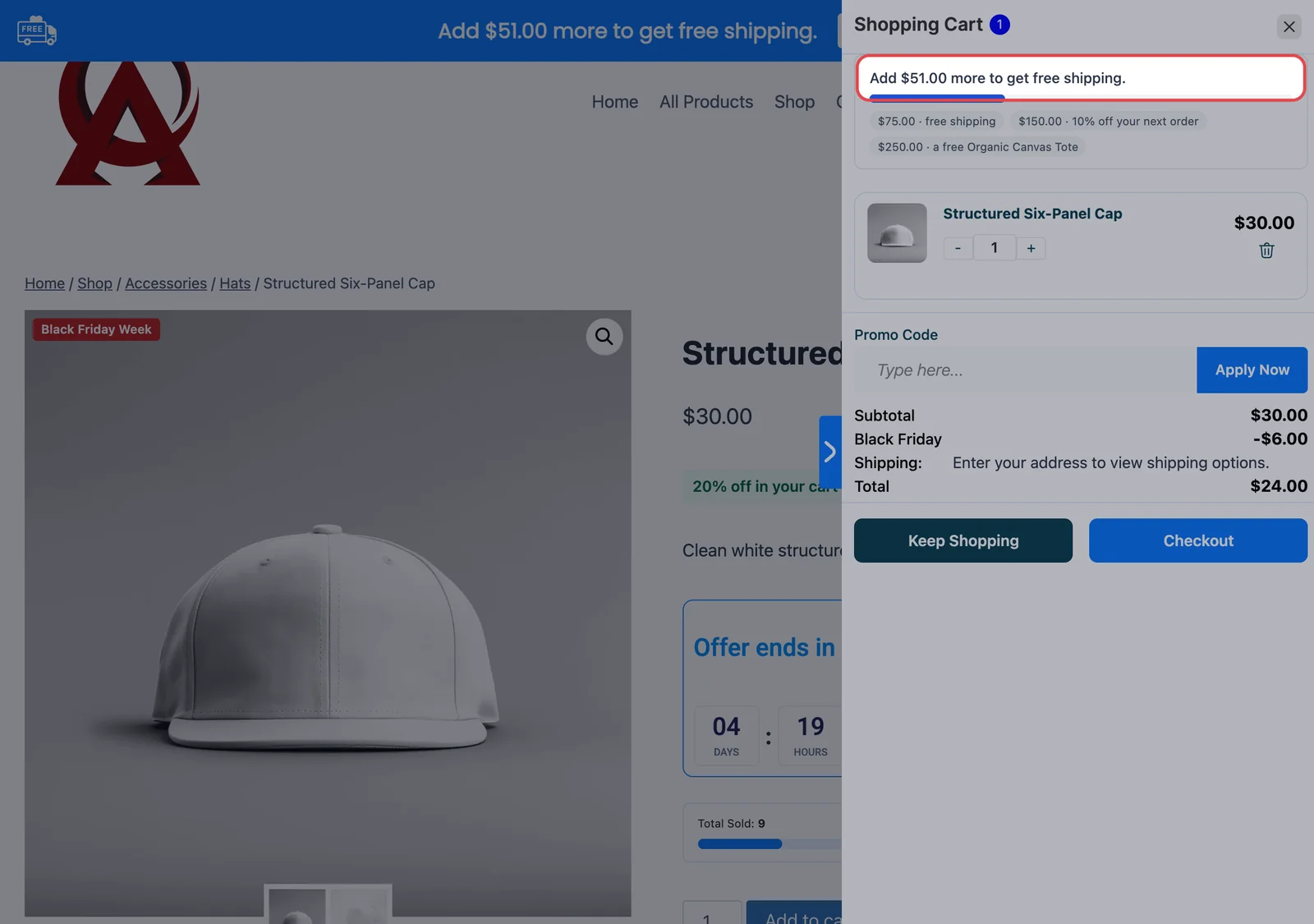
Once the cart reaches a threshold, the reward applies right away:
| Reward | What the shopper sees |
|---|---|
| Free shipping | The free shipping rate in the cart totals and at checkout. |
| Coupon | A line on the bar with the code, for example “You unlocked 10% off your next order: NEXT10”. |
| Free gift | The gift product added to the cart at $0.00, marked “Reward: Free gift”. |
When every milestone is reached, the bar shows your Goal Completion Text.
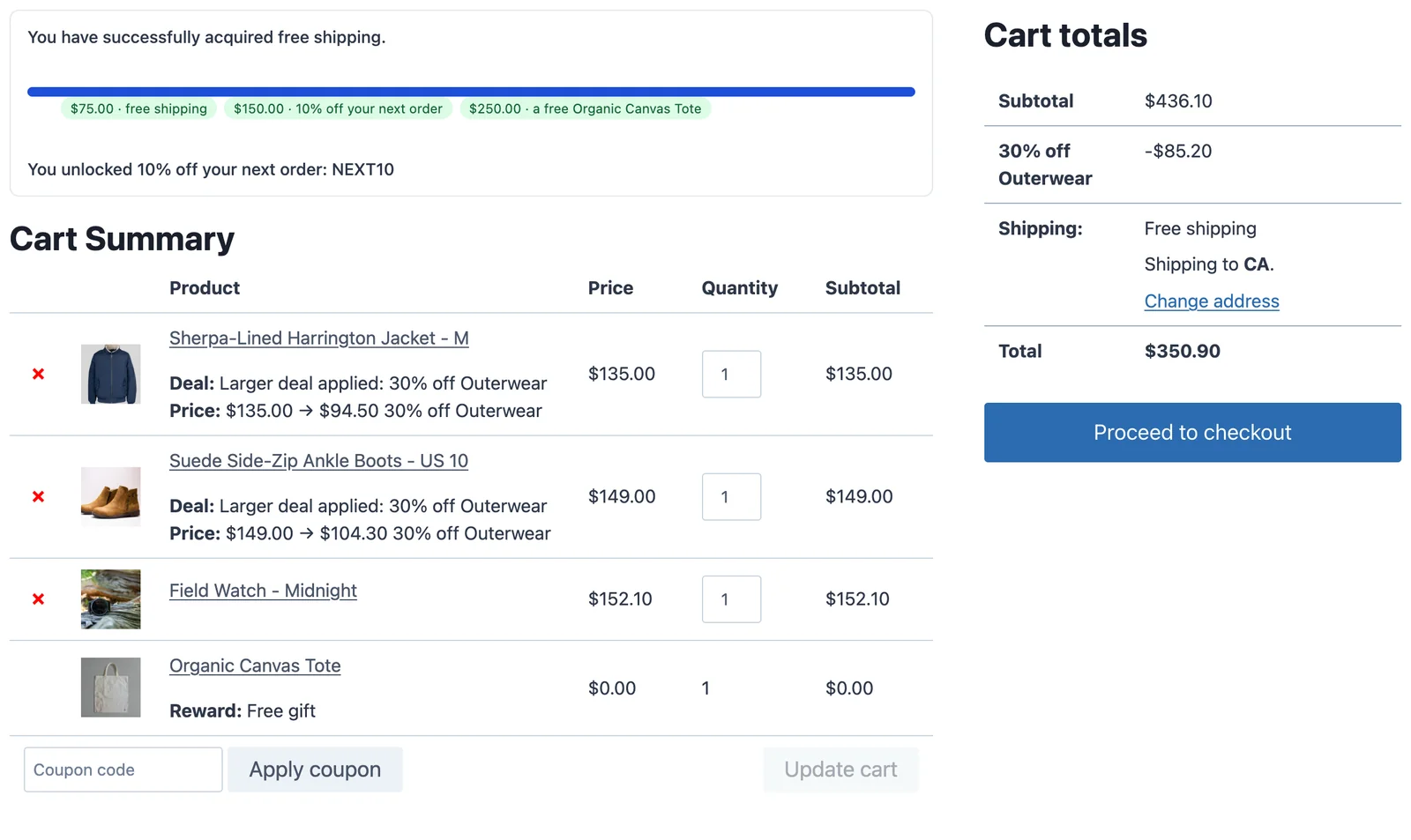
A reward never competes with other discounts in the cart. It applies whenever its threshold is met.
How does Cart Rewards work in a campaign?
Section titled “How does Cart Rewards work in a campaign?”A campaign can turn on the Cart rewards bar as one of its store displays. The bar then shows the campaign’s own text while the campaign runs: “Your Cart Rewards milestones, with campaign copy on the bar.” Your milestones stay the same.
What if something doesn’t work?
Section titled “What if something doesn’t work?”| Problem | What to do |
|---|---|
| Shoppers reach the threshold but don’t get free shipping | Check the Milestones tab for a zone warning, then add a Free shipping method to that zone in WooCommerce » Settings » Shipping. |
| The bar shows a different amount from the cart total | Thresholds count the subtotal after discounts, with or without tax as your store shows prices. Compare the bar with the cart subtotal, not the order total with shipping. |
| You can’t add a second milestone | More than one milestone needs StoreGrowth Pro. |
| The bar doesn’t appear | Click Save on the Milestones tab, then check Show Banner and Who Can See on the Configure tab. |
What should you set up next?
Section titled “What should you set up next?”- Fly Cart: give shoppers a side cart where the rewards bar can show.
- Smart Coupons: create the coupon a milestone gives away.
- Campaigns: show campaign text on the rewards bar during a sale.